Summary
The Duplicate Check function, accessed from the Resource List screen, compares the contents of one or more fields in each of the records in that list. Any records that share the same entry, in the same field, will include a Duplicate tag. The tag is the means to returning a list of all duplicate records identified once the check for duplicates has been completed. Once a list of duplicate resources is returned staff can decide whether to merge the duplicates or just delete them. A merge process may then be completed if there are copies tied to each of the duplicated resources.
This guide will provide the steps required to complete a duplicates check process.
Complete a Resources Duplicate Check
The example provided is a duplicate check on the value in the ISBN or ISSN field. Note that the Duplicate Check function performs an ‘or’ search, not an ‘and’ search.
- Navigate to Cataloging > Resources > Search and complete a search in the usual manner.
- From the Resources > List screen click on the Duplicate Check icon.
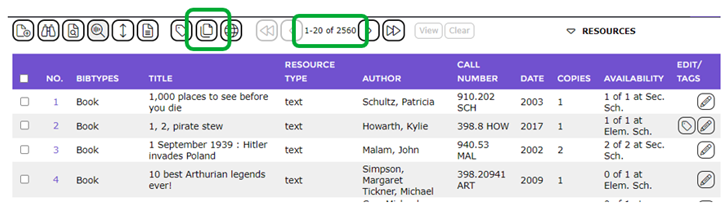
- The Duplicate Check screen will display. Note that the value in the Record count field in this screen should match the number of resources in the previous results List screen.
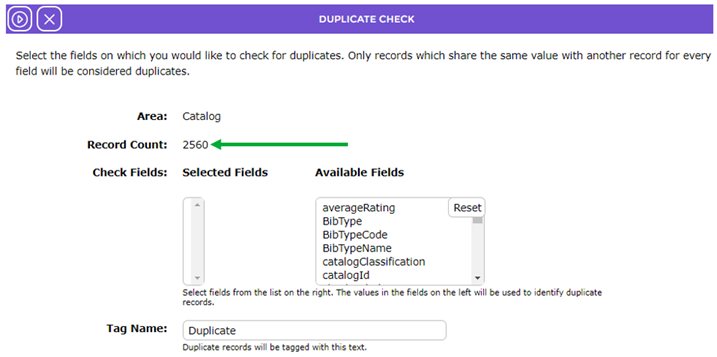
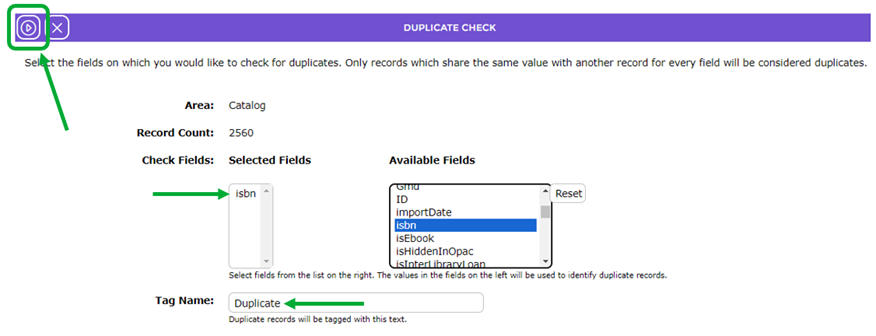
- In the Available Fields list box, scroll if necessary and click on the field to be the one used to check for duplicates, for example, isbn. You can choose more than one field to check if you like.
- The field(s) you clicked on will display in the left-hand side list-box.
- The term Duplicate will display in the Tag name field by default.
- Click on the Check now icon.
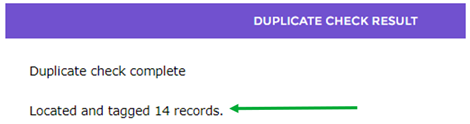
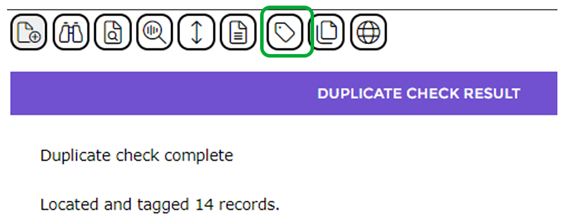
- The Duplicate Check Complete screen will display and identify how many records were located and tagged.

Access the List of Duplicate Tagged Resources
To access the list of duplicate resources:
- Click on the Tag Manager icon in the Duplicate Check Result screen.
- Ensure Resource is selected in the Area field. If you accessed the Tag Manager screen Resource will display by default.
- Click on the right facing Arrow in the Run Query column that corresponds to the Duplicate tag.
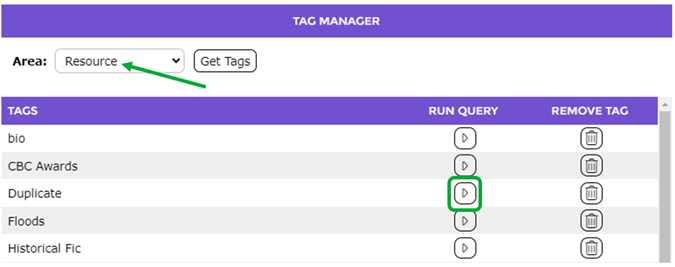
- The Resource List screen will include only records flagged with the Duplicate tag. Be aware that if records already exist in the system with a Duplicate tag, the number will increase by the number of duplicates identified in the last duplicate check process.
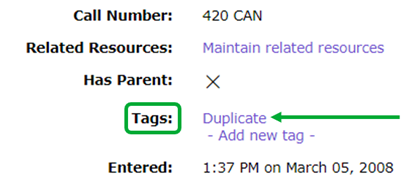
- Access the Detail screen of one or two of the records, scroll to the Tags field and confirm the Duplicate tag displays in the Tags field.
Was this article helpful?
That’s Great!
Thank you for your feedback
Sorry! We couldn't be helpful
Thank you for your feedback
Feedback sent
We appreciate your effort and will try to fix the article