Summary
The temporary checkouts functionality allows for the creation of an “on the fly” temporary record.
If an attempt is made to issue an item not recognized by the system, the staff member can create a brief record for the item with a temporary resource loan category (RLC). It is not a mandatory function.
Requirements for Temporary Checkout Functionality
Create A Temporary Checkout Resource
To create a temporary checkout resource, navigate to Cataloging > Resources, and select the ‘Add’ icon  . Create a basic resource record called “Temporary Checkout”. At the bottom of the edit screen, ensure the Yes radio button, in the Temporary Checkout Resource field, is activated.

This ensures that any barcode scanned or manually entered in the Circulation Desk is linked to this resource record.
Create a Resource Loan Category
An RLC of Temporary Checkout with applicable checkout limits is required as a temporary resource record is required for all items including a “temporary” one.
Navigate to Circulation > Resource Loan Categories and select the ‘Add’ icon. Create a new Resource Loan Category called “Temporary Checkout”. You do not need to make any changes on the details screen. Click the ‘Save’
  icon.
icon.
Navigate to Circulation > Lending Rules. For any applicable Patron Loan Categories, add a lending rule to allow lending of Temporary Checkouts.
Enable Related User Privilege Operations
Navigate to System > User Privileges and click the record number next to the appropriate user privilege (i.e., for Administrators, click ‘Administration’).
Click the ‘Edit’  icon. Then find the operation listed below by selecting Access to the ‘Circulation’ Module > Access to ‘Circulation Desk’.

To permit users to create a temporary record in the circulation desk, ensure the checkbox next to /circulation/circulationDesk/allowMakeTemporaryLoan/automatic includes a check.
If a Yes/No option message enabling the logged in staff member to decide whether to complete a temporary checkout or not is to display, ensure the checkbox next to /circulation/circulationDesk/allowMakeTemporaryLoan/ includes a check.
Complete a Temporary Checkout Process
- When an unrecognized barcode is scanned into the Checkouts tab in Circulation Desk a “no match” message will display below the entry field.
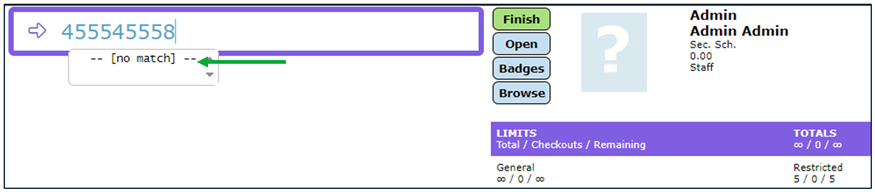
- Hit the Enter key on the keyboard. If the logged in user has the applicable User Privilege operations activated, the Temporary Checkout popup screen will display.
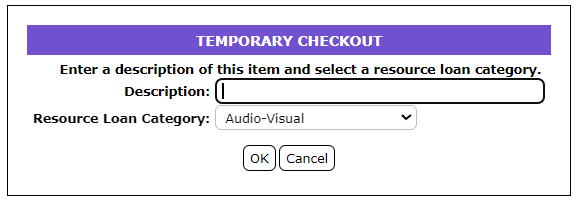
Note: If the item does not have a barcode, staff can just enter a series of numbers into the field, for example, 1234, and hit the Enter key to display the Temporary Checkout popup screen.
TIP: A message with a Check and an X icon will display if the logged in patron is authorized to decide whether to complete a temporary checkout if an unrecognized barcode is scanned or entered. Clicking the Check icon will display the Temporary Checkout popup screen.
For staff with automatic permission to complete a temporary checkout, the Temporary Checkout popup will display immediately. |
- Enter a name in the Description field. It could be the title or a meaningful code.
- Ensure the Temporary Checkout RLC is selected in the Resource Checkout Category field.
- Click the OK button.
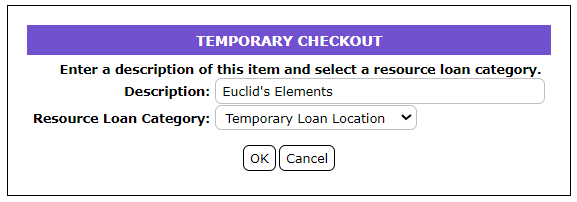
- The copy is issued to the patron.
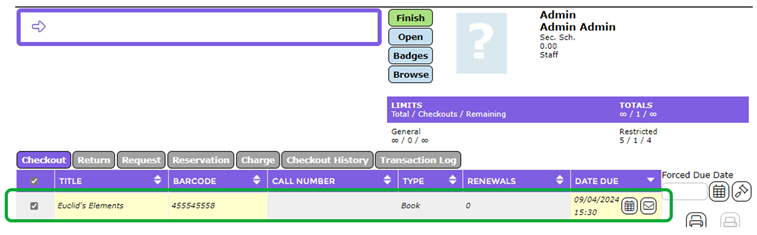
The temporary checkout item’s barcode is the one that was entered/scanned in the entry field. The title and the barcode entered in the Temporary Checkout popup screen does not create a resource and copy record. Do not use this temporary barcode for any other item you catalog.
Returning a Temporary Checkout
As the item has a barcode that is not matched when the temporary checkout item is returned, a no match message will display.
- Once the no match message displays, hit the Enter key on your keyboard.
- The item is returned and the information message “This was a temporary checkout” will display.
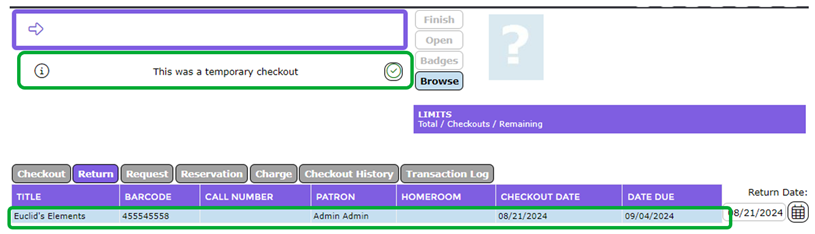
The item should be put aside and processed to replace the barcode if the existing one is corrupted/damaged.
Was this article helpful?
That’s Great!
Thank you for your feedback
Sorry! We couldn't be helpful
Thank you for your feedback
Feedback sent
We appreciate your effort and will try to fix the article