Summary
Emails sent from or to the library can be deleted via the Emails sub-menu option under the Management main menu option. All of the emails or emails between a selected date range can be deleted from the system.
This guide provides the steps required to delete all emails and emails with in a date range.
Delete Emails within a Date Range
The example will use the start date of the oldest email listed in the Emails screen, which displays by default in the Start date field and the 06/12/2013 in the End date field.
- Navigate to Management > Emails. The List or Search screen will display.
- If the List screen displays, click on the Browse button or complete a search to return a list of emails.
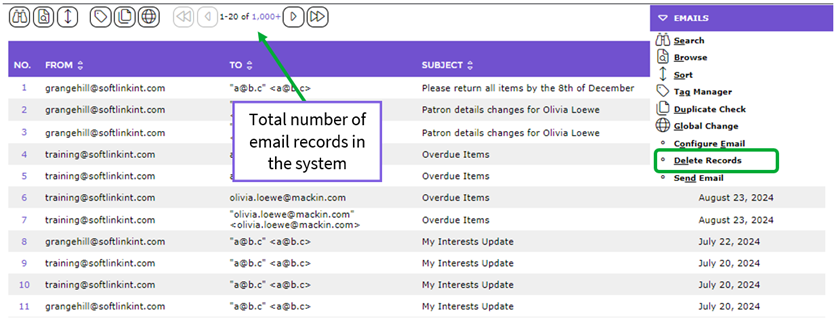
- Hover over the Emails Function menu and from the drop-down displayed click on Delete Records.
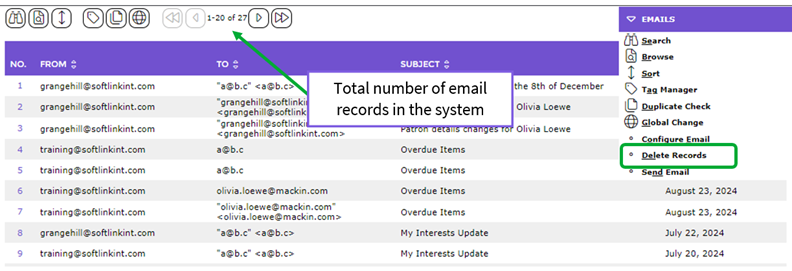
4. The Find old emails screen will display.
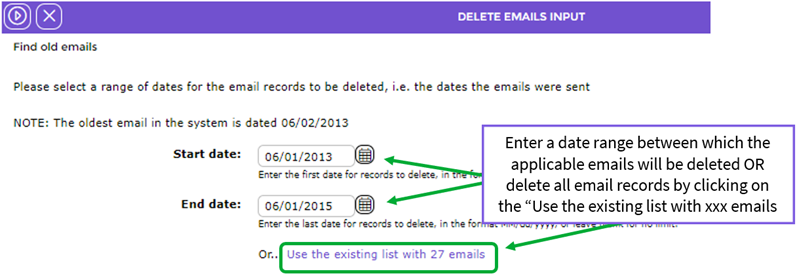
5. In the screen you can either enter a Start date and End date to delete emails from and to the specified dates or click on the Use the existing list with <number of> emails to delete all emails.
6. By default, the oldest date on emails in the system displays in the Start date field. If there are old emails you wish to keep change this date to the one required otherwise leave the default date unchanged. You can manually enter the date or use the Calendar icon to choose the date.
7. By default, “today’s” date displays in the End date field. In this example, the date will be changed to the 01/09/2015. You can manually enter the date or use the Calendar icon to choose the date.
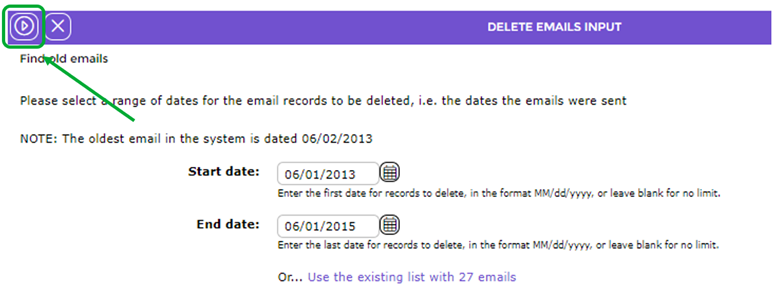
8. When the dates have been entered, click the Find button.
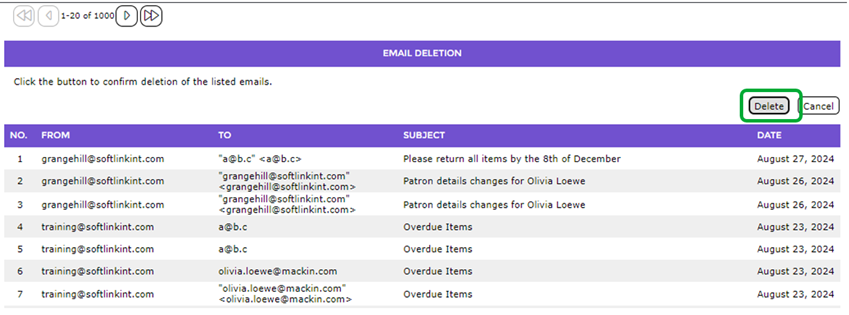
9. The Delete Records List screen will display. The number between the left and right facing arrows, at the top of the screen, identifies how many email records will be deleted. If the number seems to be too high click the Cancel button and reset the date range before click the Find button again.
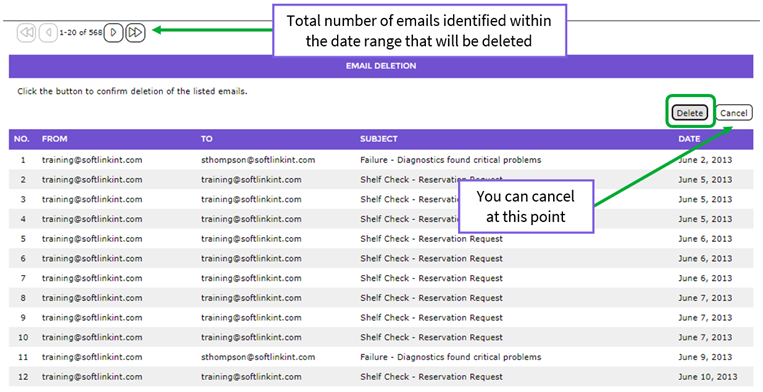
10. To continue, click the Delete button.
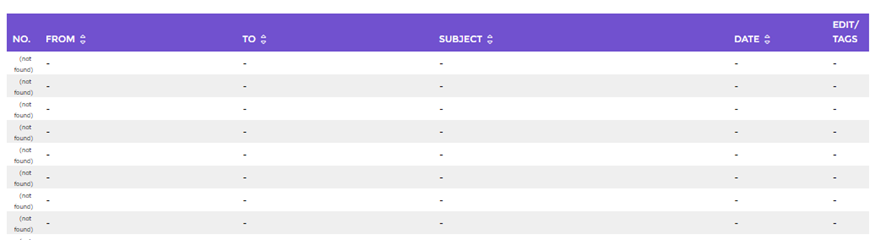
11. The Emails List screen will display and all relevant email records will no longer display.
Delete all Emails
1. Navigate to Management > Emails. The List or Search screen will display.
2. As you will need to have a list of emails displayed before you can complete a delete process, click on the Browse to display the list of emails.
3. In the List screen hover over Function and click on the Delete Records menu option.
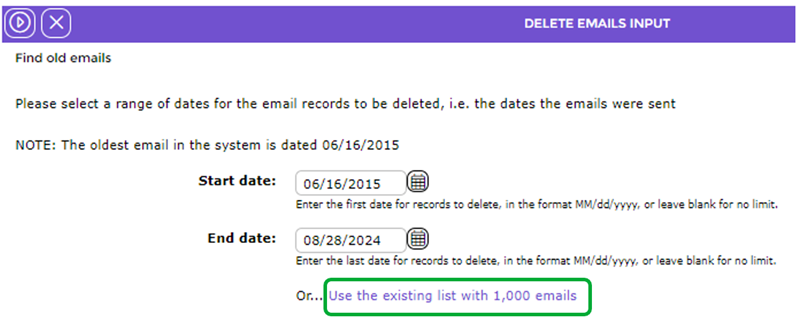
4. The Find old emails screen will display.
5. The dates automatically displayed in the Start date and End date fields identify the oldest date and the latest date on all emails records in the system. The dates will remain unchanged.
6. Click on the Use the existing list with <applicable number>emails link as all of the emails are to be deleted.
7. The Delete Records List screen will display.
8. Click the Delete button.
9. The Emails List screen will display and all emails no longer display.
Was this article helpful?
That’s Great!
Thank you for your feedback
Sorry! We couldn't be helpful
Thank you for your feedback
Feedback sent
We appreciate your effort and will try to fix the article