Summary
A list of all emails and the subject to which they relate are listed in Management > Emails. Emails can be sent to Patrons notifying them of overdue items, holds that are now available or emails sent from a Recall process. Emails sent by one library to other libraries in the system requesting Shelf Checks for example, will also be listed as will emails sent by Patrons for requests or inquiries via the Search interface.
This guide will provide the steps required to access, view and resend undeleted library generated emails. A separate guide provides the steps required to delete emails.
To Access Emails
- Navigate to Management > Emails > List.
- A list of all undeleted emails sent by the library will display.
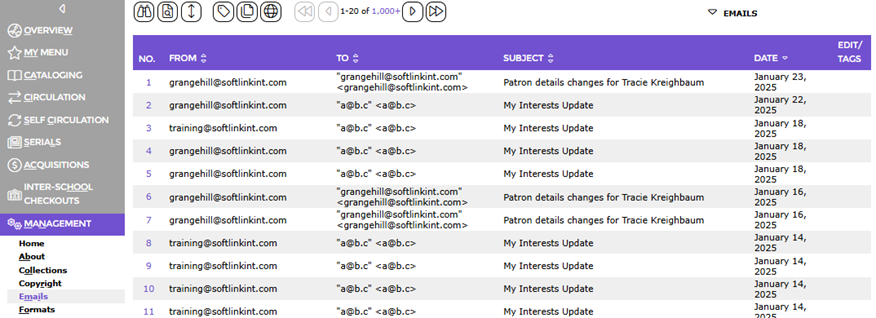
- The screen identifies the From email address, the To email address, the subject of the email and the date it was sent. Each email entry includes a number corresponding to its position in the List.
View Email Content and Resend
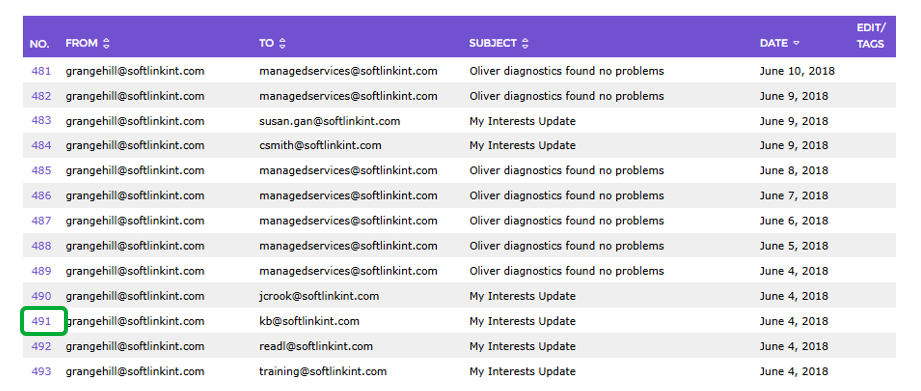
- Click on the corresponding number in the Emails List screen, for example, 491, to view the email contents.
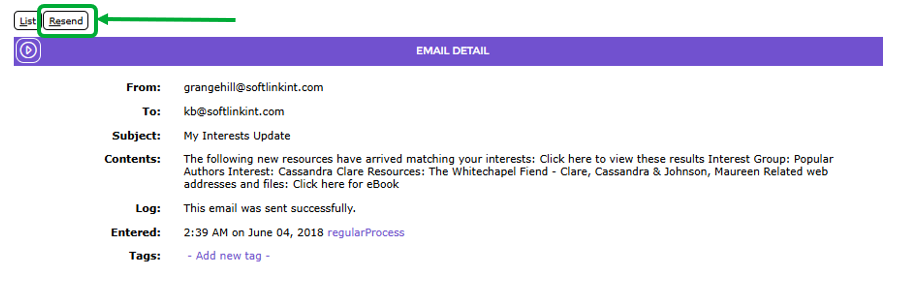
- While the Subject column in the List screen identifies what the email relates to, once accessed, the full Contents section of the email is available for viewing. This view also identifies whether the email process was successful and the time it was sent.
- The Log field indicates whether the email process was successful. If the email was sent but reported as not being received, staff can check the spam filter to see if it has blocked any emails.
- Resend the email, if required, by clicking the Resend button.
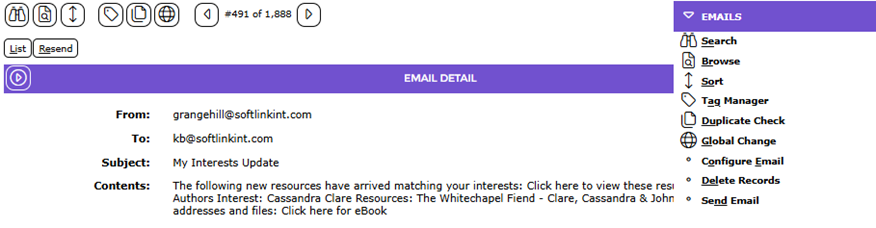
- The Emails Function menu includes the standard Search, Browse, and Sort options. The Delete Records and Send Email options are accessed via the Function menu.
Was this article helpful?
That’s Great!
Thank you for your feedback
Sorry! We couldn't be helpful
Thank you for your feedback
Feedback sent
We appreciate your effort and will try to fix the article