Summary
There are three sounds that can be add to Inventory messages. One of those sounds can be selected on each or a few of the related condition parameters. The sound will play whenever any message, to which that sound is applied, displays in the Inventory Detail screen when a barcode is scanned in.
Note: Any computer, used to scan barcodes of inventory items, must have a sound card installed.
This guide will provide the steps required to firstly select the error, warning and success sounds and then select the applicable sound to each of the messages that may display when scanning barcodes into an inventory section. A separate guide provides the steps required to complete an inventory.
Inventory Sound Parameters
Different browsers support different sound file types. They are as follows:
- IE – wav and mp3
- Safari – wav and mp3
- Firefox – wav and ogg
- Chrome – mp3 and ogg
Attach Sounds to Inventory Messages
1. The sound parameters are accessed via Management > Parameters and clicking on the Inventory option
2. Parameter No.2400 Enable Inventory Sounds should be set to Yes.

Parameter Nos. 2401 - 2403 are provided to enable staff, with the applicable User Privileges, to set the sound files that are to be used depending on whether an error, a warning or, no message is displayed when a barcode is scanned into an inventory section.
3. Click on the “Choose File” button to locate and upload the applicable sound file.

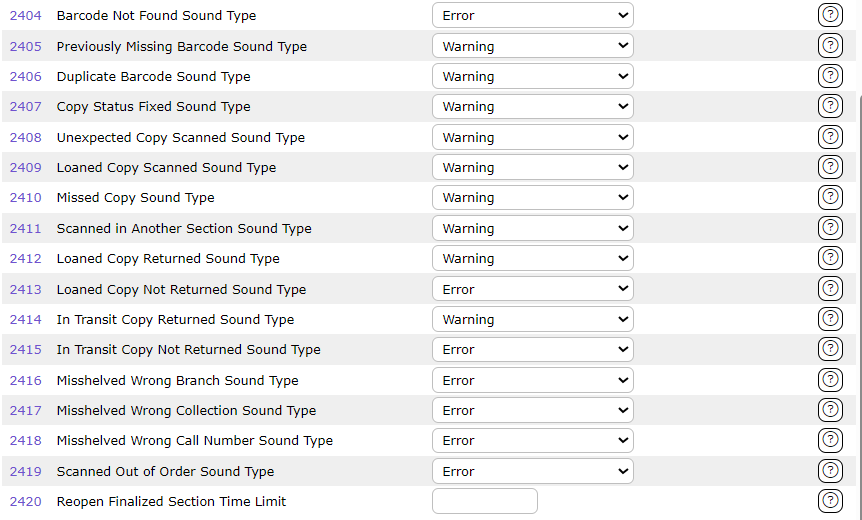
Parameter Nos. 2404 – 2419 correspond to each individual message that may display when scanning barcodes into the inventory section. If a sound is added, to a message parameter, the applicable sound would play if a transaction prompts the message. It is advisable that an applicable sound be tied to a select number of messages.
Select the Applicable Sound File

Parameter No. 2401 - Scan Success Sound provides a Choose File button. If you do want a sound to be made, when scanned in barcodes do not prompt the display of a message, click on the Choose File button. The Choose File to Upload popup screen will display. From there locate and upload the sound file to be used.
Parameter No. 2402 - Scan Warning Sound provides a Choose File button which, when clicked, will take you to the Choose File to Upload popup screen. From there you can locate and upload the sound file to use when a scanned in barcode prompts a warning message.
Parameter No. 2403 - Scan Error Sound provides a Choose File which, when clicked, will take you to the Choose File to Upload popup screen. From there you can locate and upload the sound file to use when a scanned barcode prompts an error message.
Add the Applicable Sound File to a Message
It may be preferable to attach a sound only to messages that require an action, so the staff are instantly alerted to those barcodes, rather than attaching a sound to every conceivable message that could display. For example, you may decide that the Barcode not found message requires the error sound to alert the staff member of a problem that requires further action. In the case of the duplicate barcode message, displayed when a barcode is scanned more than once, you may decide that no sound is necessary as the system does not count barcodes already scanned which requires no further action needs to be taken.
There are certain messages that may display, for example the “barcode not found” message, for which a sound should play to alert the staff member. If so, you would select Error from the drop-down list of options available for Parameter No. 2404. The staff member can then attempt to scan the barcode again. Then if the barcode could not be read, the staff member would proceed according to the library’s workflow process, for example, replacing the barcode.
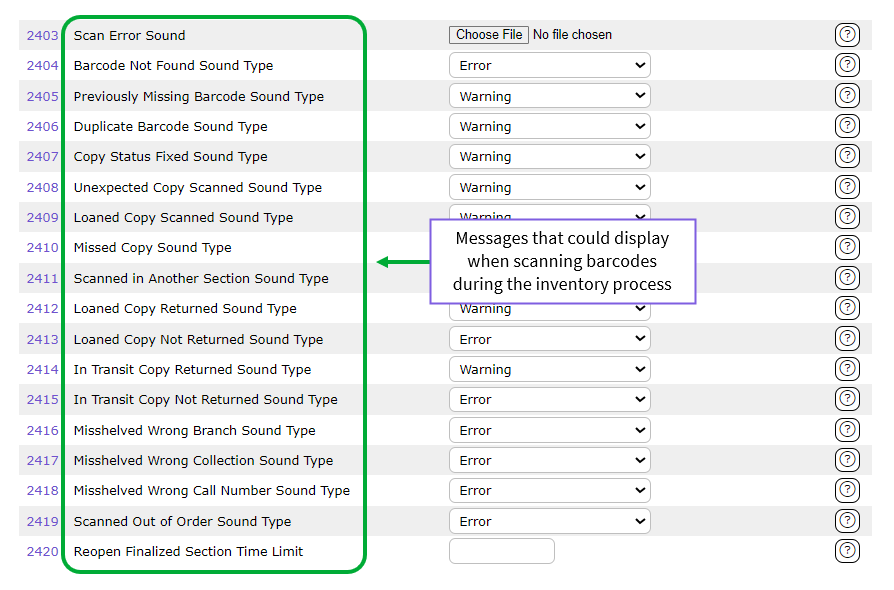
Parameter No. 2404 - Barcode Not Found Sound Type includes a drop down selection the options of which are Error, Warning, and Success. Select the sound to play when the “Barcode <x> not found” message displays in the Inventory screen.
Parameter No. 2405 - Previously Missing Barcode Sound Type. Select the sound to play when the “Found copy: This copy was previously missing from this inventory section, but has since been scanned” message displays in the Inventory screen.
Parameter No. 2406 - Duplicate Barcode Sound Type. Select the sound to play when the “Already scanned in this section” message displays in the Inventory screen.
Parameter No. 2407 - Copy Status Fixed Sound Type. Select the sound to play when the “Is now <x>” message displays in the Inventory screen.
Parameter No. 2408 - Unexpected Copy Scanned Sound Type. Select the sound to play when the “Item status is <Y>” message displays in the Inventory screen.
Parameter No. 2409 - Loaned Copy Scanned Sound Type. Select the sound to play when the “Was On Checkout when this inventory section started” message displays in the Inventory screen. Currently
Parameter No. 2410 - Missed Copy Sound Type. Select the sound to play when the “Not yet scanned” message displays in the Inventory screen.
Parameter No. 2411 - Scanned in Another Section Sound Type. Select the sound to play when the message “Was scanned in a different section - <x>” displays in the Inventory screen.
Parameter No. 2412 - Loaned Copy Returned Sound Type. Select the sound to play when the “Returned, was On Checkout” message displays in the Inventory screen.
Parameter No. 2413 - Loaned Copy Not Returned Sound Type. Select the sound to play when the “Item Status is On Checkout, returned via Circulation Desk” message displays in the Inventory screen.
Parameter No. 2414 - In Transit Copy Not Returned Sound Type. Select the sound to play when the “Returned, was In Transit” message displays in the Inventory screen.
Parameter No. 2415 - In Transit Copy Returned Sound Type. Select the sound to play when the “In Transit, returned via Circulation Desk” message displays in the Inventory screen.
Parameter No. 2416 - Misshelved Wrong Branch Sound Type. Select the sound to play when the “Misshelved, wrong branch - <x>” message displays in the Inventory screen.
Parameter No. 2417 - Misshelved Wrong Collection Sound Type. Select the sound to play when the “Misshelved, wrong collection - <x>” message displays in the Inventory screen.
Parameter No. 2418 - Misshelved Wrong Call Number Sound Type. Select the sound to play when the “Misshelved, wrong call number - <x>” message displays in the Inventory screen.
Parameter No. 2419 - Scanned Out of Order Sound Type. Select the sound to play when the “Misshelved, scanned out of order” message displays in the Inventory screen.
When all of the applicable parameters have been completed, click the Save button. 
Was this article helpful?
That’s Great!
Thank you for your feedback
Sorry! We couldn't be helpful
Thank you for your feedback
Feedback sent
We appreciate your effort and will try to fix the article