Summary
Sounds can be added to the different messages, that will then play whenever item barcodes are scanned into the Checkouts or Returns tab that prompt those message/s.
This guide will provide a list of the parameters on which a sound file can be added and an overview of how to tie a sound to an applicable parameter.
Circulation Desk Sound Parameters
There is a parameter for each message in Circulation Desk. It is advisable to add sounds to a few key messages rather than all possible messages. For example, adding sounds to one or two key messages such as when a hold copy is returned, or when a patron has reached their checkout limit, rather than for all messages, would be effective. Adding a sound to messages is not mandatory.
Parameter No. 3025 – Custom Alert Sound
Parameter No. 3026 – Custom Available item Hold Sound
Parameter No. 3027 – Custom Awaiting Collection Sound
Parameter No. 3028 – Custom Awaiting Collection Return Sound
Parameter No. 3029 – Custom Patron Alert Sound
Parameter No. 3030 – Custom Fine Limit Sound
Parameter No. 3031 – Custom Checkout Limit Sound
Parameter No. 3032 – Custom Membership Expired Sound
Parameter No. 3033 – Custom Messages Sound
Parameter No. 3034 – Custom Overdue Checkout Limit Sound
Parameter No. 3035 – Custom Question Sound
Parameter No. 3036 – Custom Renew Checkout Sound
Parameter No. 3037 – Custom Hold Return Sound
Parameter No. 3038 – Custom Resource Box Item Sound
Parameter No. 3039 – Custom Resource Box Return Sound
Parameter No. 3040 – Custom Unauthorized Checkout Sound
Parameter No. 3041 – Custom Unauthorized Hold Sound
Parameter No. 3043 – Custom Success Sound
Parameter No. 3044 – Custom Return Success Sound
Note: If logged in Library Staff have a User Role with a User Privilege, (in addition to their Circulation Desk User Privilege) which includes the Automatic Overrides for any of the alert types, the sound tied to the message will not play in Circulation Desk whether the patron meets the criteria specified in each of the Parameters’ description.
Add a Sound to a Circulation Desk Sound Parameter
Before beginning this process, ensure that the appropriate sound files are saved in an accessible location in your device files.
- Navigate to Management > Parameters.
- Open the drop down menu for Circulation, then Desk Setup. The Circulation parameters section will expand to list the 3000 parameters.
- Click on the Edit button in the Desk Setup section header, then scroll down to locate Parameter Nos. 3025 – 3044.
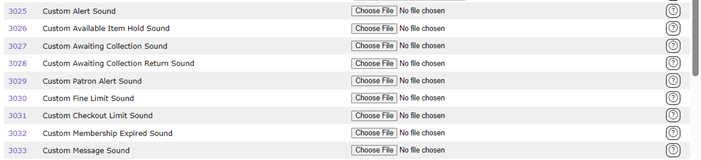
- Click the Choose File button next to the parameter relating to a Circulation Desk message to which you want to add a sound, for example Custom Return Success Sound.

- Locate and open the folder in which the sound files are located and either double click on the file or highlight it and click the Open button to upload the sound file into the parameter’s field.
- Double click on the file or highlight it and click on the Open button
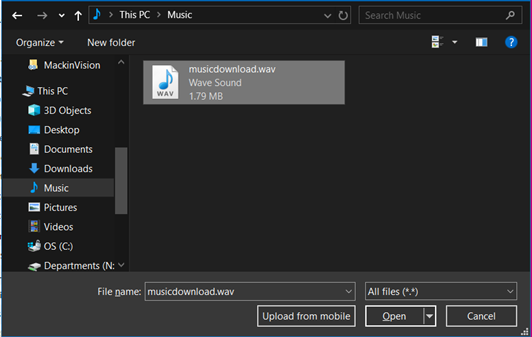
- The file will display in the parameter’s field.

- Repeat steps 4 – 6 to upload a sound file to any other message parameter to which you wish to add a sound.
Note: It is advisable that the number of messages that include a sound are limited to those to which you wish to draw the staff’s attention.
- When the sounds have been added to the applicable message parameters click the Save button.

Websites to find free .wav sounds
- Freesound - Search (join for free to download)
- 90,000+ Free Sound Effects for Download - Pixabay (download without joining, can join for free)
- LANDR Samples (join for free to download)
- Sample Focus (join for free to download)
- Videomaker (free .wav files and links to good sites, sign up with email to receive all their following sound effects)
Was this article helpful?
That’s Great!
Thank you for your feedback
Sorry! We couldn't be helpful
Thank you for your feedback
Feedback sent
We appreciate your effort and will try to fix the article