Summary
A default sort order applies to titles returned from a Resource Search process however, once a search result displays, the order in which the results are listed can be changed to suit the staff member’s requirement. Default Sort order for the results in most Search screens are established in Parameters.
This guide will provide the steps required to change the sort order in the Resource List screen.
Related Parameters
The following parameters relate to the default sort applied to the Resources and Interim Resources Search screens:
Parameter No.1800 - Resource List Sorting (Default)
Parameter No.1801 - Interim Resource List Sorting (Default)
Change the Results List Sort Order
The example provided below is how to sort the order of resources in the List screen by Checkout Count in the default order of descending.
- Complete a search via Cataloging > Resources in the usual manner.
- In the resulting List screen click on the Sort icon.

- The Sort Resources popup screen will display.
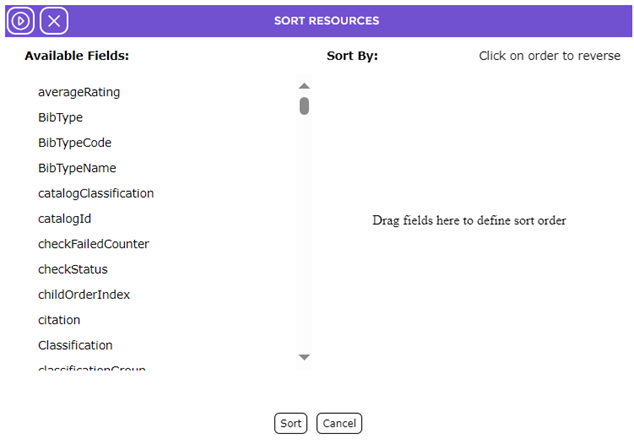
- The Available Fields list-box, located on the left-hand side of the screen, includes all the sortable fields.
- Scroll down, if necessary, to locate the field that you wish to sort the list by, for example, Checkout Count.
- Drag the selected field into the “Sort By” space and drop it.
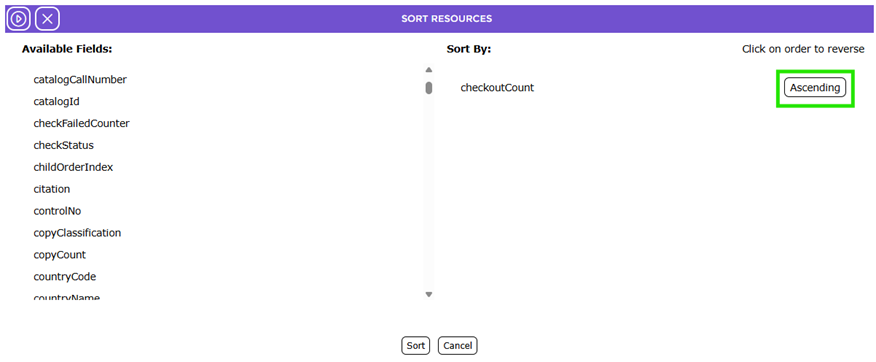
- The default is to list in ascending order. As a result, Ascending is appended to the name of the field that you chose to sort by. Click on the Ascending link to change to Descending and the list will sort accordingly.
- If more than one sort by field is selected, the order in which those fields list in the Sort By list-box can be changed by clicking and dragging the fields to the preferred order.
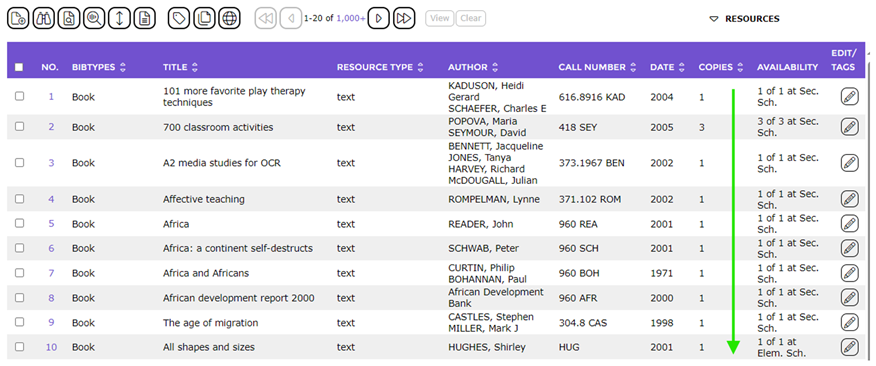
- When all the selections have been completed, click the Sort button.
- Titles in the List screen display in descending Publication Date order, that is, from highest to lowest.

Was this article helpful?
That’s Great!
Thank you for your feedback
Sorry! We couldn't be helpful
Thank you for your feedback
Feedback sent
We appreciate your effort and will try to fix the article