Summary
There may be some Resource Loan Categories (RLCs) which have a fixed due date established rather than a checkout period of days or weeks for example. The fixed date may coincide with the last day of a term or school year. If you have RLCs for which a fixed due date applies, it will need to be updated before the beginning of the new term or school year, otherwise the copies with that RLC selected cannot be loaned.
Update a Fixed Due Date
Resource Loan Categories (RLCs) with a fixed due date can be identified by the date that displays in red in the corresponding cell in the Lending Rules matrix.
1. Navigate to Circulation > Lending Rules. In the matrix locate the RLC which has a fixed due date that needs updating.
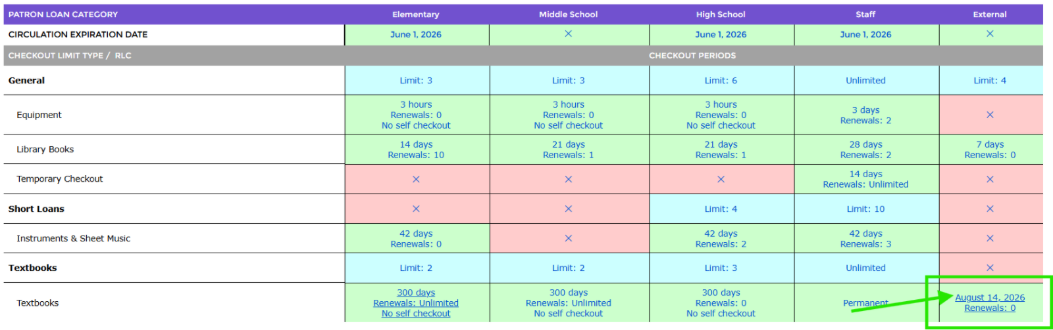
2. Click on the date in the cell and the Edit Lending Rule popup screen will display.
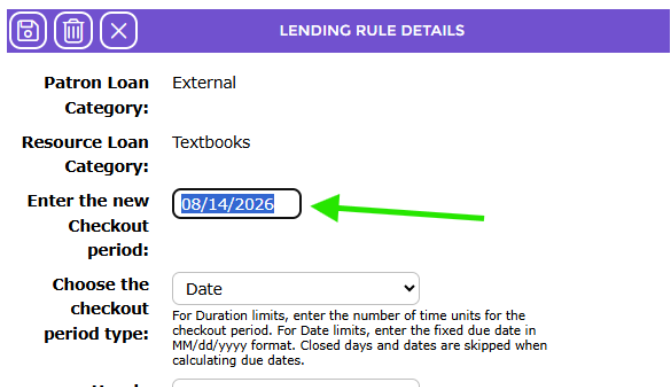
3. The current date in the Enter the new Checkout period field is highlighted in blue. Enter the new date, for example 10/12/2026, in the field.
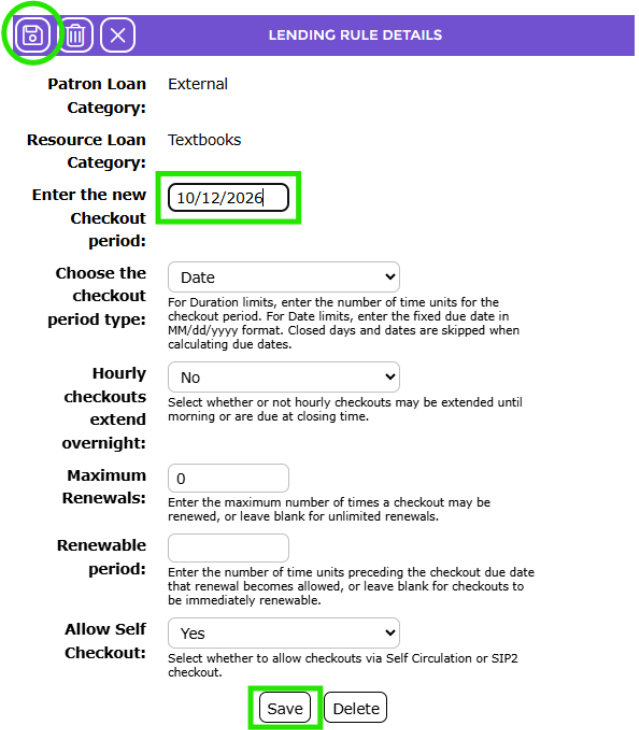
4. Click the Save icon or Save button at the bottom of the popup screen to save the new date.
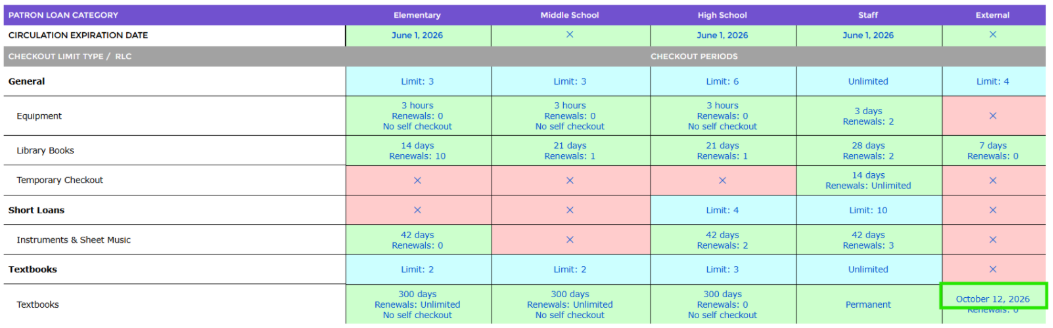
5. The matrix screen will display with the new date will display in the applicable cell.
Was this article helpful?
That’s Great!
Thank you for your feedback
Sorry! We couldn't be helpful
Thank you for your feedback
Feedback sent
We appreciate your effort and will try to fix the article