Summary
The settings in Lending Rules determine the due date for checkouts, issued to patrons. The option to change the due date for specific items or all items loaned during a session is available via the Checkouts tab in the Circulation Desk.
This guide will provide the steps required to change the due date on checkouts. Separate guides provide the steps required to perform other Circulation Desk functionality.
Change the Due Date via Circulation Desk
If the date for checkouts, issued to a single patron or for a session, is to be different to the default due date determined by the established lending rules, you can change the due date when in Circulation Desk.
- Access the Checkouts tab in Circulation Desk.
- Scan in the patron barcode in the usual manner.
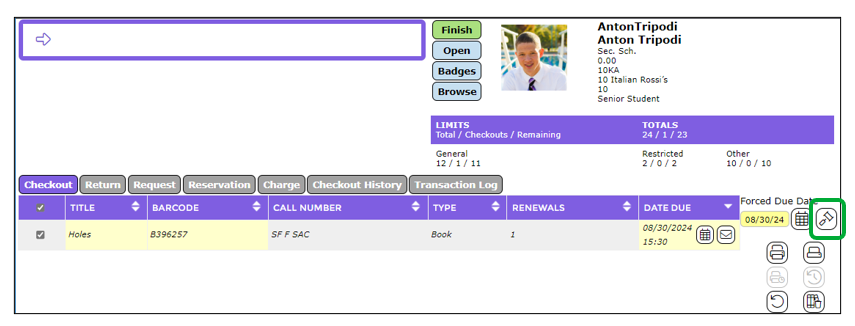
- Click on the Calendar icon in the Forced Due Date section of the screen.
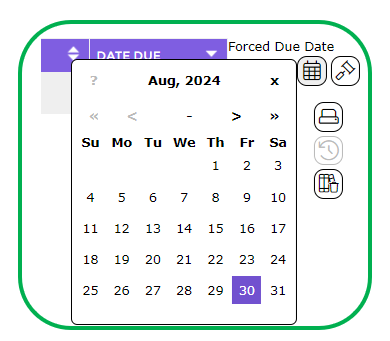
- A popup calendar will display. Use the calendar to select the required due date. Note that the default date in the calendar is “today’s”.
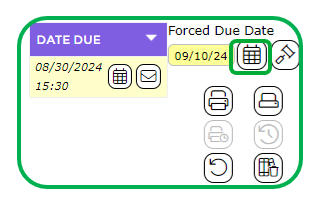
- The date selected will display in the yellow field to the left of the Calendar icon.
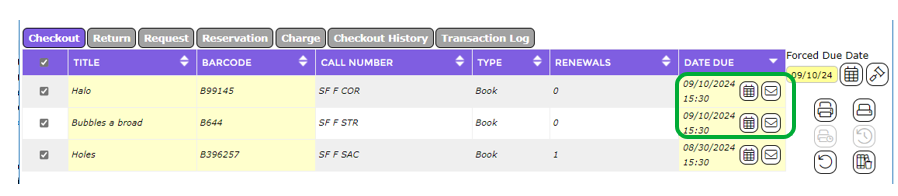
- Scan in the copies in the usual manner.
- The due date of the copies will reflect the date selected in the calendar.
- If the date due was changed only for checkouts issued to a specific patron, click on the Use Lending Rules icon to the right of the Calendar icon to restore the application of due dates as calculated according to the lending rules.

- The Date field to the left of the Calendar icon will then return to blank.
If the changed due date is to remain for all checkouts issued in the session (the day), do not click on the Use Lending Rules icon. Once staff log out of the Circulation Desk, then log back in the next day, the established lending rules will automatically re-apply.
Was this article helpful?
That’s Great!
Thank you for your feedback
Sorry! We couldn't be helpful
Thank you for your feedback
Feedback sent
We appreciate your effort and will try to fix the article