Summary
Patrons logged in to MackinVision can add a hold in STAR for books or other types of material in the library, if the library so permits.
This guide will show you how to request a book. The same steps are used for reserving any sort of material, for example STEM tools, games, or magazines.
Reserving a Resource
- Log in to STAR (holds may only be made once the patron has logged in).
- Click the Search button and perform a search for the desired item.
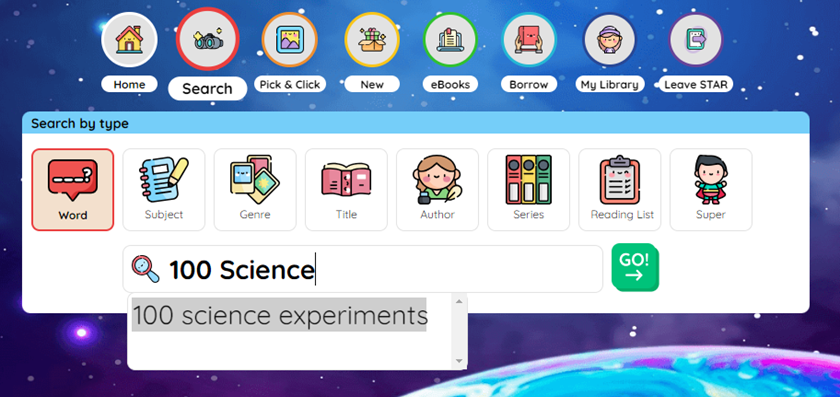
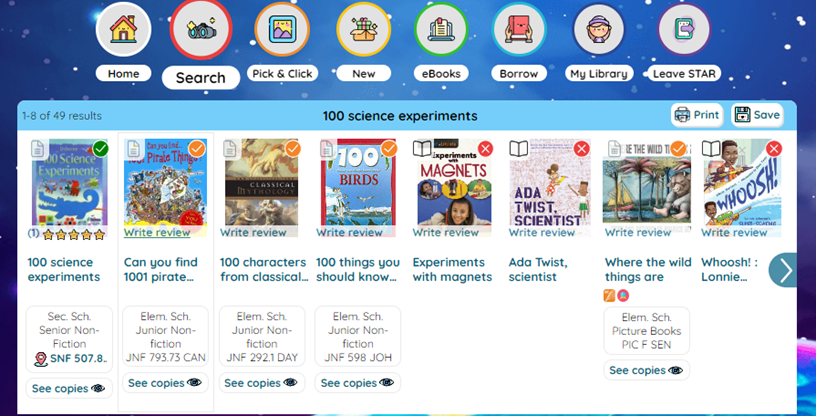
3. When the search results are returned, locate, and click on the relevant resource to open its Details screen.
4. When the Details screen opens, click the Hold button.
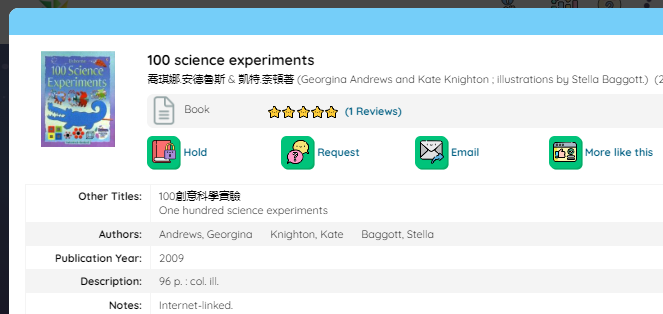
Note: If no Hold button exists, then you will need to check the lending rules of the item’s Resource Loan Category and relevant Patron Loan Category. The library’s lending rules can be found in Circulation > Lending Rules.
5. A message will appear to notify you that the hold is complete. Click Close.
Viewing a Hold
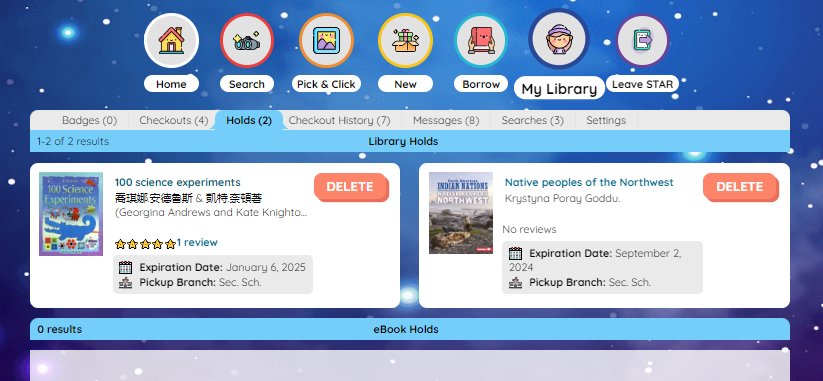
Once a hold has been placed, it can be viewed by under the Holds tab in My Library.
Was this article helpful?
That’s Great!
Thank you for your feedback
Sorry! We couldn't be helpful
Thank you for your feedback
Feedback sent
We appreciate your effort and will try to fix the article