Summary
Establishing Subject Types is part of the Shared Cataloguing optional module but is not a mandatory requirement. If however, child libraries have a preferred Subject Type it can be set up to accept a preferred MARC Subject Type.
This guide will provide an overview of Subject Types and the steps required to create a subject type. There are guides that aid with importing or manually creating MARC records.
Overview of Subject Types
Some child libraries may prefer Sears MARC authorities Subject headings, while others may prefer to use Library of Congress or other forms of MARC records.
If a MARC record you are importing has a second indicator identifying your preferred Subject Type in the Subject Added Entry fields (600-651), MackinVision will recognize that Subject Type and will only import that relevant Subject Type but not any other Subject Type included on the MARC record. Please note however that if the record you are importing does not contain a Subject Type indicator, then the record will import without discarding the unwanted Subject Type/s.
Once the Subject Type/s is established, it is assigned to relevant Authority Terms included in any imported MARC records. The Subject Type associated to a Subject Authority term can be seen in Cataloging > Authority Files > Subjects > Detail. Only one Subject Type is assigned to a Subject Authority term.
Creating a Subject Type
1. Navigate to System > Subject Types
2. Click on the New icon or the New option from the Subject Types menu.
3. Enter the name of the subject type in the Subject Type field.
4. Enter a code in the Code field then click the Save button.
5. If any changes need to be made click the Edit button in the Details screen, complete the change and click the Save button again.
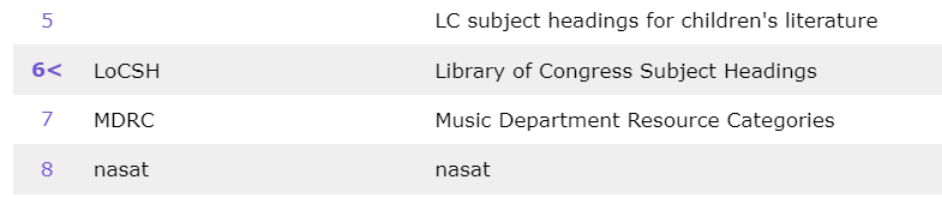
The newly created Subject Type will be included in the Subject Type List screen.
Was this article helpful?
That’s Great!
Thank you for your feedback
Sorry! We couldn't be helpful
Thank you for your feedback
Feedback sent
We appreciate your effort and will try to fix the article