Summary
If the library imports MARC Authority files, they can edited if required. If the library does not import updated Authority files from their Authorities provider, for example LoC or SCIS, use the system provides the option to create up to seven User Defined Authority Files to create and maintain terms.
This guide will provide the steps required to edit an Authority term.
Search for an Authority Term
- Navigate to Cataloging > Authority Control.
- By default, the Subjects Search screen will display.
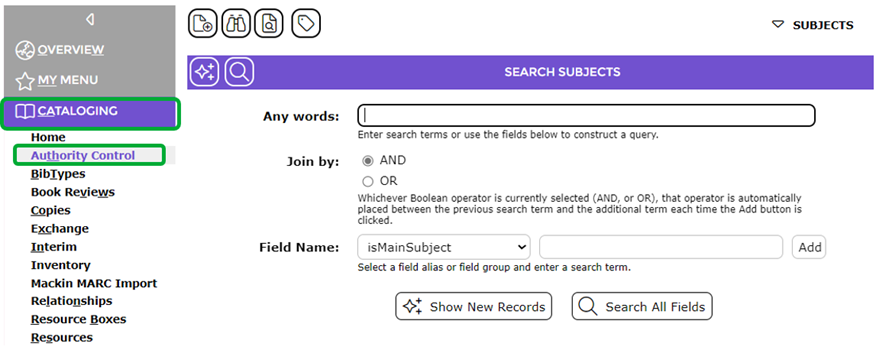
You can complete a search using one or more Field Name selections. Users can also enter an Authority term into the Any words field if the term is for the default field selected in the Field Name field, for example, isMainSubject. For this example, the authority term is a main subject heading and will be typed directly into the Any words field.
- Enter the term you want to access in the Any words field then click the Search All Fields icon.
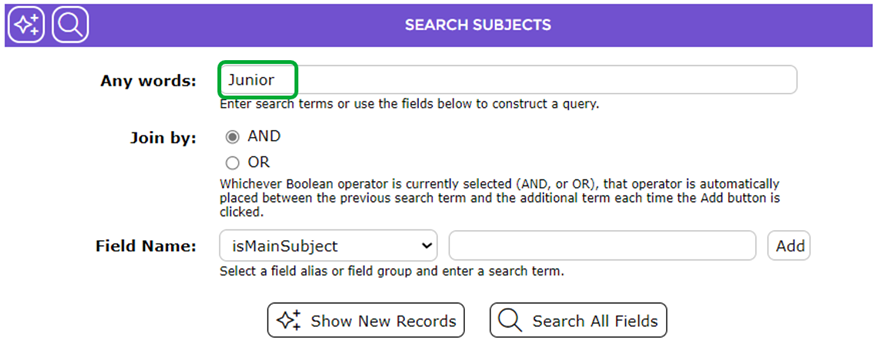
- The Authority List screen will display containing results for the term on which you searched.

Edit an Authority Term
- Click the Edit icon at the end of the line containing the lead term.
- The Edit screen will display.
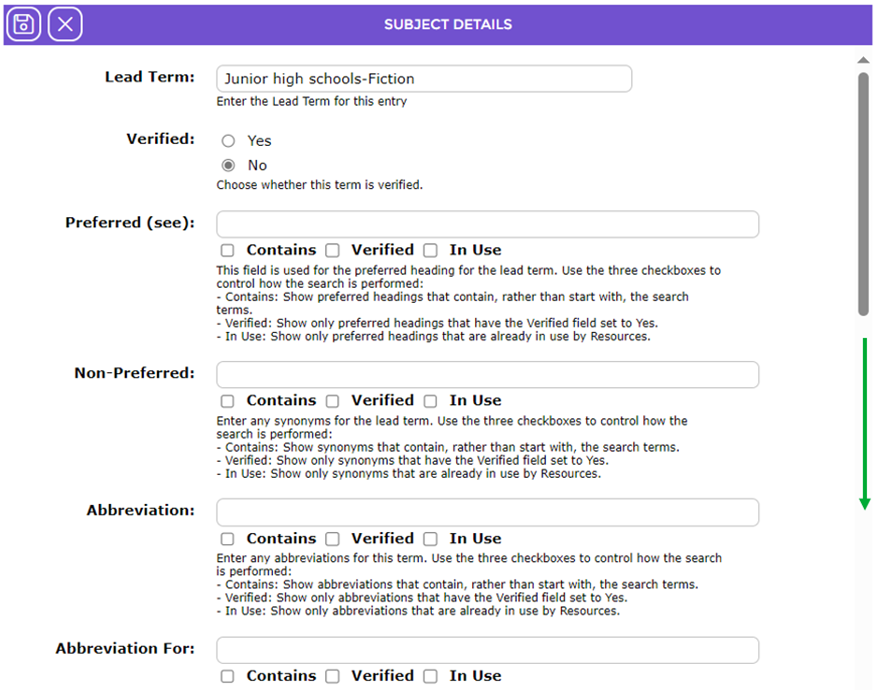
The following table will identify and provide a brief description of the fields in the Edit screen:
Field | Description |
Lead Term | The Lead Term will display in the Lead Term field.
|
Verified | If the term has not been verified and you wish to verify it click in the radio button next to Yes.
|
Preferred (see) | In the Preferred field enter the preferred heading for the lead term. The checkboxes at the end of the field will determine that type of search. The search will determined what terms display in the resulting prediction list. If you click in the checkbox for:
|
Non-Preferred | Enter any synonyms for the lead term in the Non-Preferred field.
The Contains, Verified and In Use search type checkboxes are also included at the end of the field. See the Preferred (see) field Description for an explanation of the search options.
|
Abbreviation | Enter any abbreviations for the term, if there are any, in the Abbreviation field.
The Contains, Verified and In Use search type checkboxes are also included at the end of the field. See the Preferred (see) field Description for an explanation of the search options.
|
Abbreviation For | Enter the full form of any abbreviation in the lead term in the Abbreviation For field.
The Contains, Verified and In Use search type checkboxes are also included at the end of the field. See the Preferred (see) field Description for an explanation of the search options.
|
Language Equivalent | Enter any foreign-language equivalent for this lead term, that Users might search for, in this field.
The Contains, Verified and In Use search type checkboxes are also included at the end of the field. See the Preferred (see) field Description for an explanation of the search options.
|
Related (see also) | Enter any terms, related to the Preferred term if applicable, in this field.
The Contains, Verified, and In Use search type checkboxes are also included at the end of the field. See the Preferred (see) field Description for an explanation of the search options.
|
Broader | Enter any related headings, which represent broader terms for the lead term, in this field.
The Contains, Verified, and In Use search type checkboxes are also included at the end of the field. See the Preferred (see) field Description for an explanation of the search options.
|
Narrower | Enter any related headings, which represent narrower terms for the lead term, in this field.
|
Notes | Enter any applicable notes for the lead term in this field. The field enables rich text formatting if preferred.
|
Scope Notes | Enter the Scope Notes for the lead term in this field. The field enabled rich text formatting if preferred.
|
Cards | If applicable, enter the first few letters of related Pick and Click cards and click on the card required from the drop down list. The cards are used for the STAR picture catalog.
|
Main Subject | Click in either the Yes or No radio button depending on whether you want the lead term to be set as the main term. Only used Main Subjects will appear in the Search interface when the Main Subject menu option is clicked.
|
Subject Type | Click on the down arrow of the field provided and select the type for this lead term’s Subject, for example, Library of Congress.
Note that this field is populated automatically with the type at the point of import, for example, SCCIS or LoC. If you catalog your own resources, a selection would not be made.
|
Was this article helpful?
That’s Great!
Thank you for your feedback
Sorry! We couldn't be helpful
Thank you for your feedback
Feedback sent
We appreciate your effort and will try to fix the article