Overview
This guide explains how to search for a resource record in the management interface
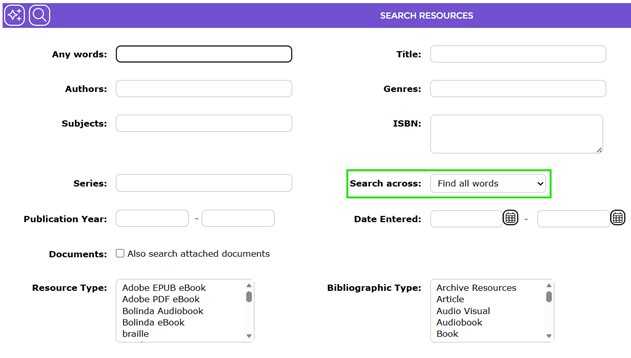
Search Resources Screen
- Navigate to Cataloging > Resources
- Enter a search term in any of the fields. The search resources screen includes a number of options that can be used to refine your search.
- Click the search icon

- In the search results screen, click on the number at the start of the row corresponding to the desired title.
Depending on the size of your catalog and the search term you enter, there may be significantly more resources included in the results screen. Using one or more of the search fields will reduce the number of resources returned and more closely match what you want.
How to Search for a Resource Record Using Advanced Features
Overview
Advanced search features provide ways to narrow searches by using Boolean operators and other filters to provide a smaller list of results closer to the desired resource.
Boolean Search
Boolean operators are used to combine groups of search terms into one query. The words AND, OR and NOT are treated as Boolean operators only when they are entered in UPPER CASE. If entered in lower case, the system treats them as a normal search term.
The Boolean operators must be inserted manually as part of the term entered in the Search field. In other words, a Boolean search must be “constructed”. If two Boolean operators are used in the same query, parentheses must be included to indicate the sequence in which they are to be examined.
Example Boolean style searches you can use in the Search term field:
- An AND search – for example, butterflies AND moths, will return results which include both terms
- An OR search – for example, butterflies OR moths, will return results which include either or both those terms
- A NOT search – for example, butterflies NOT moths, will return results which include only the first term not the second. Not implies that the value does not exist anywhere in the field being searched.
Search Across Feature
The Search Across list selection determines how the first four fields in the Resource Search screen are combined as a search query.
Option |
Description |
Find all words | Find all words creates the search query by placing the AND operator between the first four fields. The resources returned can contain all, some or one of the search terms. For example, if you entered the brown cow, any resources containing “the brown cow”, “brown” or “cow” will be returned. |
Find exact match | Find exact match creates an adjacent 1 search for the specified phrase. That is, the field contains the same words in the same order, with no intervening words, for example, “brown cow”. Any terms in the other fields are joined with the AND operator. This option is most frequently used when only one of the first four fields has a search term entered. |
Find the phrase
| Find the phrase will search for any resource starting with the phrase entered in the field. For example, if the phrase is “the atlas of endangered” it will search for any resource starting with the phrase as it was entered. |
Find any of the words | Find any of the words creates the search query by placing the Or operator between the first four fields. The results contain one or more of the search terms. |
Advanced Search Using Multiple Fields
The following search example will use a number of options to reduce the number of resources returned. The options selected will return only YA Fiction, texts with the term dystopia located at the English Department Branch.
- Enter the term dystopia in the Any words field.
- Highlight English Department in the Branch list-box.
- Highlight YA Fiction in the Collection list-box.
- Highlight text in the Resource Type list-box.
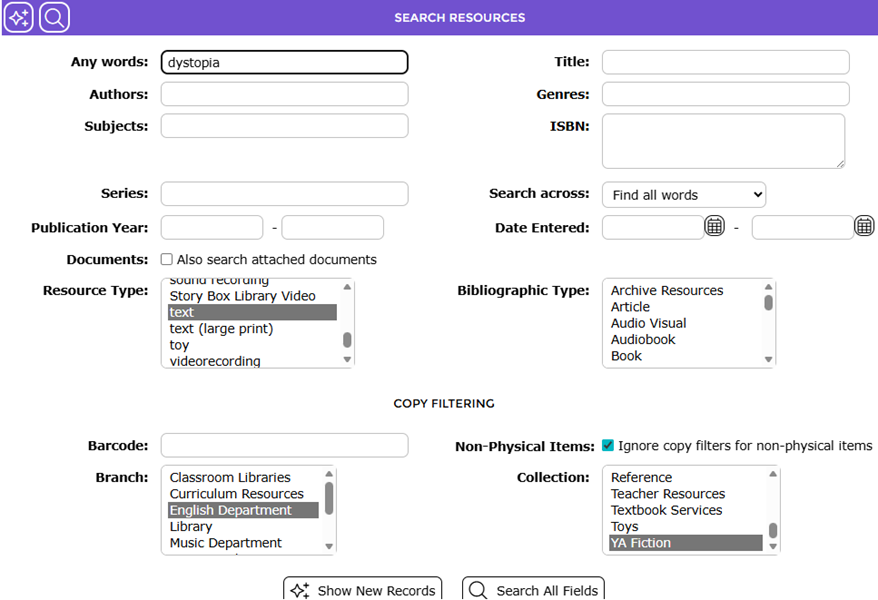
5. Once all criteria have been selected, click the Search icon or hit the Enter key on the keyboard.
6. The number of resources returned in the results screen is significantly less than the number returned from a basic search on the term dystopia.
Was this article helpful?
That’s Great!
Thank you for your feedback
Sorry! We couldn't be helpful
Thank you for your feedback
Feedback sent
We appreciate your effort and will try to fix the article