Summary
An email can be sent to a list of Patrons in bulk. The ability of staff to complete a bulk email process is determined by a User Privilege operation. Bulk emails can use an email template if any are created, or can be personalized by completing the subject and message text field rather than using any of the existing templates.
This guide will identify the relevant User Privilege and provide the steps required to complete a Bulk Email process.
User Privilege Operation
The User Privilege, circulation/patrons/bulkEmail, must be turned on for any staff member who will use this feature. By default, only the Administrator User Privilege has the operation turned on.
Bulk Email Patrons
The following example will not use an email template to complete a bulk email process.
- Navigate to Circulation > Patrons and complete a search for all the patrons to whom an email is to be sent.
- In the Patron > List screen click on the Function menu and click on Bulk Email.
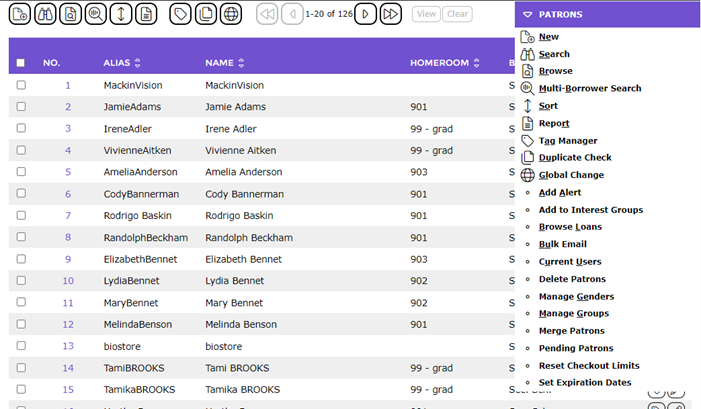
- The Send Email screen will display.
- The library’s email address will automatically display in the From field if it has been established in the applicable parameter. If not manually enter it.
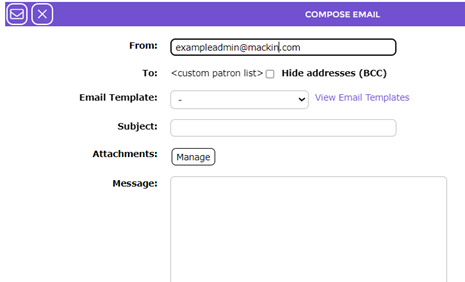
If the result set contains a number of patrons with an email address on their record, a “placeholder” will automatically populate the To field rather than a list of applicable email addresses. Do not remove the “placeholder”.
- In the Subject field, enter information identifying what the email is about, for example, Christmas Holidays 2025, if applicable.
- If there are email templates available the Email Template field will display. You can click on the down arrow and select a template. This may remove the need to complete the Subject field and enter a message in the Message textbox.
- Enter the relevant information in the Message text box if applicable.
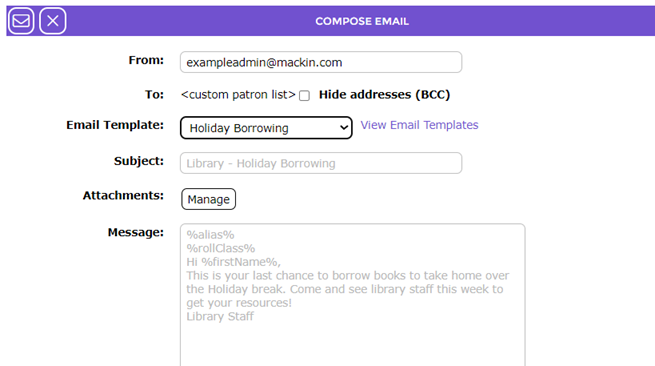
- Click on the Send Email icon.

- All patrons from the list with a valid email address will receive the emailed message.
Was this article helpful?
That’s Great!
Thank you for your feedback
Sorry! We couldn't be helpful
Thank you for your feedback
Feedback sent
We appreciate your effort and will try to fix the article