Summary
For resources with a BibType other than Network File, one or more related attachments such as document files can be added to a resource when it is being cataloged. The attached files can be viewed in the Hover and Detail screens in the Search interface. Files can be added to resources at a later date. Files, to be attached to resources, should be copied to a location accessible to staff who are permitted to add them to resource records.
This guide will provide the steps required to add a file to a resource record. The process for adding attachments and thumbnails is the same as that described for adding a file.
Attach a File to a Record
- Create a resource record in the usual manner or locate the applicable resource by searching in the usual manner.
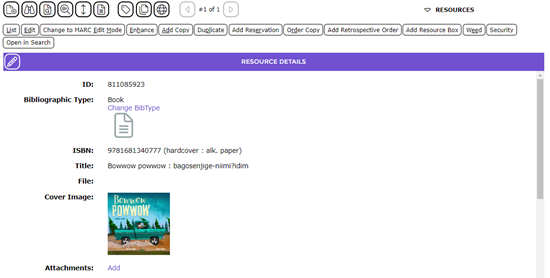
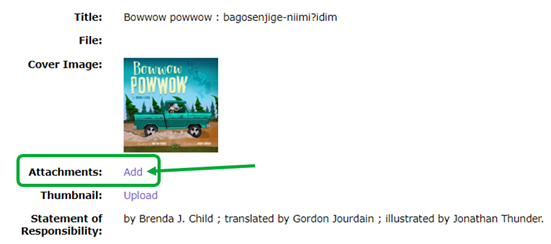
- Click on the Add link in the Attachments field to display the Upload Resource Attachment popup screen.
- Click on the Choose File button in the Attachment field and locate the applicable file in the usual manner.
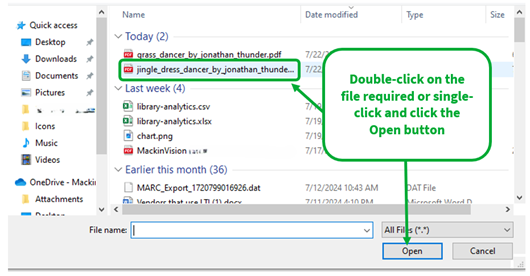
- Either double click on the applicable file or highlight it and click the Open button.
- The file name and path will display in the Attachment field in the Upload Resource Attachment screen.
- Tab to or click in the Description field and the file name will automatically display in the field. The name in the Description field can be edited if required.
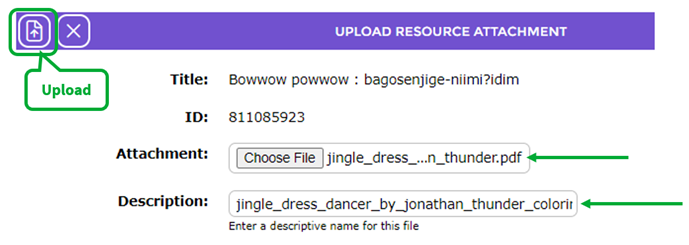
- Click the Upload icon to return to the Detail screen.
- The Attachment field will contain the name and size of the file.
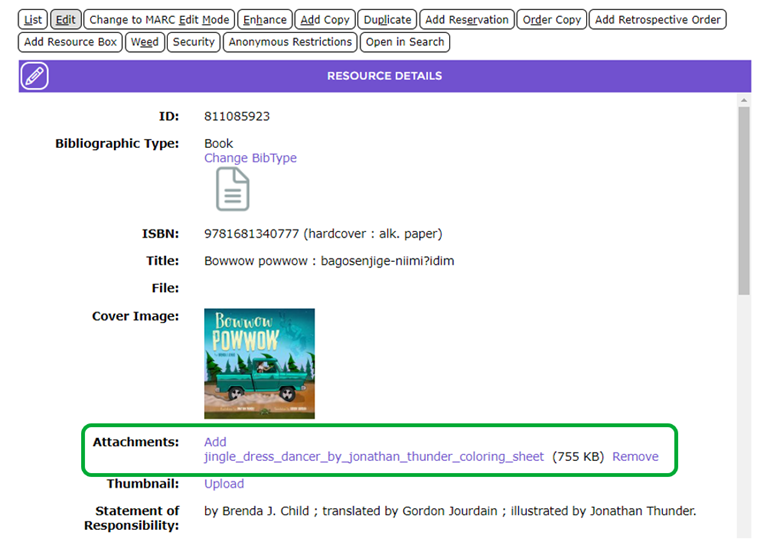
- The Add link is available. Staff can upload further attachments if required.

- Repeat the process as explained in Steps 3-8 to change the attachment.
- To delete the attachment, click the Remove link.
Was this article helpful?
That’s Great!
Thank you for your feedback
Sorry! We couldn't be helpful
Thank you for your feedback
Feedback sent
We appreciate your effort and will try to fix the article