Summary
Tags can be created, and records added to those tags as a means to “group” those records. A tag is created via a record Detail screen and can then be added individually or in bulk to a list of records at a later date.
This guide will provide the steps to add a new tag to a resource.
Create a New Tag
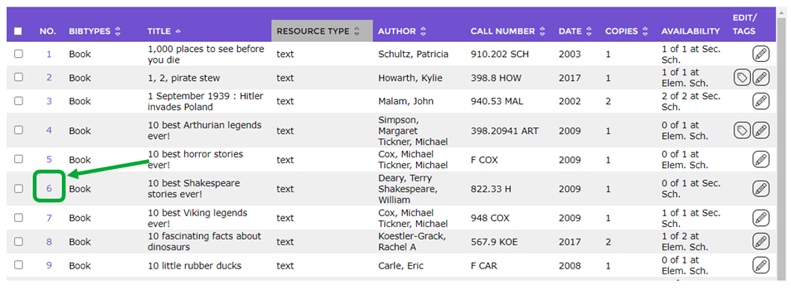
- Search for resource record on which a new tag is to be added.
- Click on the number link corresponding to the resource required.
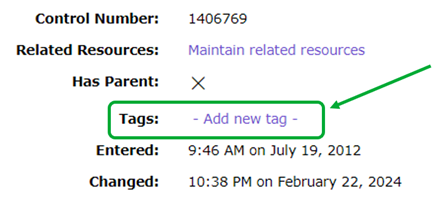
- In the resource Detail screen, scroll to locate the Tags field and click on the Add new tag link.
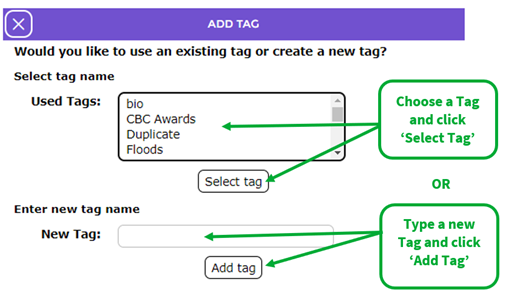
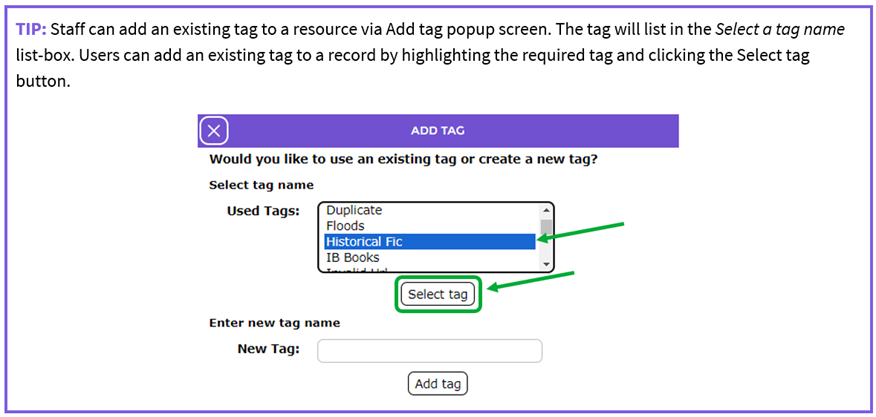
- The Add new tag popup screen displays. It provides staff with the option to add an existing tag to the record, if any exist, or create a new tag.
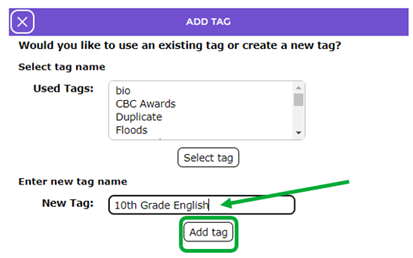
- Enter the name of the new tag, for example 10th Grade English, in the New Tag field then click the Add tag button.
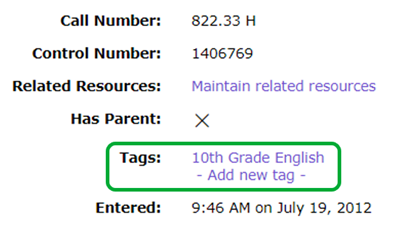
- The tag is displayed in the Tag field on the resource Detail screen.

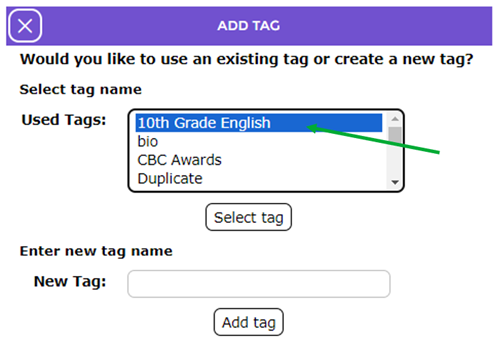
- The tag will now be available for selection in the Add tag popup screen if the Add a new tag link is clicked on another record.
Was this article helpful?
That’s Great!
Thank you for your feedback
Sorry! We couldn't be helpful
Thank you for your feedback
Feedback sent
We appreciate your effort and will try to fix the article