Summary
Library staff log in the same way as library patrons. However, logged in staff are automatically taken to the library Management (Overview screen) whilst patrons access to the library Home screen, that is, the Search interface with access to their My Portal options.
How Staff Log in
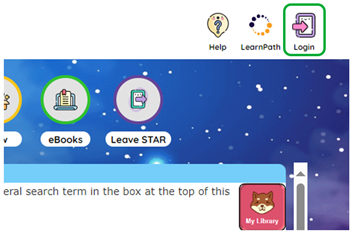
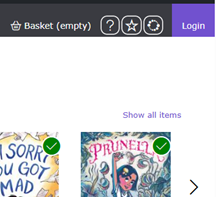
- Click on the Login button at the top right-hand corner of the library Home screen. The Home screen may be STAR or the Search interface.
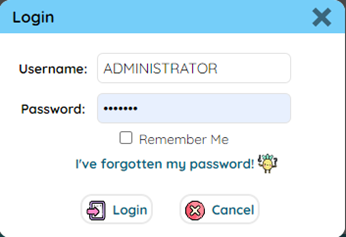
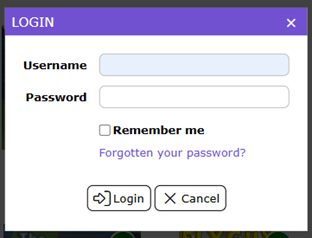
- The login popup box will display.
- Enter your username and password in the field provided then click the Login button.

- The library Management Home (Overview) screen will display.
- A Welcome screen displays which includes a Do not show these updates again and a Close button. If you want the Welcome screen to display whenever you log in click the Close button otherwise click the Do not show these updates again.

- If there are notices that apply to you a Notices popup will display. Click the Close button once you have read the notice. For information on Notices see the How to Set up and Use Global Messaging Distribution (Notices) guide.
- The library Management Overview screen becomes active.
The layout of the screen depends on the setting on Parameter No. 1145 – Overview Layout. It can be in Grid, List, or Icon. The screen example below shows the icon layout.
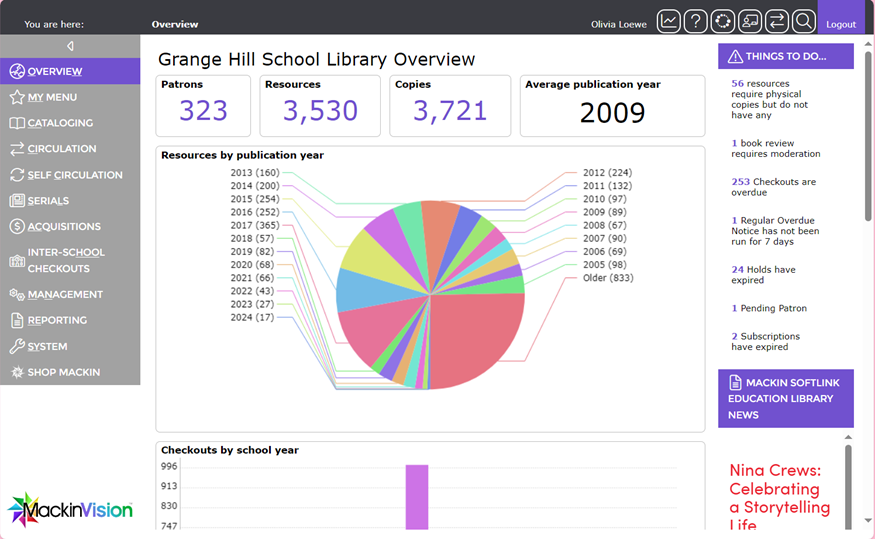
Access to menu and sub-menu options will depend on the User Privileges, and their activated operations, tied to your User Role.
To access the Analytical Reporting screen, Help screen, Circulation Desk, and Search interface, click on the applicable icons located in the top right-hand corner of the screen. Note that once you have logged in the Login button changes to the Logout button.
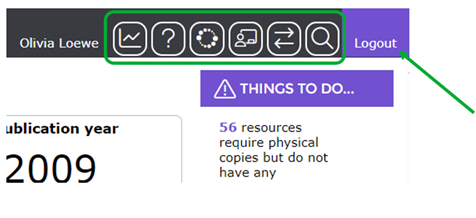
Navigation Icons
 Click this icon to access Analytical Reporting
 Click this icon to access the Help interface.
 Click this icon to access the LearnPath interface.
 Click this icon to access the Teacher Portal.
 Click this icon to access the Circulation Desk
 Click on this icon to access the Search interface (or STAR or Olly depending on what Home screen applies for your library).
Was this article helpful?
That’s Great!
Thank you for your feedback
Sorry! We couldn't be helpful
Thank you for your feedback
Feedback sent
We appreciate your effort and will try to fix the article