Summary
Changes to resource (bibliographic) records, which do not include a related MARC record, are completed via the resource Edit screen.
This guide will provide the steps required to edit a resource record which does not have a corresponding MARC record.
What is a MARC Record
MARC records evolved to enable a computer to read and interpret data in a cataloging record. While the catalog (or bibliographic) record contains a number of pieces of information such as author/s, subject headings, call number or call numbers, MARC catalog (and more recently RDA) records contain a significant number of additional bibliographic element descriptions. The additional data elements are added to applicable MARC tags and subfields by qualified library staff according to cataloging rules (either AACR2 or RDA).
Edit a Resource Record

The example provides the steps required to edit the incorrect spelling of an author in a resource record that does not have a corresponding MARC record.
- Navigate to Cataloging > Resources > Search and complete a search for the required resource. Search on, for example, the ISBN, EAN and Title to ensure a non-MARC record currently exists.
- Access the resource’s Detail screen in the usual manner.
- If the button to the right of the Edit button is labeled Change to Non MARC Edit Mode, click on it. The name of the button will change to Change to MARC Edit Mode.
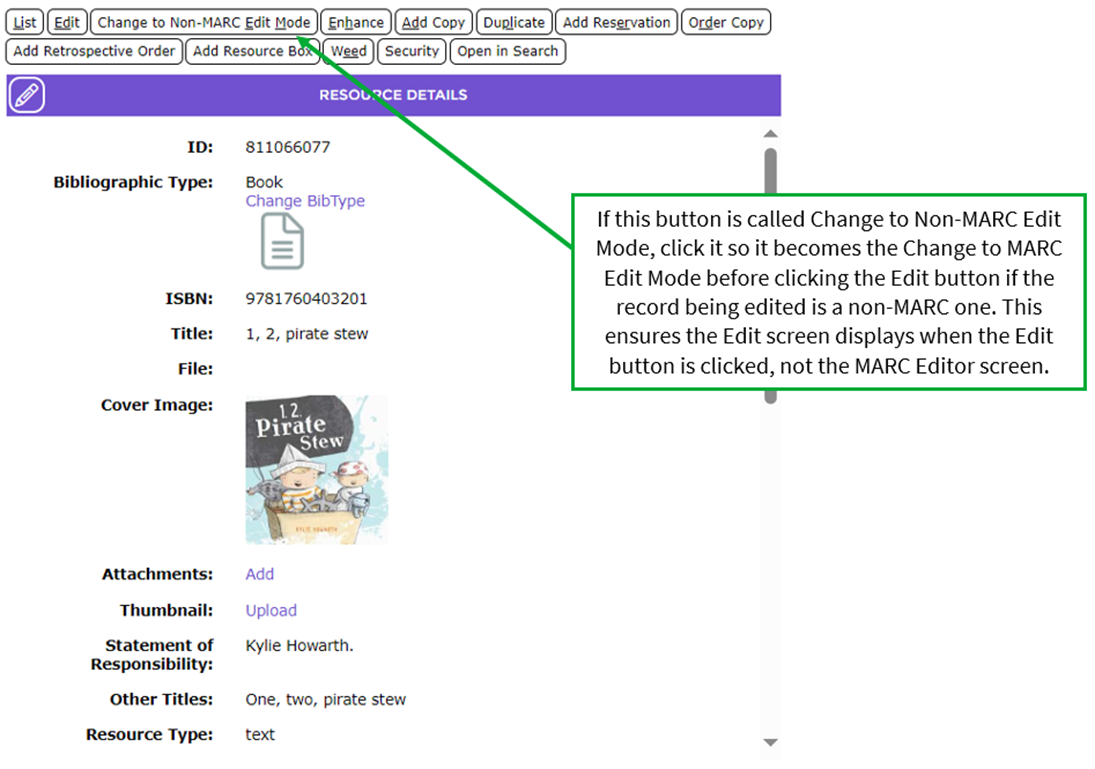
- Click the Edit button on the resource Detail screen and the Edit screen will display rather than the MARC Editor screen.
- Scroll down to locate the Author field.
- The author (or authors) will display in a list box below the Author field.
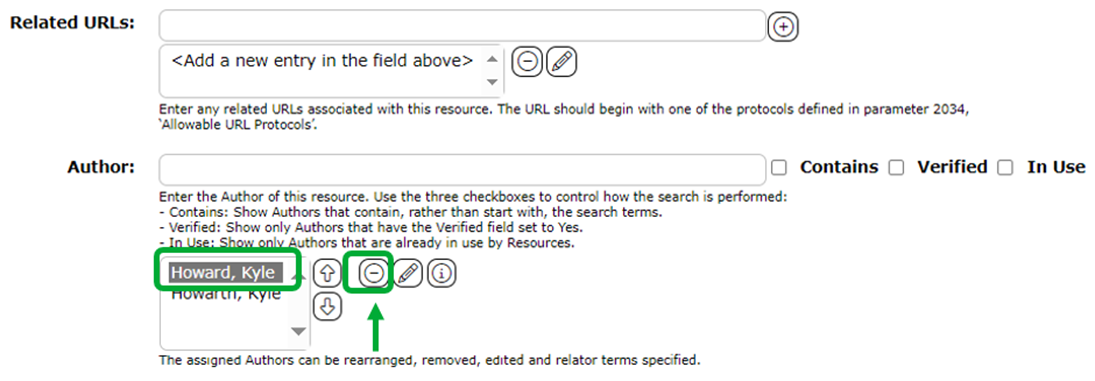
- Click on the author with the incorrectly spelled name. Note that the Delete icon is now activated.
- Click on the Delete icon and the author is removed.
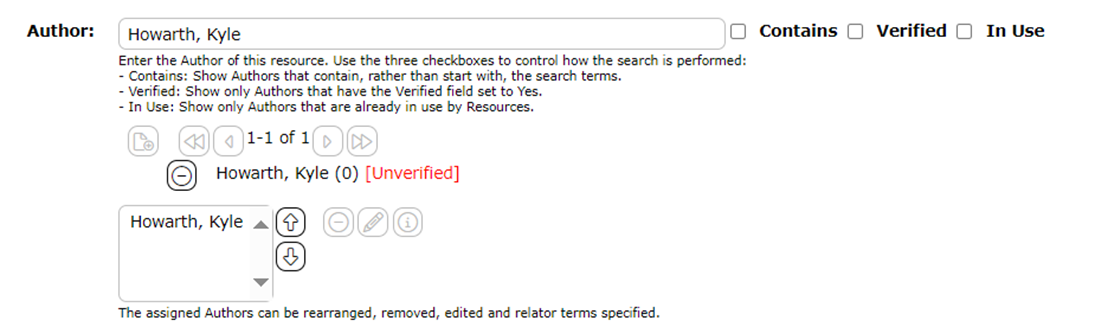
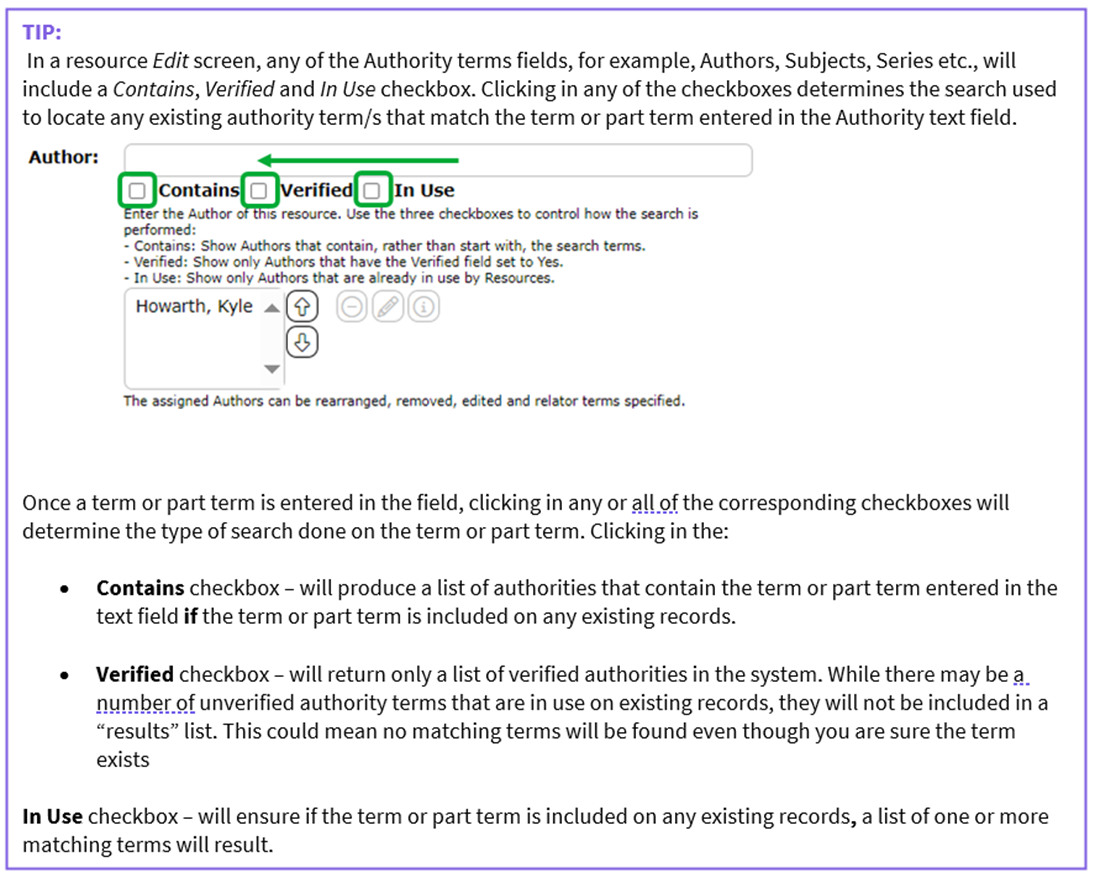
- Enter the name of the author in the Author field. Note there are three checkbox options to the right of the field. If you only want verified authors to display for selection click in the Verified checkbox first. See the TIP box at the end of this guide for information on these options.
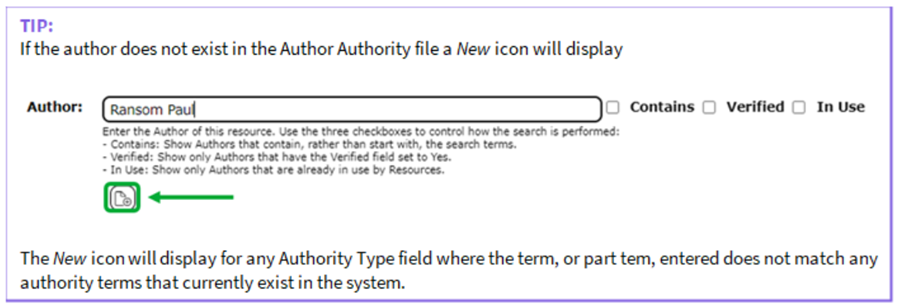
- If the author exists in the system, their name will display, with an Add icon next to it, directly below the Author field.
- Click on the icon with the New icon and the author will be added to the list-box below the field.
- Click the Save icon in the top right hand corner of the screen to save the edit.

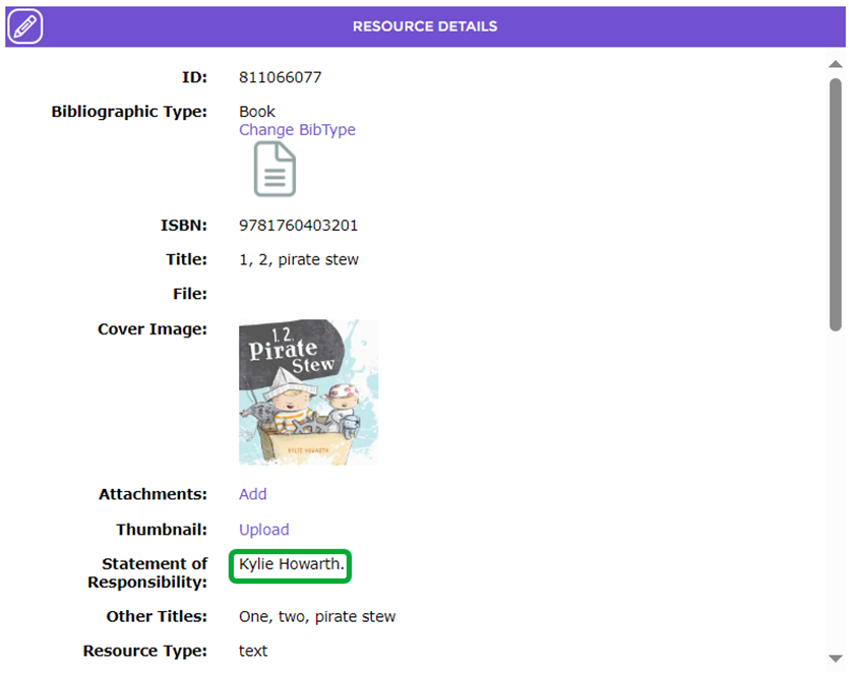
- The Detail screen will display with the name of the author in the Author field.
Was this article helpful?
That’s Great!
Thank you for your feedback
Sorry! We couldn't be helpful
Thank you for your feedback
Feedback sent
We appreciate your effort and will try to fix the article