Summary
A website can be cataloged by creating a resource record to which the URL of the website is added. While only one URL can be added as the “main” one, additional, related URLs can be added to the record in the Related URL list-box.
This guide will provide the steps required to catalog a website. Separate guides provide the steps required to catalog other types of resources.
Catalog a Website
The following example provides the steps required to create a non-MARC catalog record for a website.
- Navigate to Cataloging > Resources > List (or Search) and click on the New icon.

- The Add a new resource popup screen will display.
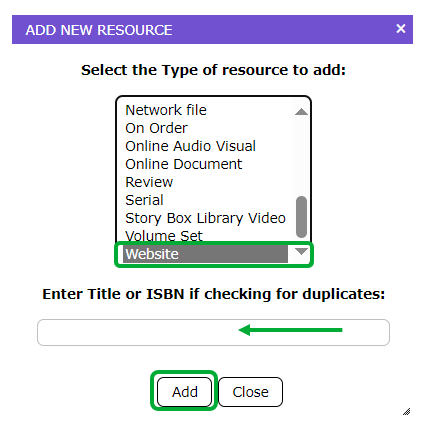
- Select the BibType of Website from the list in the Select list-box. The BibType ensures that only one URL can be entered in the URL field when creating the record.
- Click the Add button.
- If the checkbox next to MARC21 was clicked in to remove the check (or was blank by default) the Resources > Add screen will display.
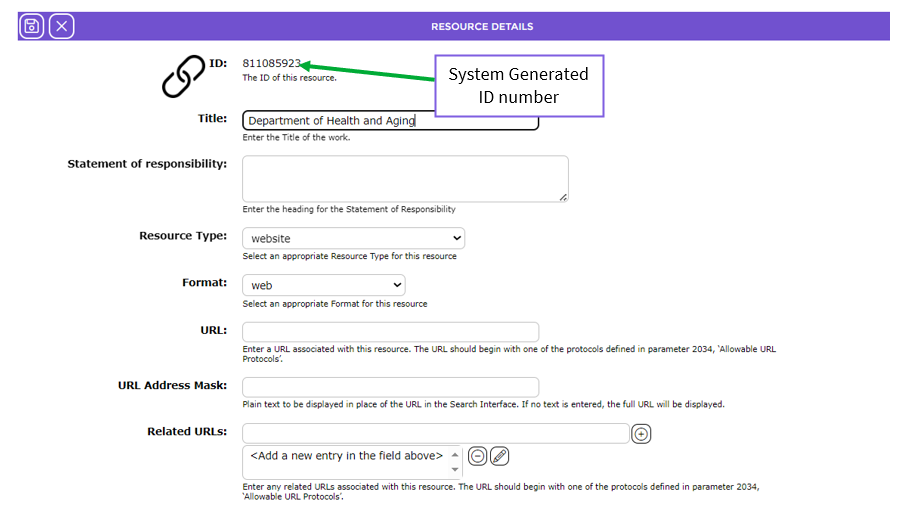
- The number in the ID field is a system generated one. Note the icon identifying the record as a website displays to the left of this field.
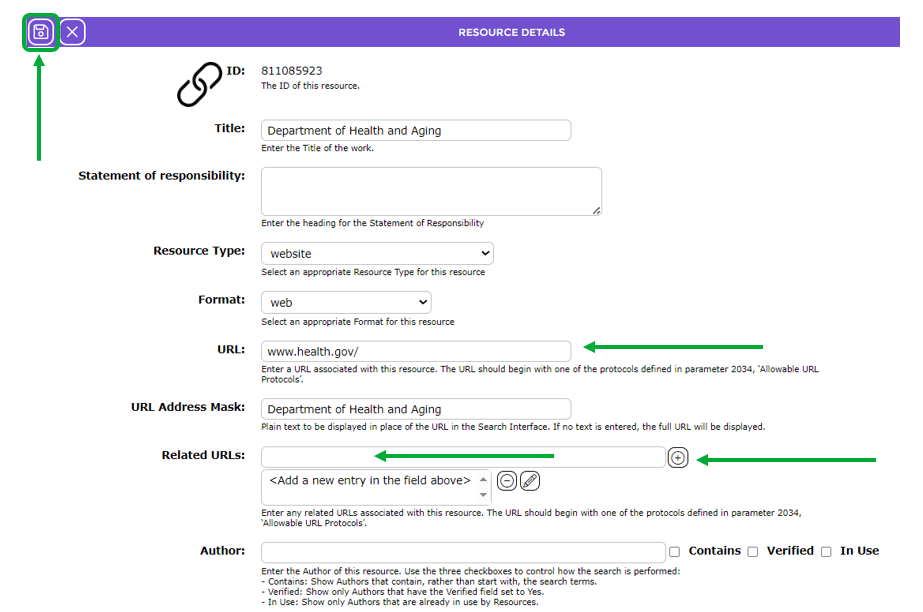
- Enter the website’s URL in the URL field. It can be manually entered or copied from the website and then pasted into the field. The URL must begin with the appropriate URL prefix, for example, http:// or ftp://.
- If there are multiple websites that relate to the URL, the URLs of those sites can be entered in the Related URLs field one at a time then clicking the Add icon (icon with the Plus symbol) at the end of the field after each has been entered.
- Complete all the other required fields then click the Save button.
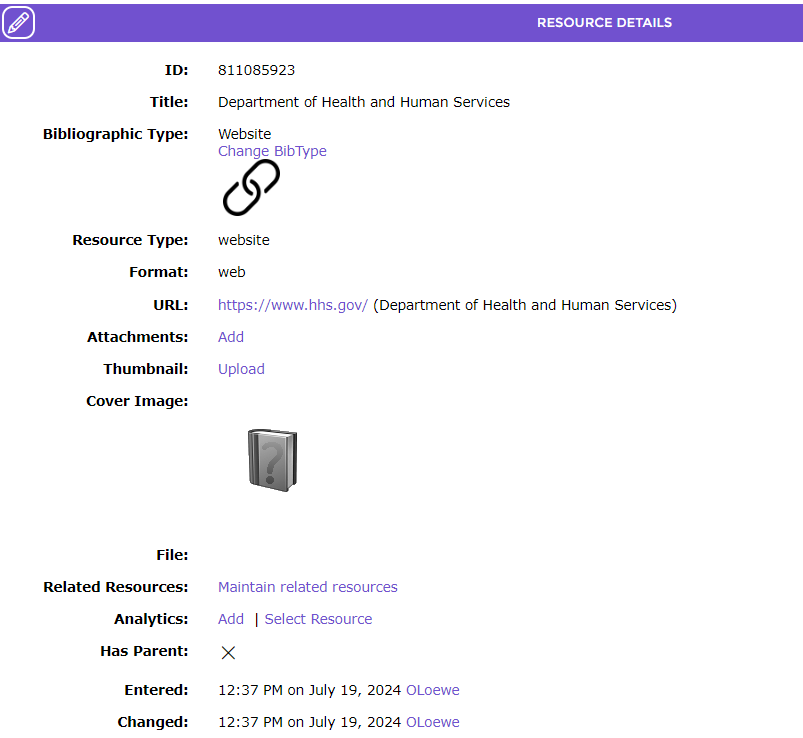
- The Detail screen will display.
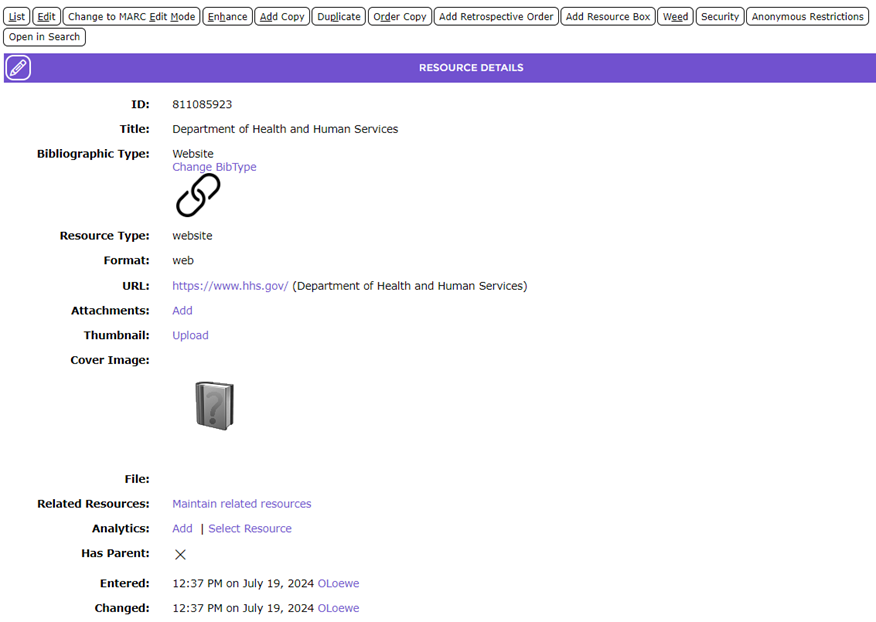
- The URL of the main website will display as a clickable link in the URL field. Clicking on the link in the Detail screen will open the website in a separate window.
- Any related URLs (if they were included in the Add screen) will display as clickable links in the Related URL field.
- When the website’s record displays in the List screen in the Search interface the icon identifying it is a website displays.

- Clicking the Number link will display the resource’s details.
- Clicking the Web Address or Related Web Address link will open the website in a separate window.
Was this article helpful?
That’s Great!
Thank you for your feedback
Sorry! We couldn't be helpful
Thank you for your feedback
Feedback sent
We appreciate your effort and will try to fix the article