Summary
To maintain resource boxes the following will show how to add, remove, and weed resources within the Resource Box Maintenance page and other linked pages.
Maintaining Resource Boxes
Resource Box List
- In the main menu, navigate to Cataloging > Resource Boxes to view the Cataloging > Resource Boxes > List screen.
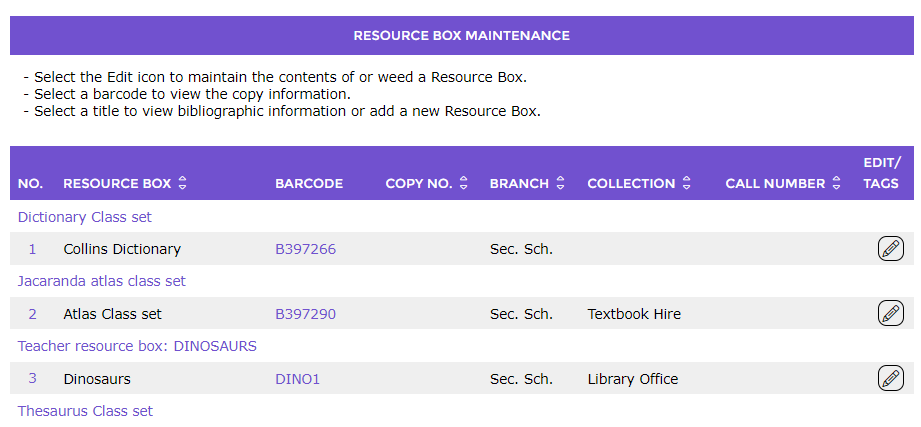
- To view the details of one of the Resource Boxes, click the number at the left-hand end of the record. This page is where copies of resources are added and removed from the Resource Box, and to indicate that any copy is currently physically located in the box.
- To view the details of one of the resources attached to a Resource Box, click the linked Title.
- To view the details of the Resource Box copy, click the linked Barcode.
Resource Box Details
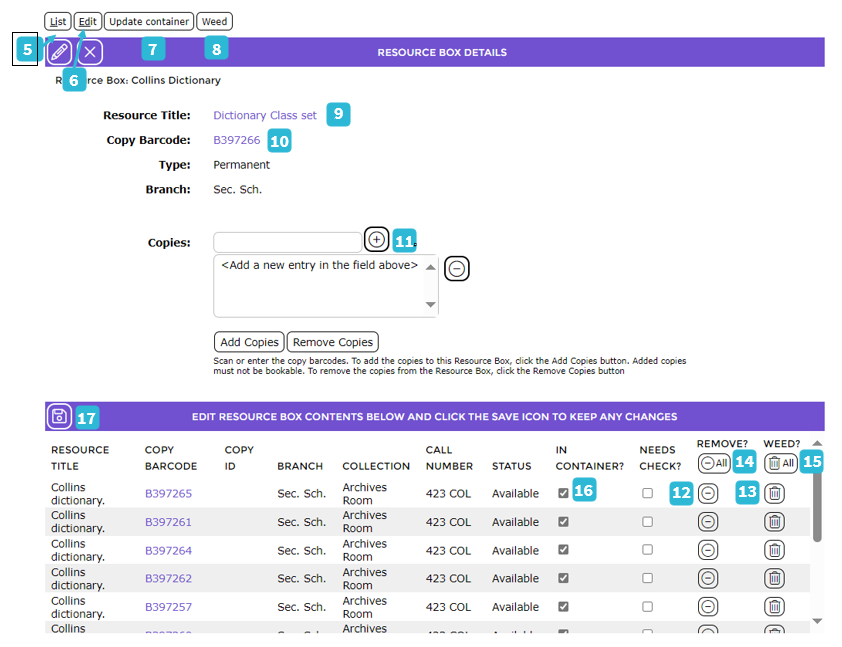
5. By clicking the List button, the screen returns to the Resource Boxes list.
6. Clicking the Edit button displays the Edit screen of the copy connected to the resource title.
7. Click the Update Container button to change the Title of the Resource Box, or to change the type (Permanent / Temporary / Substitute).
8. If the Weed button is clicked this will weed the Resource Box – it will NOT weed the copies.
9. This is the Title of the resource associated with the Resource Box. Click on the title to access the Cataloging > Resource > Detail screen.
10. Click on the Barcode to access the copy’s Cataloging > Copies > Detail screen.
11. Add copies: this is where items can be scanned in and either added or removed in bulk. Just scan or type (then enter) in the relevant barcodes and to add, click Add Copies or to remove, click Remove Copies.
12. Click on  to remove copies individually.
13. Click on  to weed copies individually.
14. To remove ALL items in bulk, click on Remove all.
15. To weed ALL items in bulk, click on Weed all.
16. Place a check in the In Container checkbox to indicate that the copy is in the Resource Box. Untick the checkbox to indicate that the copy has been removed from the Resource Box.
Resource Details
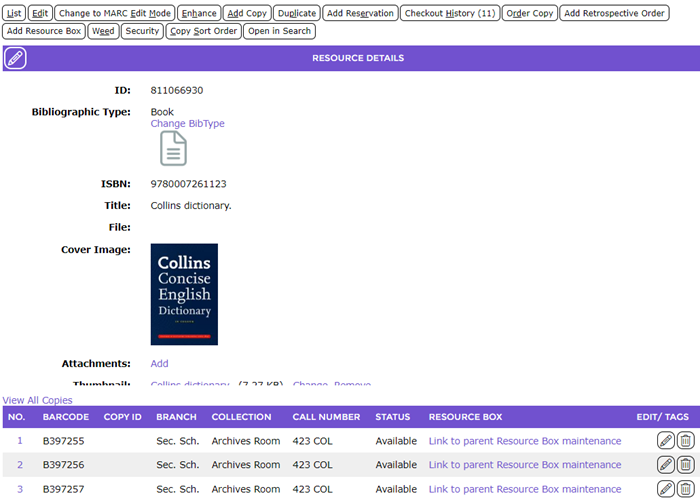
17. At the bottom of the screen click Link to Resource Box maintenance to return to the Resource Box Details page.
Copy Details
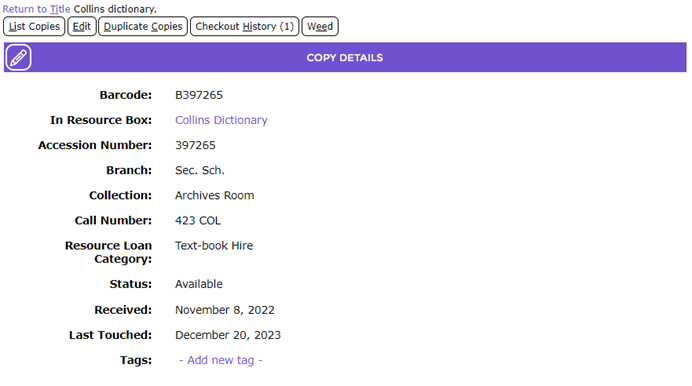
18. Click the linked Resource Box title to return to the Resource Box Details page.
Edit Resource Box Name
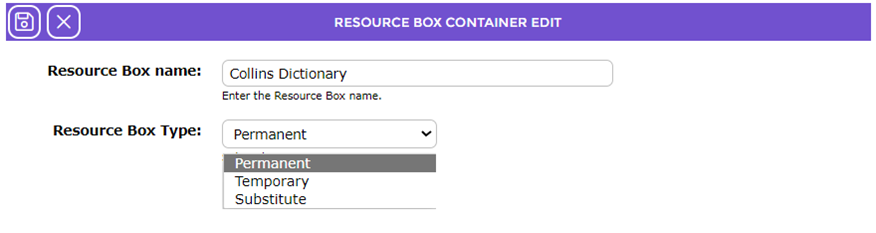
19. Click the Save button to return to the Resource Box Details page.
Was this article helpful?
That’s Great!
Thank you for your feedback
Sorry! We couldn't be helpful
Thank you for your feedback
Feedback sent
We appreciate your effort and will try to fix the article