Summary
This guide will provide an overview of the Export and Import functionality in LearnPath, which allows for guides to be shared between different MackinVision v5 systems with LearnPath enabled.
Exporting LearnPath guides
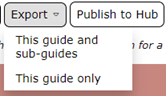
Users with editing privileges on a LearnPath guide will have access to the Export menu at the top of the page.
The Export menu has two options to choose from:
- Export this guide and sub-guides – exports the guide on screen and all guides below it in the hierarchy
- Export this guide only – only exports the guide currently on screen
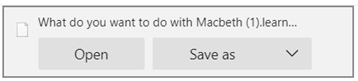
After selecting one of the available options in the Export menu, you will receive a file download prompt in your browser. Save the file to the downloads folder on your computer, or a location of your choice. Do not elect to Open or Run the file, if prompted by your browser.
Note: The size of the exported file will depend on the number of guides being exported, and the quantity, and size of any files embedded on those guides. Larger exported files may take several seconds to generate, so there may be a brief delay between clicking the Export option and the download beginning.
Once the download completes, you should have a file named: “guide_name.learnpath”
This file can be shared with other users for import into other LearnPath enabled MackinVision systems.
Technical note: If required, the default file extension .learnpath can be changed by editing the translation on the following key: learnpath.guide.export.file.extension. Contact Support for more information on translation editing if it becomes necessary to change the extension. Recommended alternatives are .xml or .txt
Importing LearnPath guides
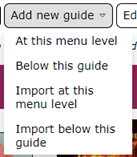
Users with editing privileges on a LearnPath guide will have access to the Import options under the Add new guide menu. As with creating a new guide, there are two options for importing a guide:
- Import at this menu level – imports the guide at the same level in the hierarchy as the current guide
- Import below this guide – imports the guide below the current guide
After selecting where in the hierarchy the guide should be imported, you will be prompted to upload a LearnPath import file.
Click Choose File and browse to the file that contains the guide or guides that you wish to import. With the correct file selected, click Import.

Tips on sharing import files
The following section outlines a few tips and best practices with regard to sharing LearnPath guides using the export and import feature.
Compress larger files before sharing
Depending on the number of guides exported, and the quantity and size of any embedded content, some exported files may end up being quite large.
File archiving software such as WinZip, 7Zip and WinRAR can be used to put the import file into a “zip” file. These applications all have settings that allow for varying levels of compression. Selecting a higher compression level will generally make the “zip” file significantly smaller than the original file exported from LearnPath. This should make it easier to share.

Note: The “zip” file will need to be unzipped before it can be imported into LearnPath.
Use a file sharing service for large files
Even when compressed into a “zip” archive, some import files will still be too large to attach to an email – especially if the exported guides contain lots of images, which are very difficult for archiving software to compress.
File sharing services such as DropBox, Google Drive, OneDrive and iCloud can be used to share any files that are too large to be emailed.
Rename files to make them more descriptive
The default naming scheme for exported files is: “guide_name.learnpath”. If the exported guide contains sub-guides, you may wish to list them (e.g. “Y10-Hist_Eng_Sci.learnpath”)
If sharing a guide with another school, you may wish to include the name of your school in the filename, so that its origin is clear.
Some browsers will give an opportunity to name the file prior to downloading. Other browsers may automatically download the file with the default name, so they will need to be renamed after the download completes.
Was this article helpful?
That’s Great!
Thank you for your feedback
Sorry! We couldn't be helpful
Thank you for your feedback
Feedback sent
We appreciate your effort and will try to fix the article