Summary
This guide will provide an overview of the Reuse Existing information box feature in LearnPath.
The Reuse Existing information box feature allows LearnPath content managers to replicate a previously created information box anywhere in LearnPath. Additionally, when a reused information box is modified, the change is published across all guides where the information box appears at the same time.
This function is very useful for common information that needs to be displayed across several different guides. If any of the information needs to be updated, added to, or removed, this feature means that LearnPath content managers do not need to make the same change on every guide where the information appears. Updating any one of the reused information boxes will update it everywhere it appears.
Reusing an existing information box
To reuse an existing information box:
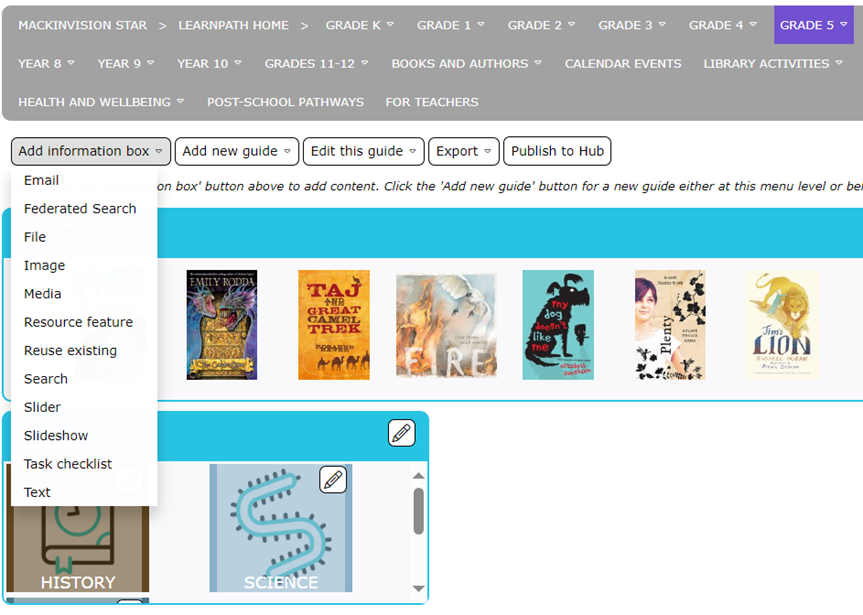
- Go to the Add information box menu on the guide that the information box needs to be displayed
- Select the Reuse existing information box type
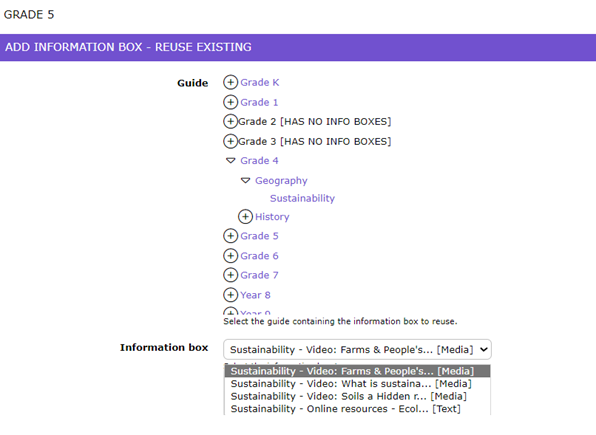
3. From the Guide list, select the guide on which the existing information box appears. Only guides that have existing information boxes will be selectable.
4. Once the guide has been selected, the Information box drop-down will update with a list of the information boxes present on the selected guide. Select the information box to reuse.
5. Click Save 
A copy of the selected information box will be created on the current guide page.
Editing a reused information box
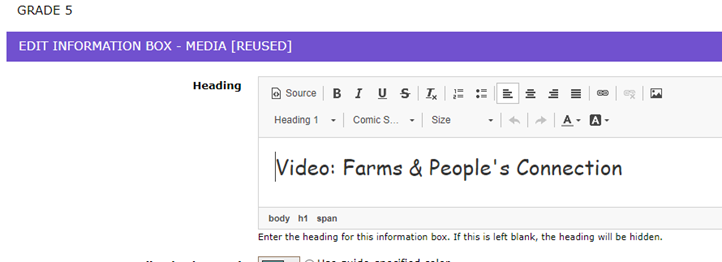
When editing a reused information box, the Edit Information Box heading will display a [REUSED] tag. This tag indicates that the information box appears somewhere else in LearnPath, therefore any edits will be applied across all guides where this information box appears.
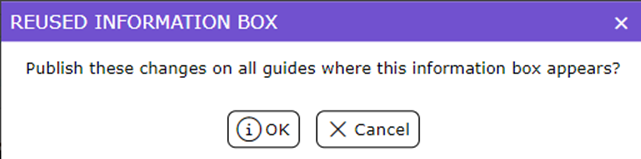
Users will be prompted with a confirmation dialog before any changes will be applied.
Note: Only users who have Edit permissions on all guides where the reused information box appears will be able to edit the information box.
Users who have been granted Edit permissions on a single, or limited number of guides via the User role access function will not see the Edit icon on any information box reused on a guide they do not have Edit permissions on.
Was this article helpful?
That’s Great!
Thank you for your feedback
Sorry! We couldn't be helpful
Thank you for your feedback
Feedback sent
We appreciate your effort and will try to fix the article