Summary
The Merge function takes one or more Authority Control terms, deletes them and assigns to the preferred term the resources previously assigned to the deleted term.
This guide will provide the steps to merge two Author Authority Terms.
Merge an Author Authority into Another
This example will use author terms to merge. Note that the same process applies irrespective of whether the authority terms you are merging are subjects, series etc.
1. Navigate to the Author Authority Control Search screen and complete a search for the Author records that will be subject to the merge process, for example Barrie.




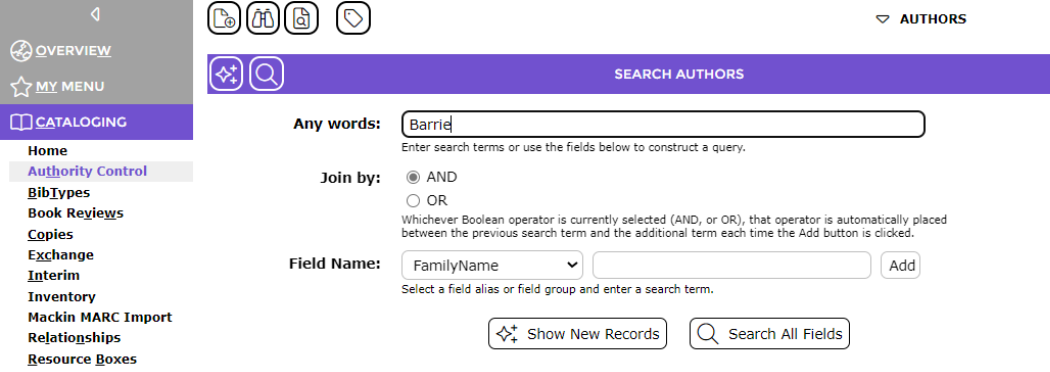
Note: Ensure, if you are searching on a surname that family Name is selected in the Field Name field.
2. Click the Search icon.

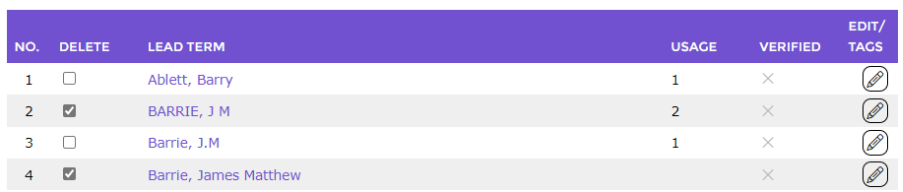
3. The List screen will display with the authors listed. Each author is included on one resource as indicated by the value in the corresponding Usage column cells.

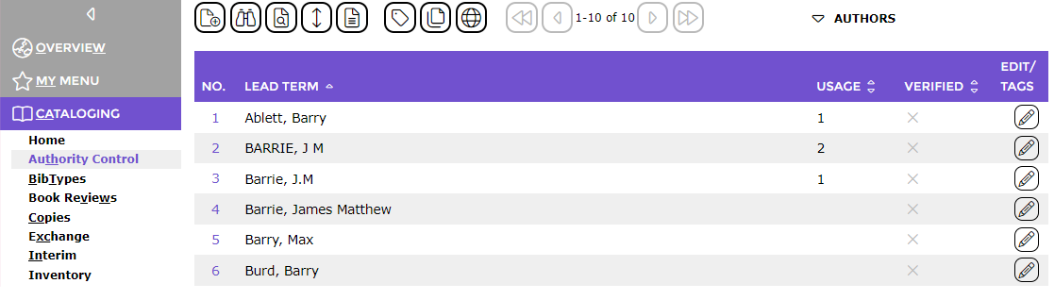
4. From the Function menu click on Merge Authors.

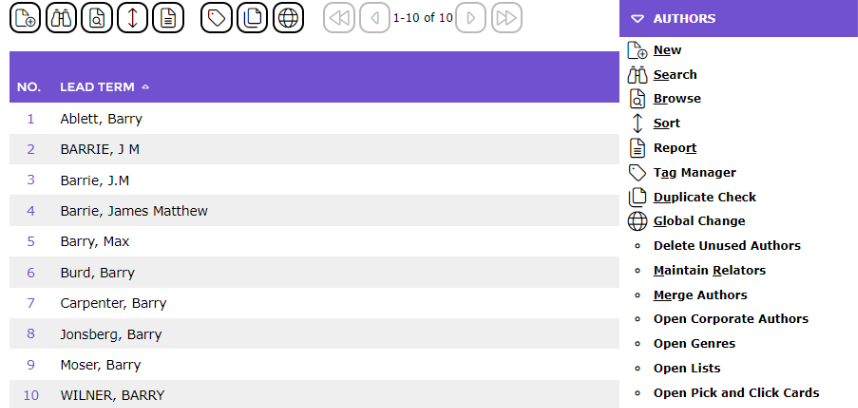
5. The screen will refresh. A checkbox. Now displays next to each of the authors and each of the authors are now a link.
6. Click in the checkbox next to the author whose record is to be merged into another, for example BARRIE, J M and Barrie, James Matthew.



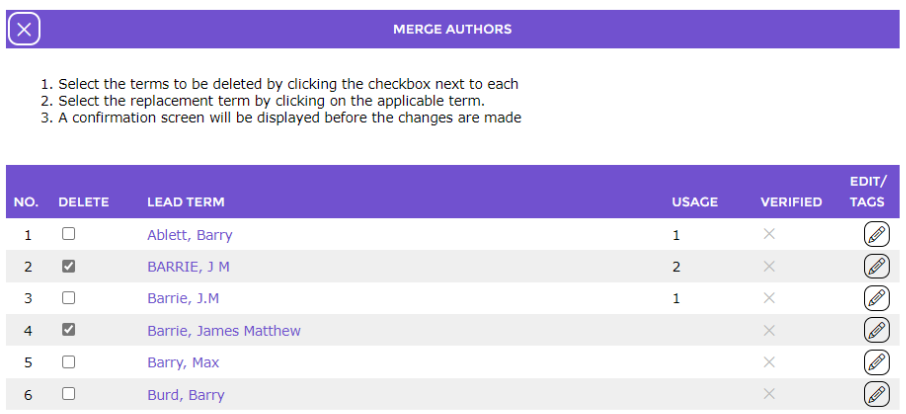
7. Then click on the author link that the term is to be merged with, for example Barrie, J.M.



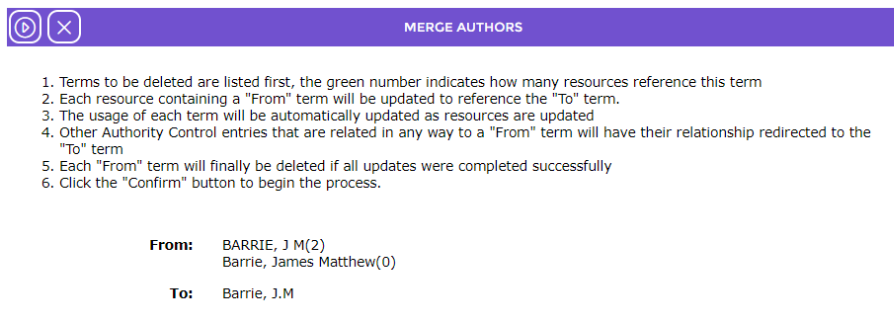
8. The Cataloging > Authors screen will display. The screen includes important information that should be read.



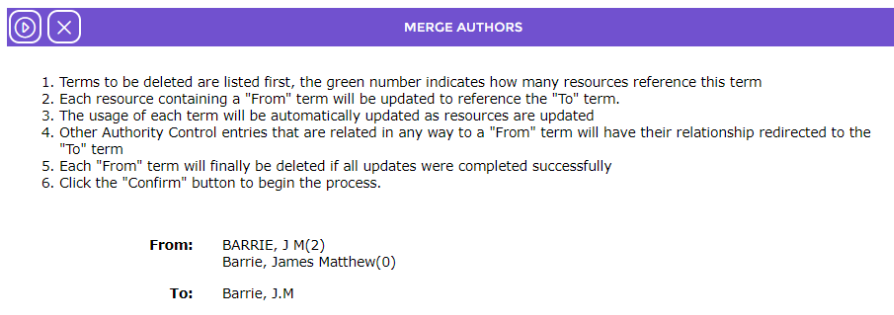
9. Author(s) BARRIE, J M(2) and Barrie, James Matthew(0) displays in the From section. The number of resources the term is included on displays in brackets.
10. The author Barrie, J.M displays in the To section.
11. Click the Confirm button.


12. The screen will refresh and the merge, which resulted in the deletion of author BARRIE, J M and Barrie, James Matthew will be noted.



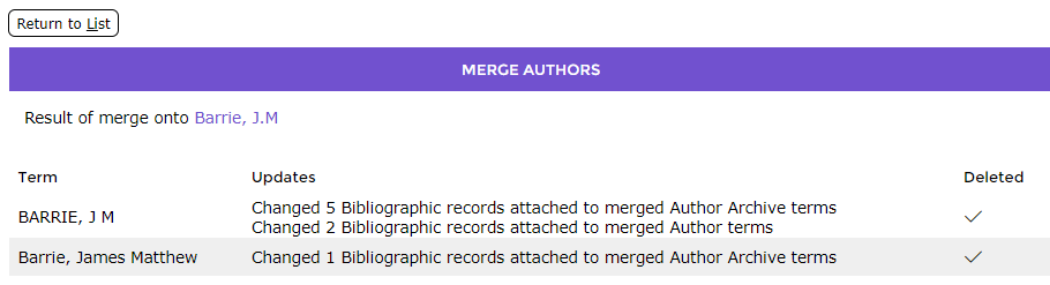
13. Click the Return to list button. Note that author Gaiman Neil is no longer included in the List screen.


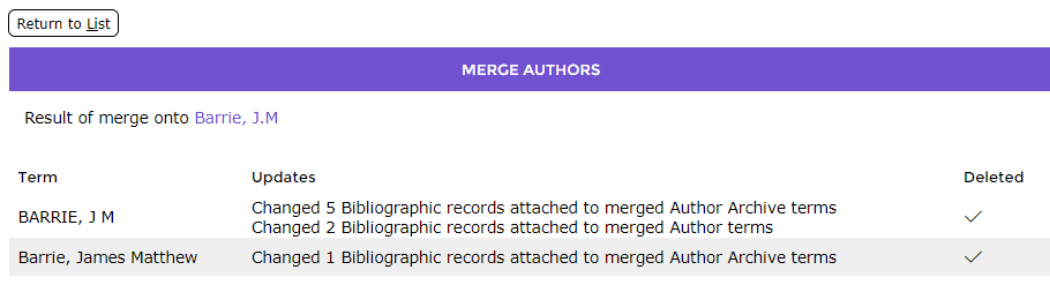
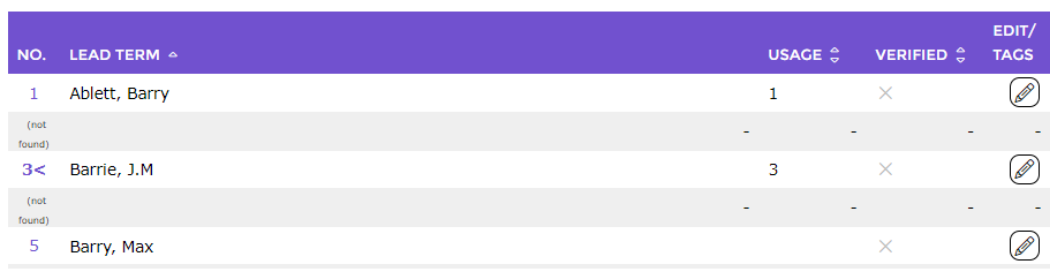
The Usage value on the author authority of BARRIE, J M and Barrie, James Matthew has incremented to include the resource previously tied to the merged term.
Was this article helpful?
That’s Great!
Thank you for your feedback
Sorry! We couldn't be helpful
Thank you for your feedback
Feedback sent
We appreciate your effort and will try to fix the article