Summary
If the Reservation has not expired, it can be edited, for example, to change date, or timeslot. Reservations can be edited via the library Management screen and via Circulation Desk.
This guide will provide the steps required to edit a reservation. Separate guides provide the steps required to create reservations via the Circulation Desk, Copies Detail screen and automatically via the Circulation Desk.
How to Edit a Reservation via the Library Management Screen
1. Navigate to Circulation >Reservations > Search.
2. In the Search screen complete the applicable fields for example, the Title or Alias fields. If for example the user wants a list of reservations for a date range, the Start date and End date fields can be used.
The following example provides the steps required to complete a search on the patron Alias (barcode):
3. Scan or manually enter the patron’s Alias in the Alias field
4. Click the Search icon.
The List screen will display with any reservations, expired and current, for the patron.

Note that only reservations whose dates have not expired will include an E link.
5. Click on the Edit icon corresponding to the reservation to be edited.

The Reservation’s Edit screen will display.
The following screen examples are of a reservation screen with a “days of the month” view not a “week with timeslots” view. However, the process to edit a reservation remains the same.
The date (and/or if applicable timeslot) of the reservation will be highlighted in green.
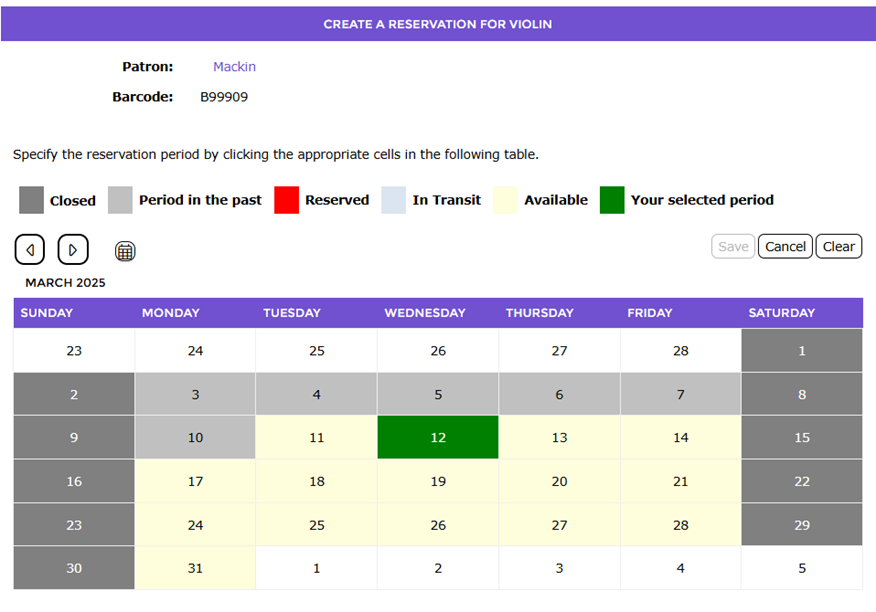
5. Edit as required. For example, if the date is to be changed click in the cell, highlighted in green, to remove the existing reservation then click in the cell corresponding to the date (or timeslot) required.
6. Once the new day (or timeslot) cell has been clicked in, click the Save button.
The List screen will display and the Start and End columns will reflect the edit completed on the reservation.

How to Edit a Reservation via Circulation Desk
1. Scan (or manually enter) the patron barcode or name into the Circulation Desk.
2. Click on the Reservations tab.
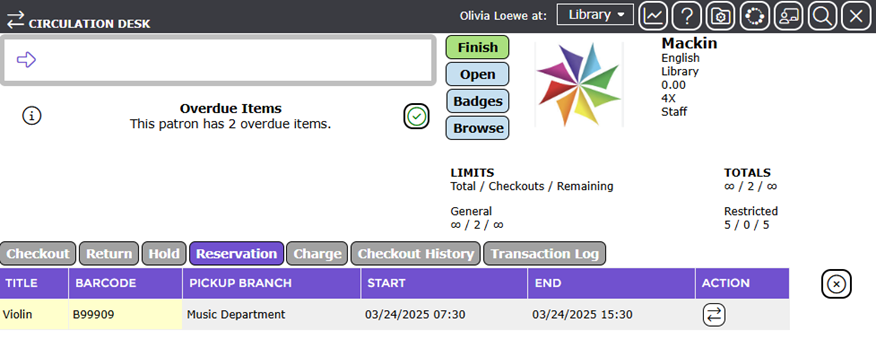
3. Click on the barcode of the copy whose reservation is to be edited. The copy’s Detail screen will display.
4. Click on the Reservations (x) button. Note that the number in brackets identifies how many reservations there are for the item, not the patron. All reservations for the item will display.
5. Click on the edit icon corresponding to the patron’s reservation. The Reservation screen for the item will display.
6. Edit as required. For example, if the date (or timeslot) is to be changed click in the cell, highlighted in green, to remove the existing reservation then click in the cell corresponding to the date (or timeslot) required.
7. Click the Save button and the Reservations List screen will display.
The cells in the Start and End columns corresponding to the edited reservation will reflect the new reservation date/time.

8. To return to the Circulation Desk click the Circulation Desk icon and the update to the reservation is reflected when the patron is reloaded.
The new date/time for the reservation will also be reflected in the Reservations tab.

Was this article helpful?
That’s Great!
Thank you for your feedback
Sorry! We couldn't be helpful
Thank you for your feedback
Feedback sent
We appreciate your effort and will try to fix the article