Summary
If permitted, patrons can add a hold for items via the Search interface. In some instances the status on copy records may prevent holds being placed on them. Patrons must log in to complete a hold process.
This guide provides the steps required to make a hold. Separate guides provide the steps required to complete Basic, Advanced Searching and Other Searches.
Note: The phrase Search interface is interchangeable with the phrase library Home page and OPAC.
To Make a Hold
- Complete a search to return a list of results
- Click into the item you wish to hold
- Click the Hold button underneath the cover art
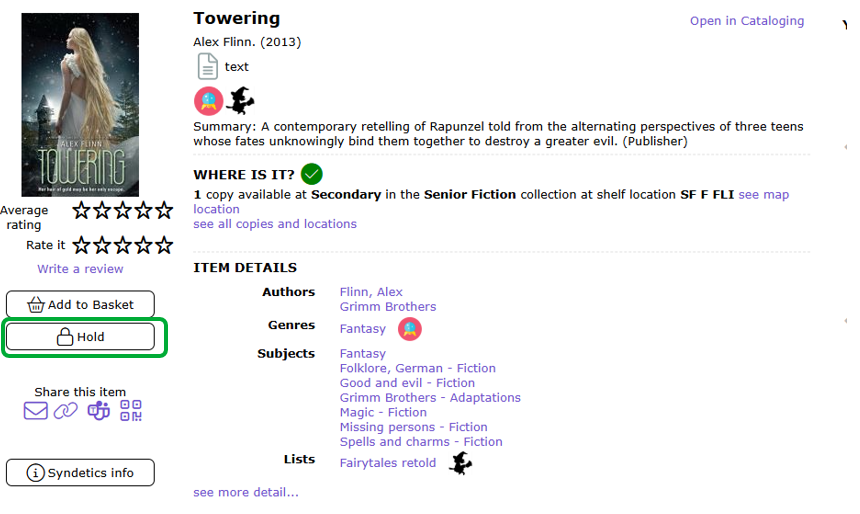
4. A pop up will display stating the hold for the patron currently logged in as default. To select a different patron, start typing in the “change patron” field.
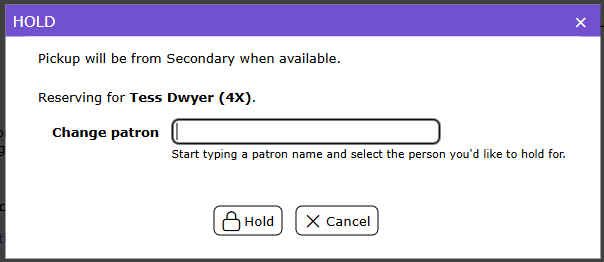
5. The Pickup Branch selected automatically is that tied to the logged in user. The option to change the Pickup Branch is dependent on library policy.
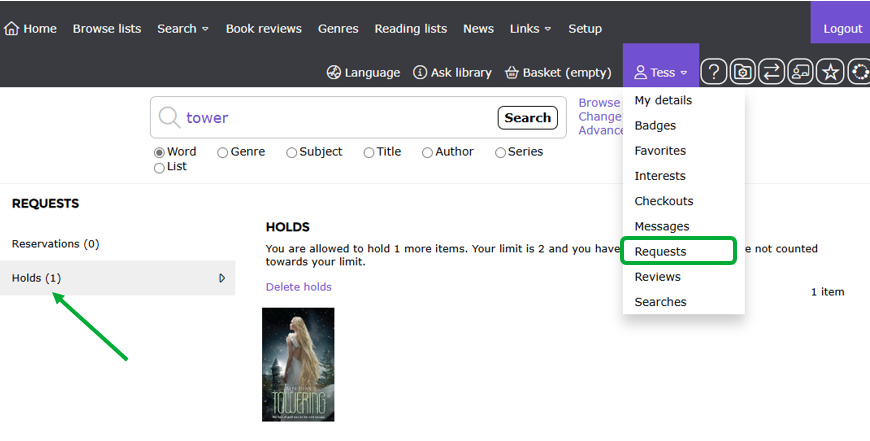
6. The patron the hold is under, can view their holds under their account drop down.
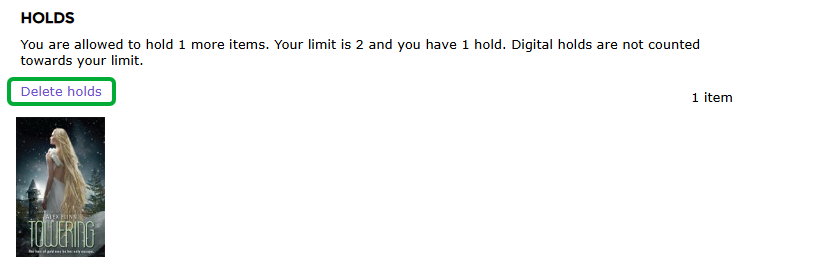
7. To delete the hold click the Delete holds link.
Was this article helpful?
That’s Great!
Thank you for your feedback
Sorry! We couldn't be helpful
Thank you for your feedback
Feedback sent
We appreciate your effort and will try to fix the article