Summary
My Menu is a function allowing each library staff user to group the menu items they use regularly, even if they come from different modules. Grouping the required menu item in one simplifies the access to those areas within the system.
This guide will provide a brief overview and the steps required to add “sub-menu” items to the My Menu option.
Overview
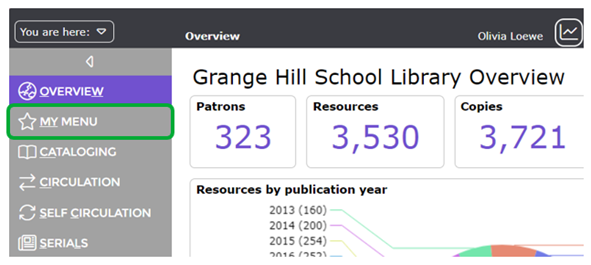
My Menu is included in the main menu panel on the library management screen.
The Organize option is always available and used to modify, that is, add or edit or change the order of my menu items.
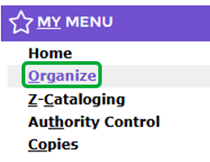
The screen example above identifies that Z-Cataloging, Authority Control and Copies have already been added to the My Menu option.
Add an Item to the My Menu Option
- Click on My Menu then click on Organize.
- The My Menu Detail screen will display.
- Click on either the Edit icon or button.
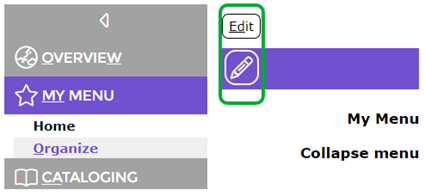
- The My Menu > Edit screen will display.
- In the right hand side list-box click on the item that is one you would access on a regular basis, for example Resources – Catalog bibliographic resources, then click on the left facing arrow located between the two list-boxes.
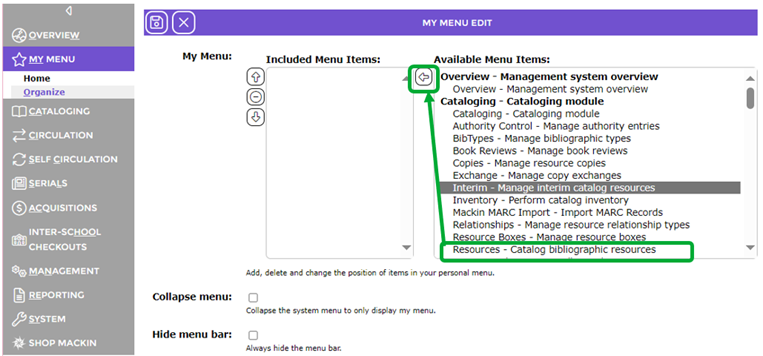
You should select the options in the order of most frequent to least frequently used. For example, if you catalog resources or edit copies on a daily or very regular basis ensure you click Cataloging or Copies first etc. (These options can be rearranged later to better suit preferred order of use.) - The item will now display in the left hand side list-box.
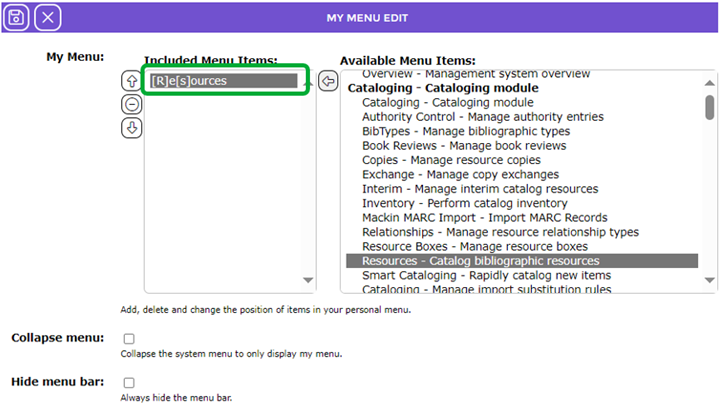
- Repeat Step 3 for each item you access regularly and want to include in the My Menu list.
- To move a selected item up or down the Included Menu Items list, highlight and click either the Up or Down arrow accordingly.
- If the only menu you wish to display in the Overview screen when you log in is My Menu, click in the checkbox next to Collapse menu to display a check.
- If the menu bar is to be hidden on log in click in the Hide menu bar checkbox to display a check.
- When all of the items have been selected, click on the Save button.

Was this article helpful?
That’s Great!
Thank you for your feedback
Sorry! We couldn't be helpful
Thank you for your feedback
Feedback sent
We appreciate your effort and will try to fix the article