Summary
There are different types of searches you can use in the Search interface. The Advance search option has a number of options you can choose to find a list of titles that most closely match what you want than a basic search would.
This guide provides the steps required to complete an Advance Search. Separate guides provide the steps required to complete a basic search, search using an alternate provider and searching another library.
The Advanced Search Options
If you want the Advanced Search type to be automatically selected when you log into the system, you can make it your “default” type via the Details screen in My Portal. You can do an advanced search whether you are logged in or not by selecting it from the Search field.
- Select Advanced search at the end of the Search field.
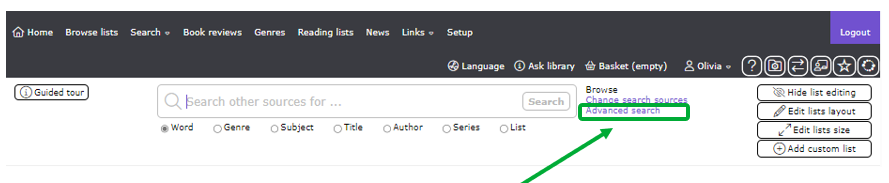
- All of the options you can use for to find the titles you want will display. You can use as many of the options as you like. The more options you use the more likely it is only titles you are likely to want to find will display.
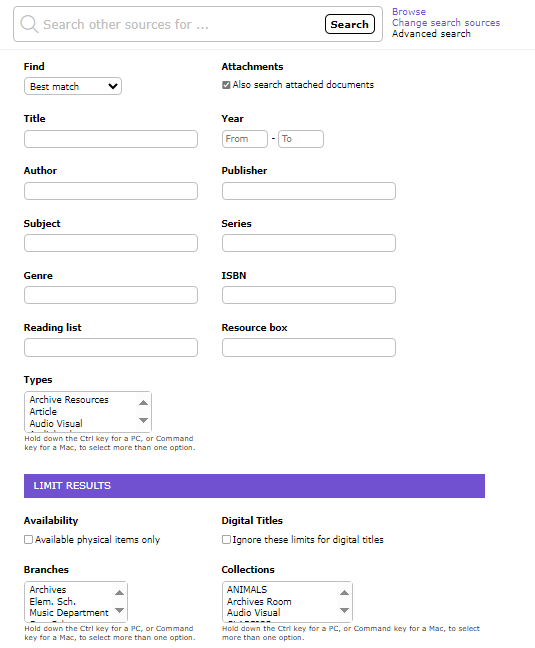
You can use as many or a few as you want. The options are:
- Title – enter the exact title you want in this field if you know it
- Author – enter the author’s name in this field if you know it
- Publisher – enter the publisher name if you know it
- Subject – if you know the subject you want, for example, environment enter it in this field
- Series – if you know the series you want enter it in this field
- Year From and To – enter the year from and to in these fields, for example, 2011 and 2014
- Types – click on a material type you want, for example, book or DVD or eBook
- Collections – click on the Collection you want, for example, Nonfiction
- Branches – click on your library branch if it is not highlighted automatically
- Available copies only – only find titles with copies that can be loaned now
- Documents – if a check displays in the checkbox and there are documents that match your search they will be included in the results List documents if you want. If you don’t want documents click in the checkbox to remove the check
- Include Nonphysical Items – if a check displays in the checkbox and there are nonphysical resources like websites or eBooks for example, they will be included I the results list. If you don’t want them included in the results List click in the checkbox to remove the check
Useful for Corporate Libraries: There may be a number of User Defined authorities options available to use in the Advanced Search screen if established by library staff. User defined authorities can be created for corporate libraries which use terms, specific or unique to them, which are not “library” approved authority terms. |
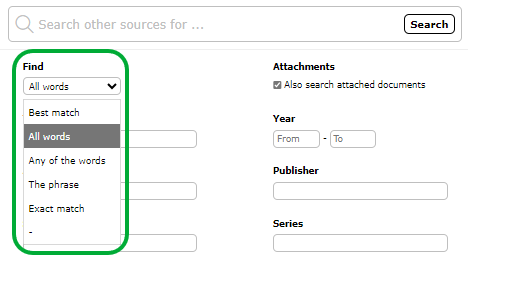
- Choose the Search (Match) Operator you want from the drop down list. They are:
- Find all words – this operator will find resources that contain every word you enter in the Search field
- Best match – may find a large number of resources and will sort the order in order of relevance
- Find any of the words – will find resources that include one or more of the words you enter in the Search field
- Find the phrase – will find resources that contain every word you entered in Search field in the order you entered them
- Find exact match – will find resources that are exactly a match for the words you entered in the Search field.
TIP: Logged in patrons can set a Search Type of Advanced, in the Details option under My Portal. If patrons change the search type they should Save the change. The Search Type of Advanced is then automatically selected whenever they log into the system.
Using the Advanced Search function is not restricted to logged in patrons. It can be selected it from the dropdown field at the end of the General search field for any users. |
Advanced Search Example
In the example Advanced Search, the word Environment will be entered in the Search field and the following Advanced Search options will also be used:
- A Collection of Junior Nonfiction
- The Types of All
- Published between the Years of 2011 and 2014
- The Branch of Elem. Sch.
- The checkboxes of Documents and Include Nonphysical Items ticked
- The search operator used is Find any of the words.
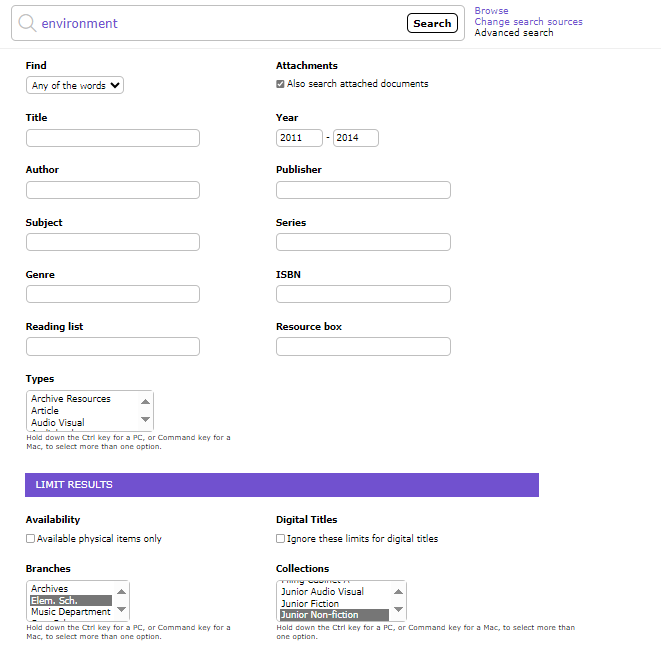
- The example screen above shows all of the options used to return a list of titles, held in the library, that match those options.
- Click the Search icon (you can also click the Enter key on the keyboard) to instigate the search.
- Only titles matching the search options selected are returned.
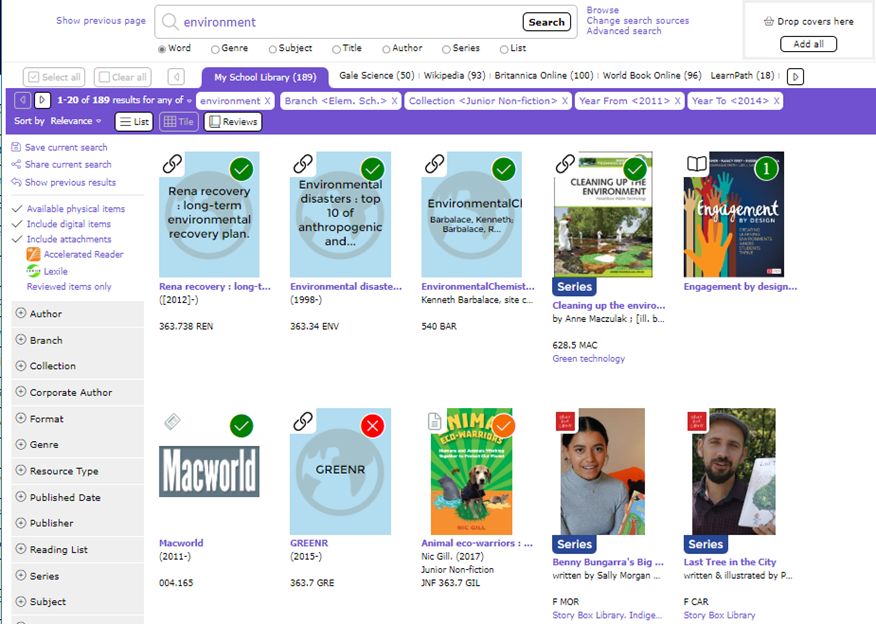
You will see little icons, on each title line in the List screen. They let you know whether the titles in the results list are in or not:
- A green icon with a Check tells you it is in
- A yellow icon with a Check tells you it is at another branch (if your library includes more than one branch)
- A red icon with a Cross icon tells you it is not in, or there is no copy of the title.
Your library may use words, for example In or Out, instead of icons, to let you know whether titles are available or not in your library.
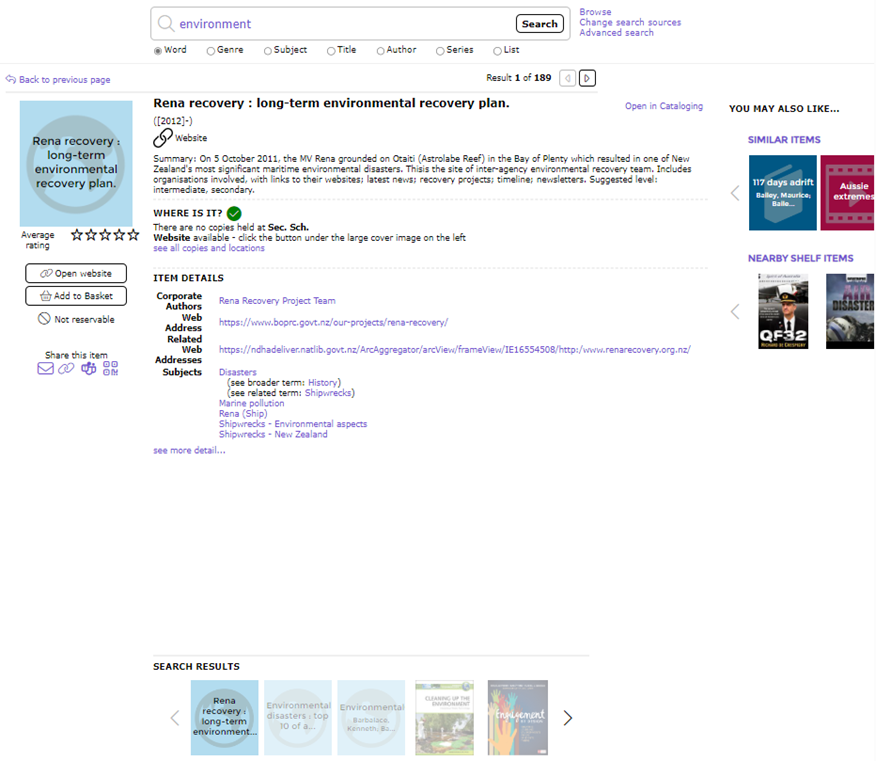
Each title in the List screen is a link. Click on the title and the title’s Detail screen will open. The screen gives you more information about the title and includes a carousel at the bottom. You can click on the carousel’s left or right facing Arrow icons to see other titles that come before or after the title whose Detail screen you have opened.
Was this article helpful?
That’s Great!
Thank you for your feedback
Sorry! We couldn't be helpful
Thank you for your feedback
Feedback sent
We appreciate your effort and will try to fix the article