Summary
The Advanced search screen provides options to ensure a search result for an entered term is narrowed so only those resources that most closely match your requirements are returned. In many instances, completing an advanced search removes the necessity to use the Modify search feature.
This guide will provide the steps required to removed search options not required for an advanced search.
How to Remove Advanced Search Options Not Required
Search options available on the Advanced Search screen can be removed if they do not apply. This is done via Pages edit and can only be completed by a staff member with the applicable User Privilege operations. The example provided will show how to remove the UserAuthority Advanced search options from the screen. The process is the same to remove any other unrequired advanced search options.
- Navigate to System > Pages.
- Click on the Turn On button and term Off, adjacent to Page Editing, changes to identify editing is now On. Note that the button has changed to Turn Off.
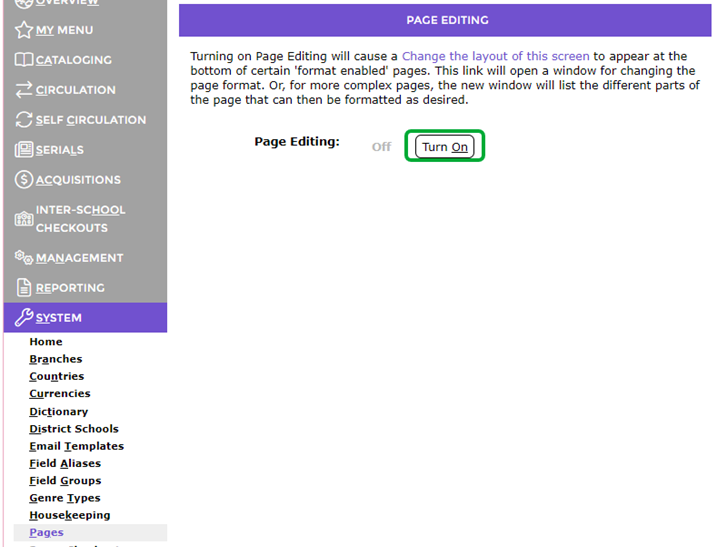
3. Navigate to the Home screen in the Search interface and click on the Change the layout of this screen link located at the bottom of the screen.

4. The Pages > List screen will display.
5. Click on the Edit button corresponding to the Page Name of search2othersource.
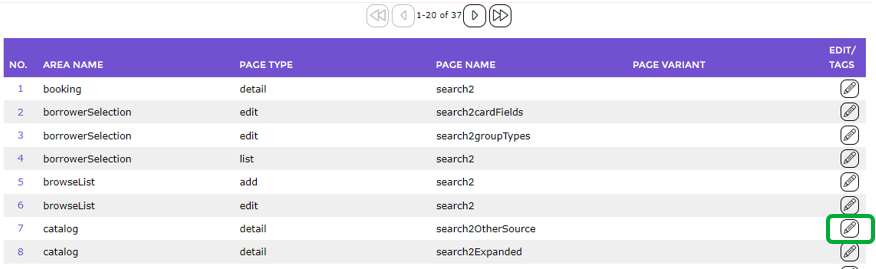
6. The Pages > Edit screen will display.
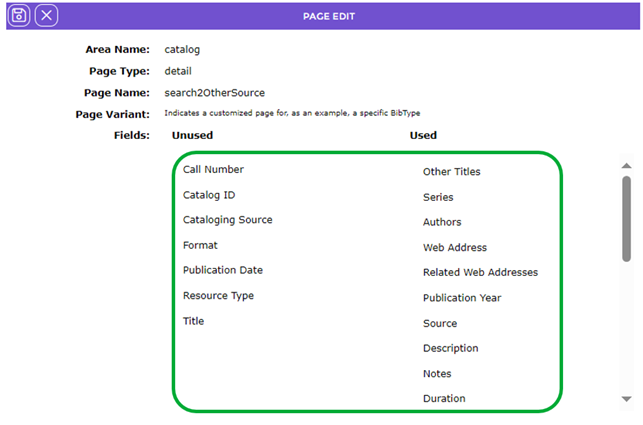
The Fields section, the Used list-box contains all field currently included on the Advanced Search screen while the Unused list-box contains field available for inclusion on the Advanced search screen.
7. In the Used list-box, find and drag UserAuthority into the Unused list-box.
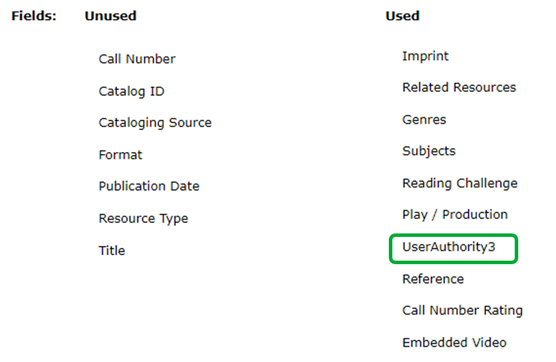
8. The UserAuthority3 option is transferred to the Unused list-box.
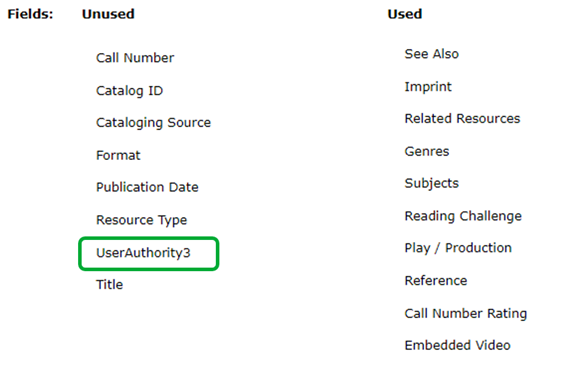
9. Repeat step 7 for all of the UserAuthority fields to be removed from the Advanced search screen.
10. Click the Save icon. 
Was this article helpful?
That’s Great!
Thank you for your feedback
Sorry! We couldn't be helpful
Thank you for your feedback
Feedback sent
We appreciate your effort and will try to fix the article