Summary
Sliders are a type of information box that provide a means of presenting patrons with customized or pre-defined lists of what is in the library’s catalog. Sliders are highly configurable, enabling librarians to be precise about the resources they display. The three sections in which sliders may feature are the Browse Lists screen, the News page, and in LearnPath guides. This guide will describe the process of creating new sliders and configuring existing sliders.
Relevant User Privilege Operators
To configure sliders, a staff member must be assigned a user role that contains one or more User Privileges (System > User Privileges) with the following operators checked:
Manage content of LearnPath
Access to Browse lists editing functionality
Access to News page information box editing functionality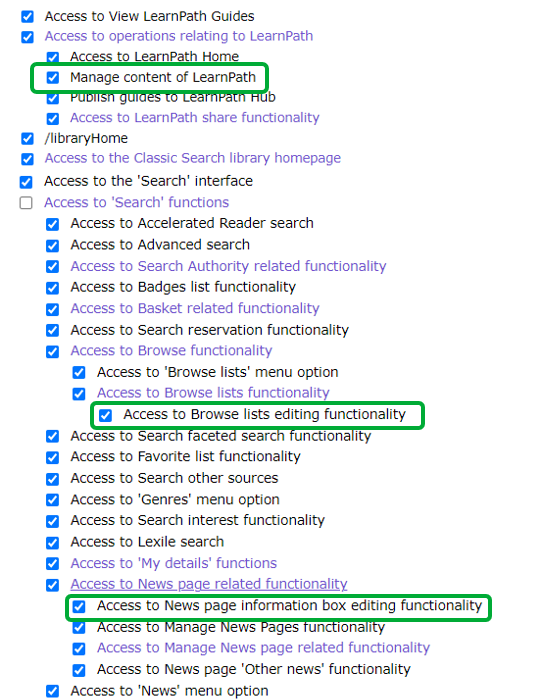
By default, these will be checked for any staff member with a user role of Administrator.
Creating a New Slider
The following sub-sections will describe the process of creating a new slider information box, and the user privileges required to do so.
Browse List Sliders
When a MackinVision administrator views the Browse Lists screen, the Show List Editing button will show: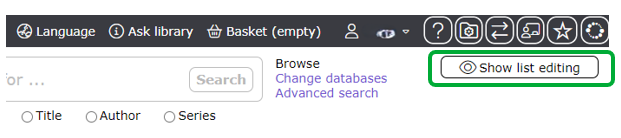
Click Show List Editing to reveal the list editing options:
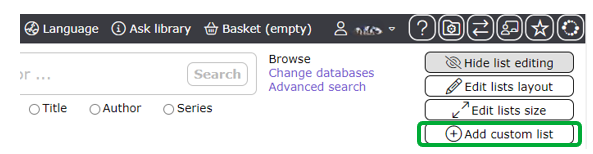
To create a custom slider, click Add custom list.
News Page Sliders
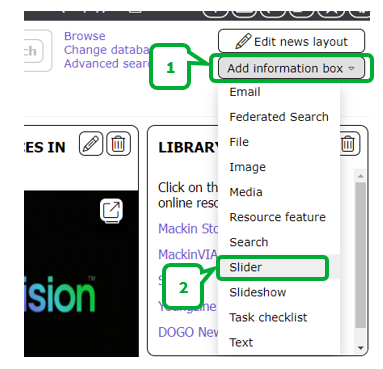
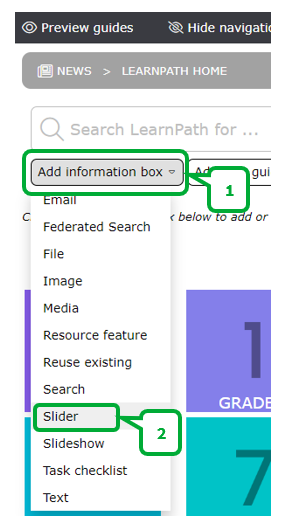
When a MackinVision administrator views the News Lists screen, an Add information box button will show. Click Add information box and then select Slider:
LearnPath Sliders
When a MackinVision administrator views a LearnPath guide, an Add information box button will show. Click Add information box and then select Slider:
Configuring a New or Existing Slider
The settings available when configuring a new or existing slider will differ depending on where the slider resides. The following sub-sections will describe the editing process for the two different styles of slider.
Browse List Sliders
In the Browse Lists screen, the sliders are treated and referred to as lists. By default, the Browse Lists screen will already have six pre-defined lists. These are:
- Highly rated – items with high Book Review ratings.
- Matching your interests – items matching interests a patron may have registered.
- New items – items recently added to the library catalog.
- Popular – items that have been borrowed frequently.
- Recently returned – items that have been returned from checkout recently.
- Recommended for you – items similar to resources clicked by a patron.
Pre-defined Lists
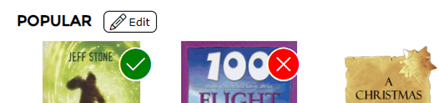
To edit one of the pre-defined lists populating the Browse Lists screen by default, click the Edit button located alongside the relevant list’s title.
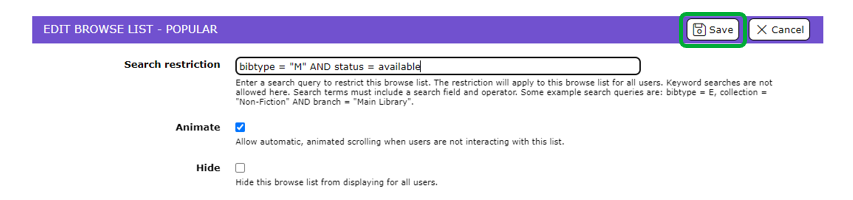
In the Edit screen, alter the relevant settings and then click Save. Each setting is accompanied by a brief note describing its function or purpose.
New or Existing Custom Lists
When creating a new list, or altering an existing custom list, you will be presented with the settings depicted below:
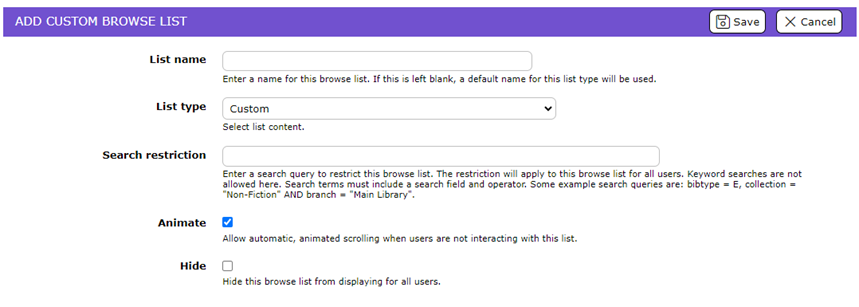
Each setting is accompanied by a brief note describing its function or purpose. Of significance are the following settings:
- List type – this setting enables you to select from one of the pre-defined list configurations from the Browse Lists screen (listed above). Select Custom to define your own parameters in the Search restriction.
- Search restriction – this setting enables you to specify precisely what you want the slider to show. Search terms must include a search field and operator. Some example search queries are: bibtype = E, collection = “Non-Fiction” AND branch = “Main Library”. See the Search Strategies for LearnPath help guide for detailed information on using search operators.
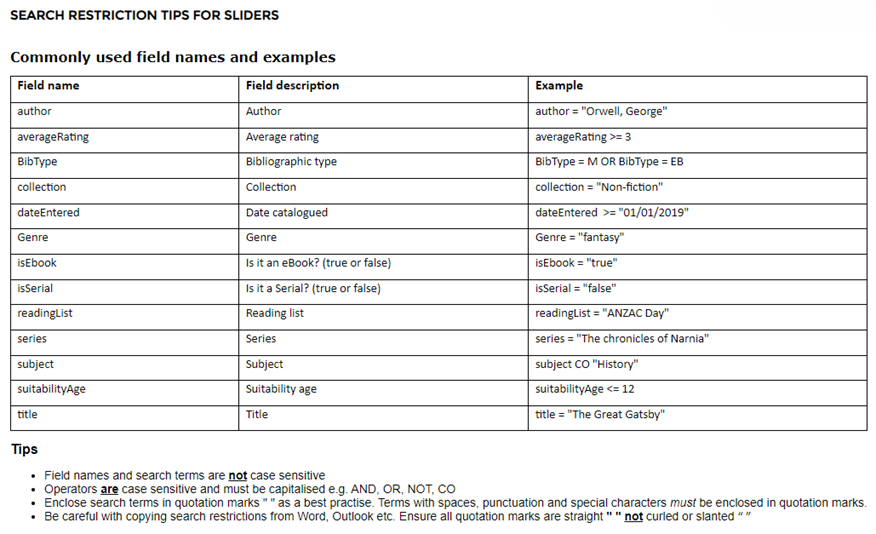
News Page and LearnPath Sliders
When creating a new slider or editing an existing slider in the News page and LearnPath guides, you will be presented with an array of settings. Each setting is accompanied by a brief note describing its function or purpose. Of significance are the following settings:
- Slider type – this setting enables you to select from one of the pre-defined list configurations from the Browse Lists screen (listed above). Select Custom to define your own parameters in the Search restriction.
- Search restriction – this setting enables you to specify precisely what you want the slider to show. Search terms must include a search field and operator. Some example search queries are: bibtype = E, collection = "Nonfiction" AND branch = "Main Library".
- Text – this setting enables you to enter a line of text along the bottom of the slider. Note that a string of text will be limited by the length of the slider and will be cut short if it exceeds that length.
Was this article helpful?
That’s Great!
Thank you for your feedback
Sorry! We couldn't be helpful
Thank you for your feedback
Feedback sent
We appreciate your effort and will try to fix the article