Summary
The General Material Description (Resource Type) of each resource indicates the physical form of the resource, for example text, map, or videorecording. The list of Resource Types is available for selection on the Resource Add and Edit screen. A number of Resource Types are included with the system and 'book' is set as the default selection when creating new resource records. The default Resource Type can be changed as required and the default applied to resource records can be changed manually if required. An image can be added to a Resource Type. While it is not mandatory to do so images can help patrons more clearly identify the type resources they are looking for in the Search interface list screen.
This guide will provide the steps required to create a Resource Type and add an image to a Resource Type.
Create a Resource Type
- Navigate to Management > Resource Types > Search (or List) screen.
- Click on the New icon or type ne or click on the Function menu and click on New.
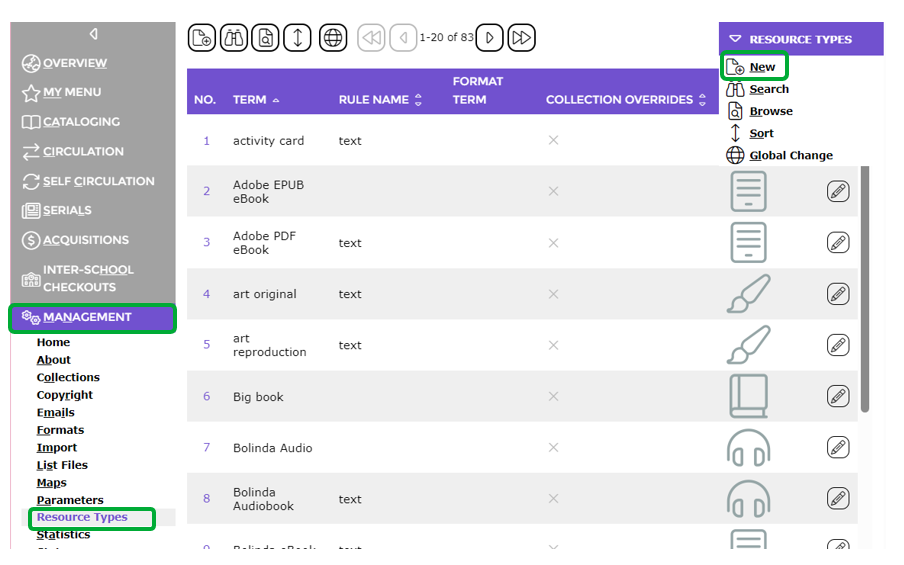
- The Add a new Resource Type popup screen will display.
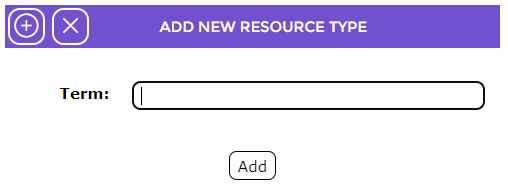
- Enter the applicable term in the field provided then click the Add button.
- The Add screen will display.
- The Resource Type name entered in the previous popup screen displays in the Term field.
- There are three Rule options - text, kit, or serial. While most Resource Types would use the rule of text, in this case Kit will remain the selection.
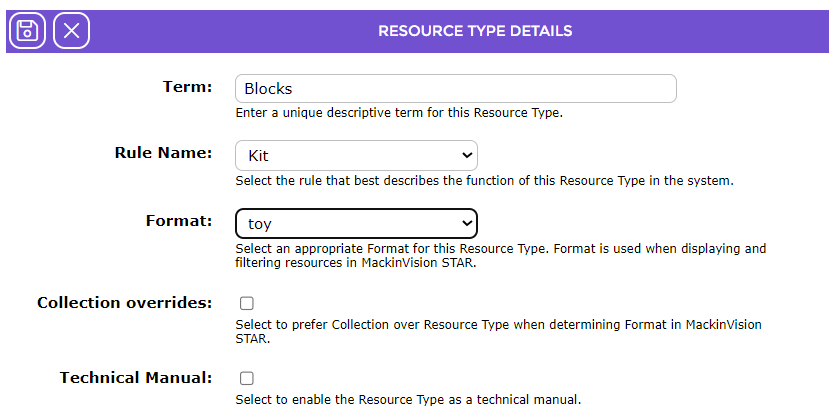
- If you are using STAR (the Children’s picture catalog), the Format field will also be included in this screen and the relevant format selected from the drop down menu list.
Note: Information on Formats is included in the How to Create a Format guide. |
- If a Collection is preferred to a Format, for filtering and displaying resources in STAR, click in the Override checkbox.
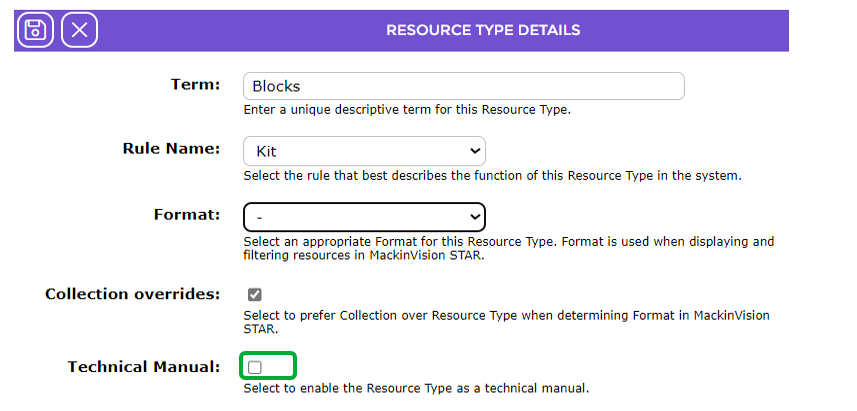
Note: If your registration does not include STAR, the Override checkbox will not display in this screen |
- If your registration includes SIP2 both the SIP2 Media Type and SIP2 Magnetic Media fields will display. If so, select the Media Type and click in the SIP2 Magnetic Media checkbox.
- The checkbox in the Technical Manuel field will only display if the library’s registration includes the Technical Manuals functionality. If the Resource Type is for a Technical Manual this checkbox must be clicked.
- When all details are completed click the Save icon.

- The Resource Type is then included in the drop down list of the Resource Type field on the resource Add or Edit screens.
If no Resource Type is selected when manually creating a new resource, a default of text is applied.
The field will be automatically populated with the applicable Resource Type if a MARC record for the resource is acquired via Z-Cataloging or from the import of a MARC file from a supplier, irrespective of whether the 336, 337 and 338 MARC tags and applicable sub-fields are included in the MARC record or not.
Add an Image to the Resource Type
An image, default or preferred, is added to a Resource Type via the Detail screen.
- Navigate to Cataloging > Resource Type and search for the Resource Type to which an image is to be added.
- Click on the number corresponding to the Resource Type in the List screen to which an image is to be added, for example, Blocks.
- The Detail screen will display.
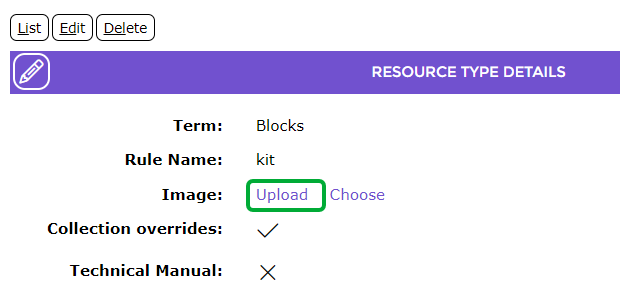
- Click on the Upload link located in the Image field.
- In the resulting screen, click on the Choose File button.
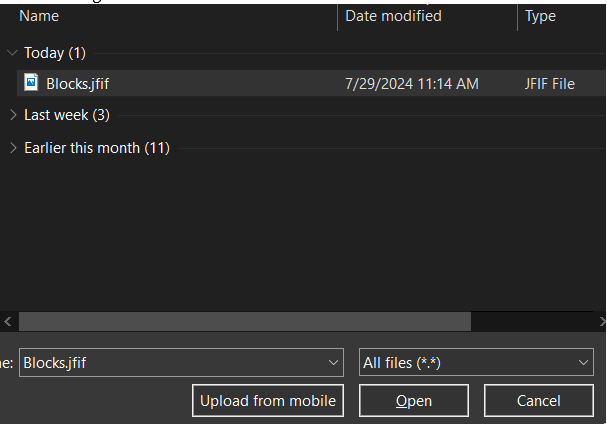
- The Choose File to Download popup screen displays.
- Navigate to the folder in which the file is located and double click on it.
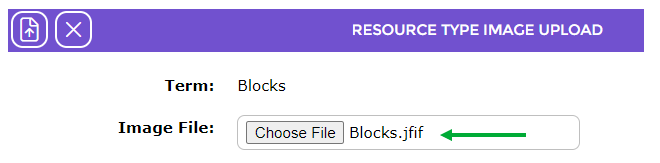
- The file name will display in the Image File field.
- Click the Upload icon.
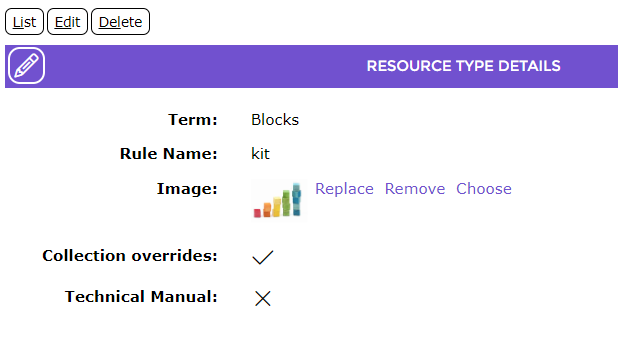
- The Resource Type Detail screen will display and the uploaded image can be viewed in the Image section.
TIP: If a Resource Type is not selected when manually creating a new resource, a default of text is applied. The Resource Type field automatically populates with the applicable Resource Type if a MARC record for the resource is add via Z-Cataloging or a MARC file import. |
The image tied to a Resource Type can be set to display in the Search interface and will display on the left of the title to indicate the material type of the resource.
Was this article helpful?
That’s Great!
Thank you for your feedback
Sorry! We couldn't be helpful
Thank you for your feedback
Feedback sent
We appreciate your effort and will try to fix the article