Summary
A Housekeeping process, if turned on, will check the validity of URL attached to resources in the catalog. Where applicable, URLs identified as invalid are marked accordingly. To activate the process, a housekeeping process must be turned on. Only staff with applicable User Privileges can access the Housekeeping option.
This guide will provide the steps required to activate the URL checker functionality. A separate guide provides general information on all the Housekeeping processes.
Housekeeping Process
1. Navigate to System > Housekeeping and click on the Edit button.

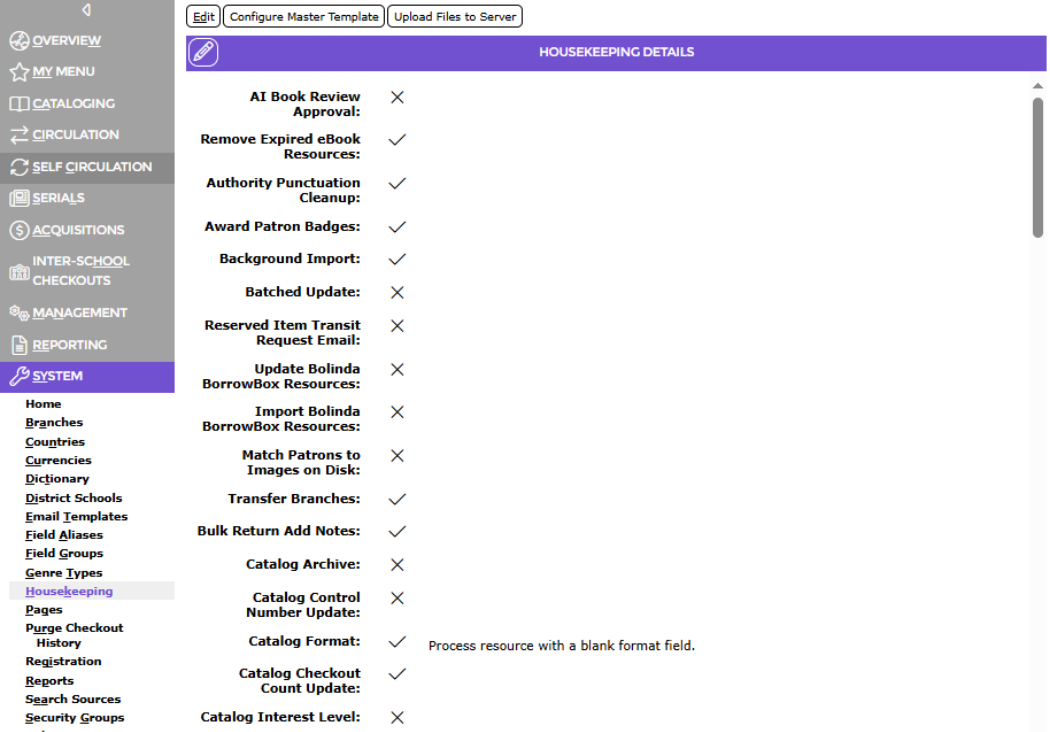
2. Scroll down to locate the URL Check option. If the corresponding checkbox is empty, click on it to display a check.


3. Click the Save button.
The process to check the URLs will then be included as part of the nightly Housekeeping process.
Identify All Resources with Broken URLs
1. Go to Management > Tag Manager.
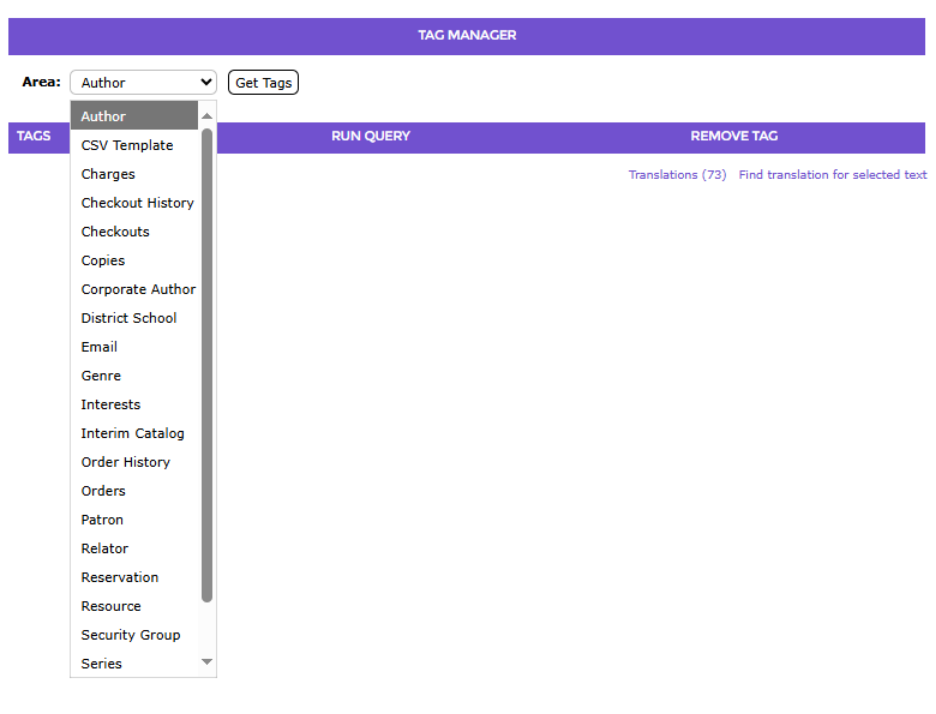
2. Click on the down arrow at the end of the Entity field and click on Resources and click on the Get Tags button.


3. A list of tags currently included in resource records will be displayed. The Invalid URL tag will be included in the list if applicable.


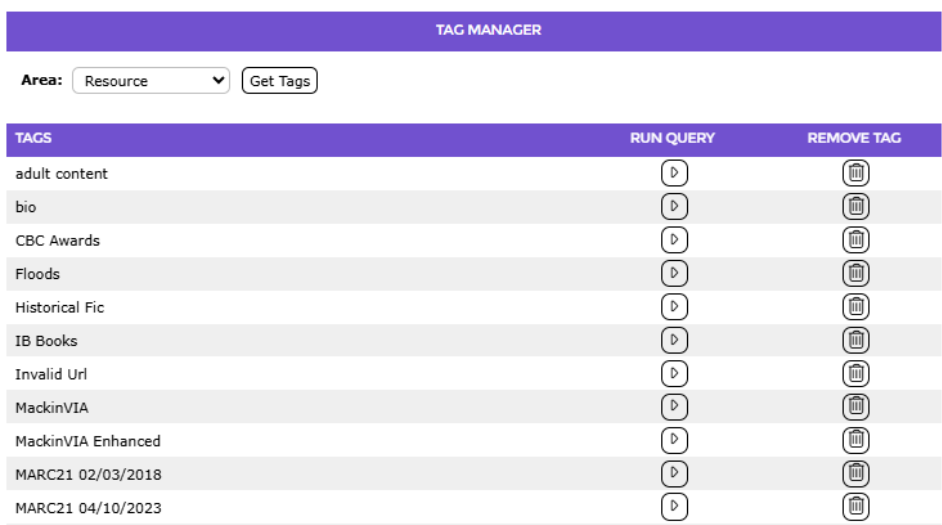
4. Click on the Arrow icon corresponding to the tag.
5. A list of applicable resources will be displayed.
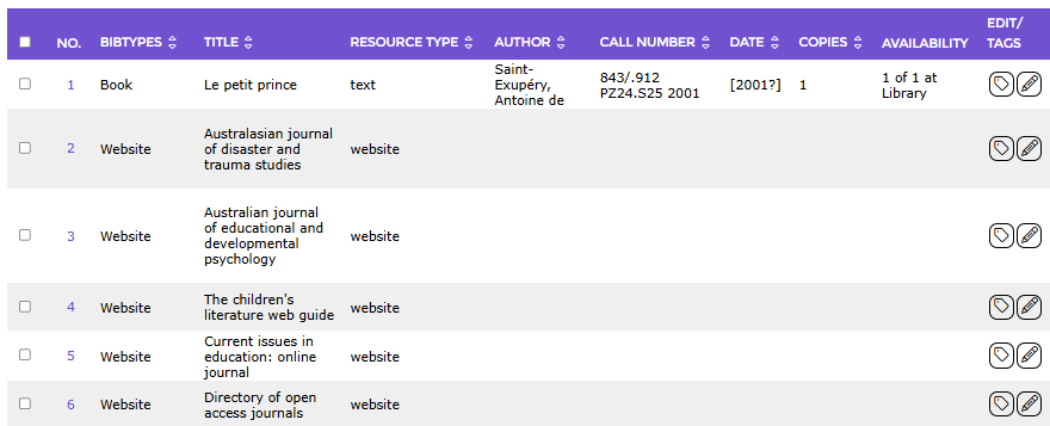
6. Click on the number link of one of the resources listed to access the resource’s Detail screen.
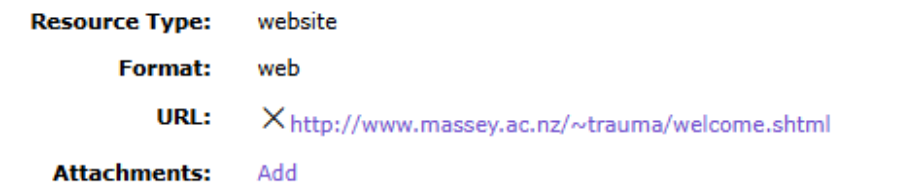
7. In the URL field you will see a Cross in the front of the URL. The Cross is a visual indication that the URL is invalid.

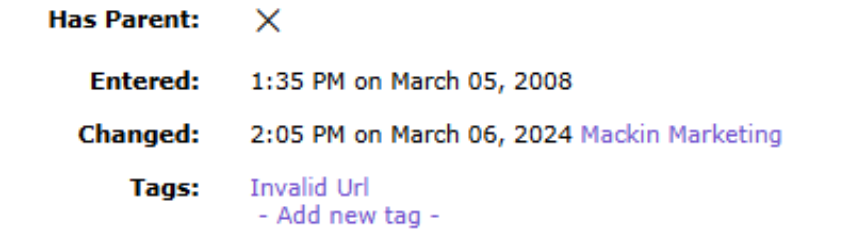
8. Scroll down to the Tags field and confirm that the Invalid URL tag is included.

Was this article helpful?
That’s Great!
Thank you for your feedback
Sorry! We couldn't be helpful
Thank you for your feedback
Feedback sent
We appreciate your effort and will try to fix the article