Summary
There are several reports that, when run, will provide accurate information on the status of any budgets created and used by library staff. Depending on requirements, simple, or detailed, reports are available.
This guide provides a screen example of each budget report to illustrate the information that can be easily accessed is Acquisitions is being used. Separate guides provide the steps to creating and receiving orders.
Budget Reports
Budget reports are accessed from the Acquisitions > Budgets > List > Reports screen. With the exception of the Full Budget report, an example image is included in the Reports screen enabling staff to preview the report layout and data.
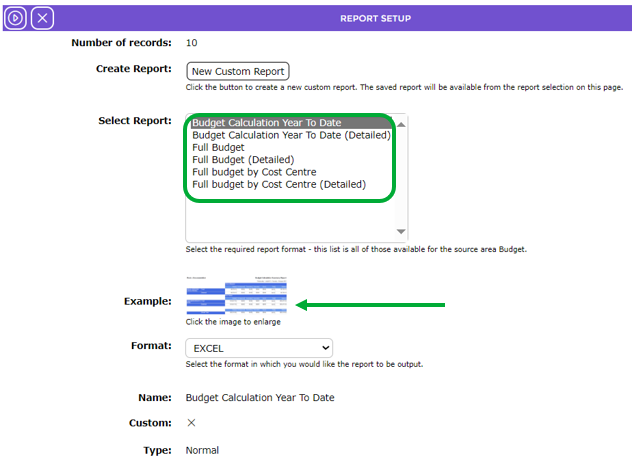
Clicking on the preview image will enlarge it.
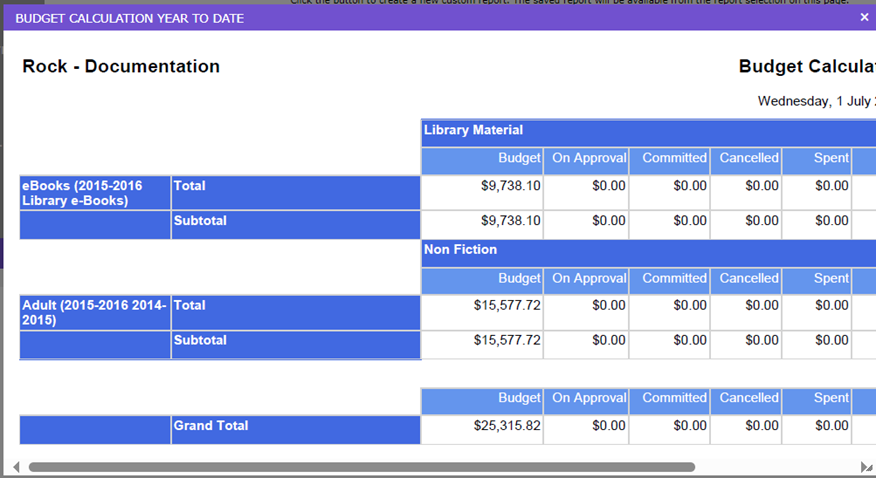
The following example reports illustrated the type of information authorized staff have easy access to if Acquisitions functionality is used.
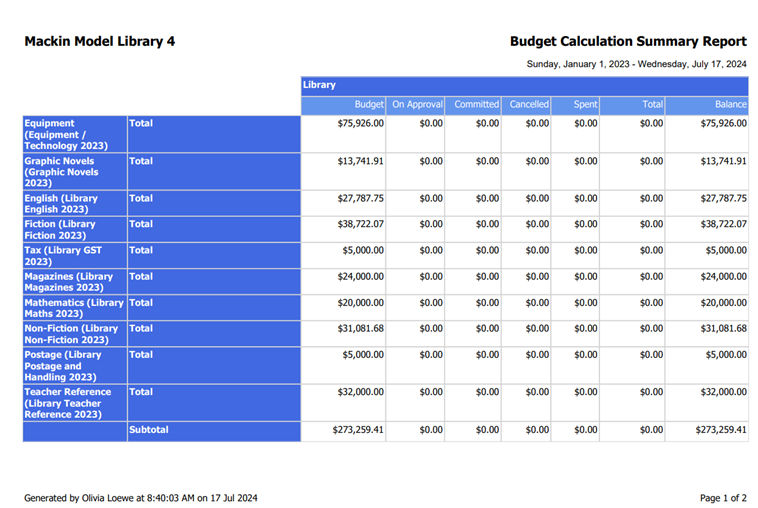
Budget Calculation Year to Date
Information on the Budget Year to Date includes the information on each Budget set up for the financial year. The library may have set up several budgets or just one budget. The following information is included in the report:
Budget – the amount allocated to the budget, for example, $5000.00
On-Approval – for any orders with the status of On-Approval, the total value of those orders is included as a separate amount in the report
Committed – this identifies the value of ordered copies not yet received into the system
Canceled – the value of any canceled orders is included as a separate amount in the report
Spent – the value of copies received into the system.
Balance – this amount is the money currently available in the budget. The value is automatically calculated by deducting the Committed and Spent amounts from the original value of the budget.
Grand Total - the amount is the total of all of the budgets’ balances.
The report also includes a date and time stamp, the name of the logged in user who ran the report and the page number.
Budget Calculation Year to Date (Detailed)
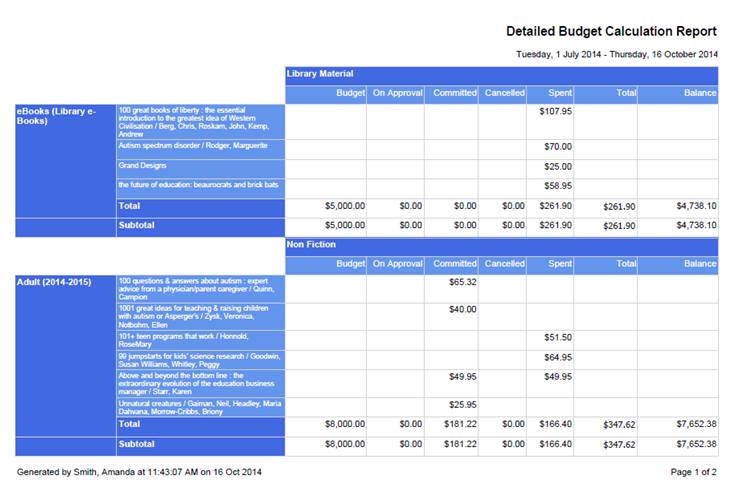
Information on the Budget Year to Date (Detailed) includes the total value of each Budget set up for the financial year, each title ordered against the budget/s as well as the . The following information is included in the report:
Budget Name and titles ordered on the Budget – this information is contained in two columns adjacent to the Library Material section.
Columns included in the Library Material Section:
Budget – the amount allocated to the budget, for example, $5000.00. The amount is included in the Budget column’s corresponding Total cell
On-Approval – for any orders created with the status of On-Approval, the total value of those orders is included as a separate amount in the report. The amount is included in the On-Approval column’s Total cell
Committed – this identifies the value of ordered title copies not yet received into the system
Canceled – the value of any canceled title orders is included as a separate, individual amount in the report
Spent – the value of each title copy subject to an order that have been received into the system is identified in the corresponding cell in the Spent column. The total current spent amount displays in the column’s Total cell
Balance – the amount of money still available on the budget is automatically calculated by the system – it deducts the Committed and Spent amounts from the original total of the budget. This value is included in the corresponding Total cell in the Balance column.
The report also includes a date and time stamp, the name of the logged in user who ran the report and the page number.
Full Budget
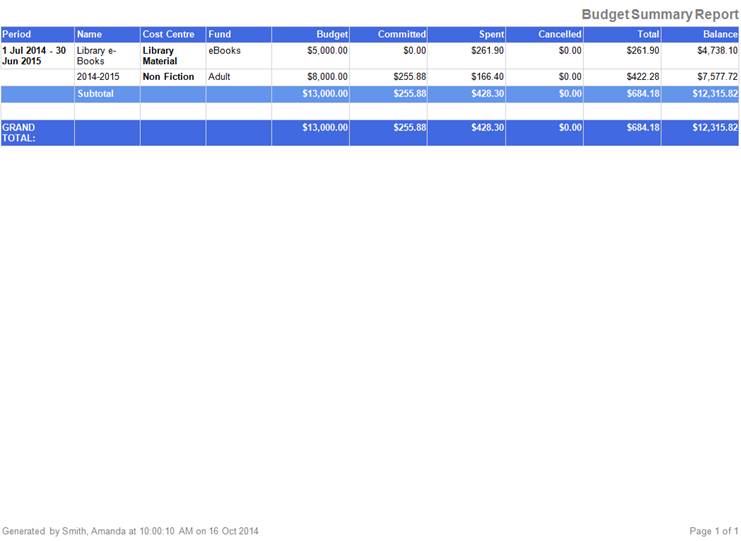
This report includes the:
Period - the start and end date of the current budget year
Name – the name of each budget set up in the system for the current budget year
Cost Center – the name of the cost center tied to the corresponding budget
Fund – the name of the fund tied to the cost center that is then tied to the corresponding budget
Budget – the cells in this column contain the total amount allocated to the corresponding budget, for example, $5000.00
Committed – the cells in this column contain the total value of the corresponding budget’s money, currently allocated to orders, not yet received.
Spent – the cells in this column contain the total spent value of the corresponding budget’s money, that is, orders that have been received into the system
Canceled - the cells in this column contain the total value of the orders, which used the corresponding budget, that have been canceled.
Total – the cells in this column identify the total value that is committed and spent for the corresponding budget
Balance – the cells in this column identify the balance remaining on the budget after the committed and spent amounts have been deducted from the original budget money.
Grand Total – the cells in this column identify the total value of the Budget, Committed, Spent, Canceled and Total values.
The report also includes a date and time stamp, the name of the logged in user who ran the report and the page number.
Full Budget (Detailed) Report
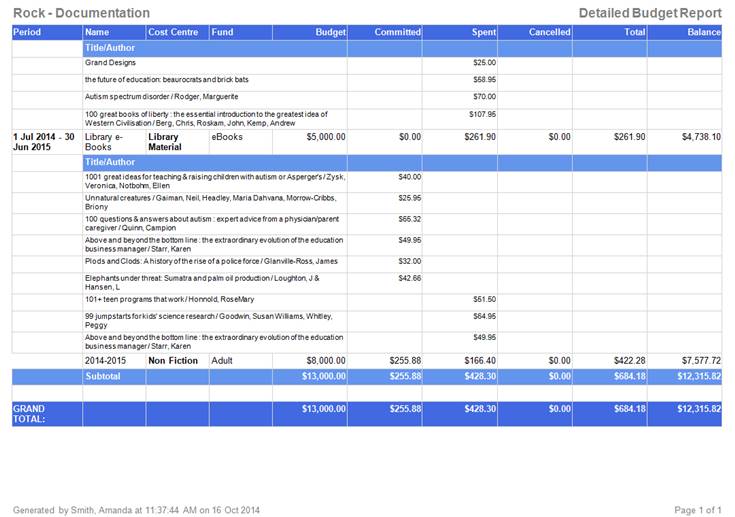
This report includes all of the information noted on the Full Budget report but it also includes each of the titles ordered against each budget.
The report also includes a date and time stamp, the name of the logged in user who ran the report and the page number.
Full Budget by Cost Center
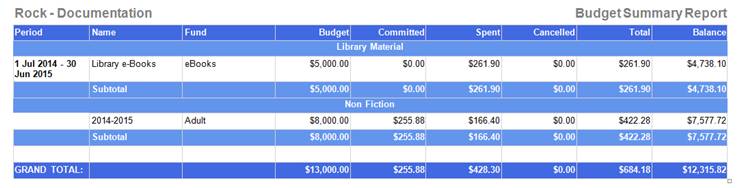
This report groups the period, budgets’ names, associated fund, budgets, amounts, committed amounts, spent amounts, canceled amounts, the total and balance for each Cost Center.
The report also includes a date and time stamp, the name of the logged in user who ran the report and the page number.
Full Budget by Cost Center (Detailed)
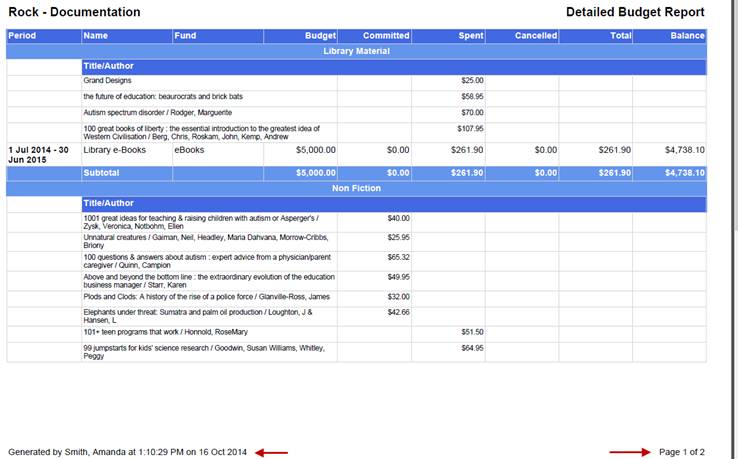
This report includes the ordered titles per Cost Center as well as the information as the Full Budget by Cost Center.
The report also includes a date and time stamp, the name of the logged in user who ran the report and the page number.
Was this article helpful?
That’s Great!
Thank you for your feedback
Sorry! We couldn't be helpful
Thank you for your feedback
Feedback sent
We appreciate your effort and will try to fix the article