Summary
If you are logged in to MackinVision and have the required permissions, you can renew checkouts by clicking in the My Library button and then selecting the Checkouts tab. This guide will show you the steps you need to take to renew one or more of your checkouts in STAR.
Renew Checkouts in STAR
1. Click on the My Library button to open your library information and personal settings.
2. In the My Library screen, click on the Checkouts (x) tab. The number in brackets tells you how many checkouts you currently have.
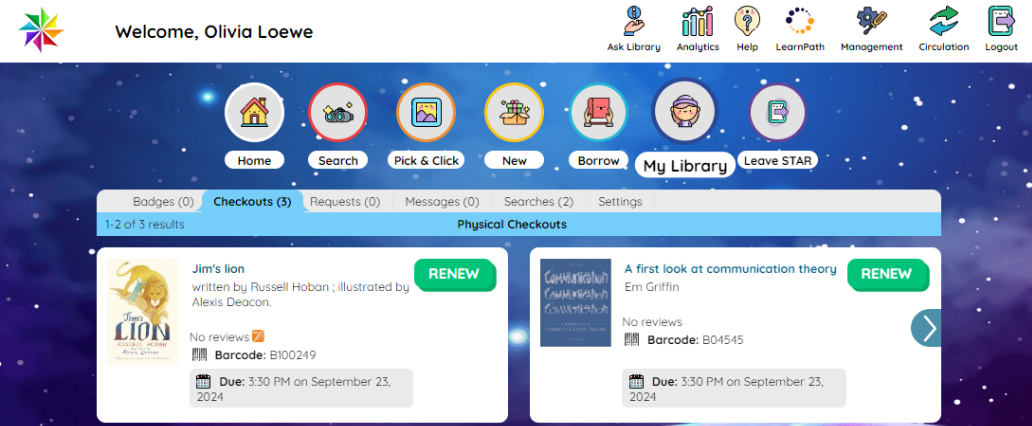
Your checkouts will be listed. The checkouts will show two at a time. If you have more than two checkouts, arrow buttons will appear for scrolling through your checkouts.
A Renew button will display against each checkout that can be renewed.

Note: If there is no Renew button, then you may have reached the maximum number of times that you are permitted to renew the item.
3. Click the Renew button for the checkout you want to renew, and the due date will then update according to the lending rule associated with the item.
Was this article helpful?
That’s Great!
Thank you for your feedback
Sorry! We couldn't be helpful
Thank you for your feedback
Feedback sent
We appreciate your effort and will try to fix the article