Summary
If the Rating and Reviews functionality is implemented and it is library policy that all reviews created are moderated, that is, must be approved before making those reviews available for reading, in the Search interface, the Approval process must be completed. The process enables staff with commensurate User Privileges, to Edit, Approve or Delete reviews created by logged in Users.
Access a Review to be Approved (moderated) via the Alerts Panel
The example provided to access a review awaiting Approval uses the xx book reviews require moderation link in the Alerts panel on the Cataloging Home screen:
- Navigate to Cataloging > Home and locate the book review requires moderation option in the Alerts panel.
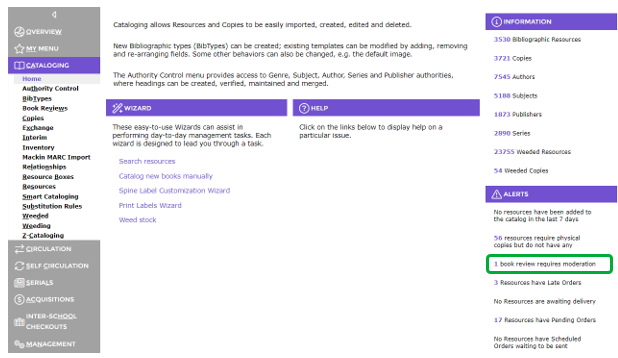
2. The option will only appear if there are any reviews to moderate. The purple number preceding the option indicates how many are awaiting moderation (purple indicates that it is a link).
3. Click the number link to display the reviews to be moderated in the Book Reviews > List screen.
4. Click on the red number corresponding to the review you wish to moderate. The number link is in the No. column.

5. The Book Reviews > Detail screen will display.
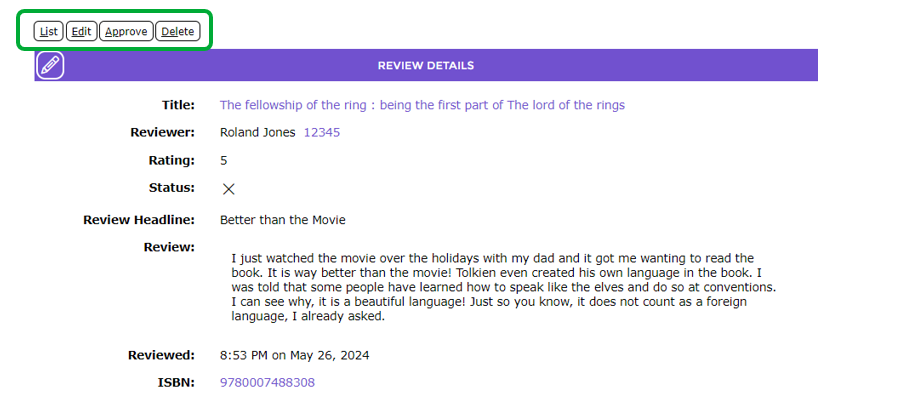
There are several function link buttons available on the Detail screen:
- Edit
- Approve
- Delete
- List
Edit a Review
A review may need to be edited by staff before being approved. For example, there may be typing errors or unacceptable terminology.
- In the Detail screen example below there is a “typo” which will be corrected.
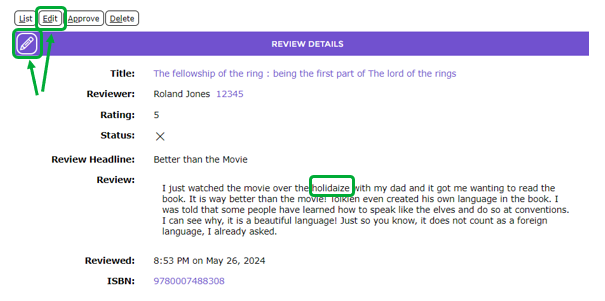
2. Click the Edit link button to move to the Book Reviews > Edit screen.
3. Once any edits have been completed click the Save button.  The edits will be saved and the staff member is returned to the Book Reviews > Detail screen.
4. Once the review has been edited the review can be approved.
Approve a Review
Once any required editing has been completed the review will then need to be completed before becoming available for viewing by others in the Search interface.
- Click the Approve link button.
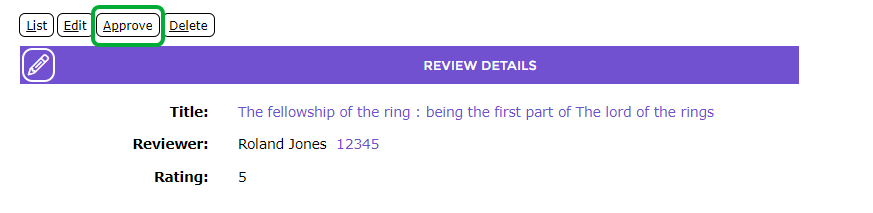
2. The Details screen will be refreshed.
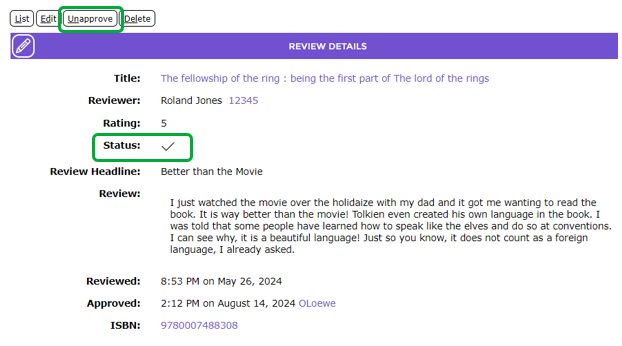
3. The following changes to the screen will be evident:
- The Approve link button has changed to Unapproved. If a review has been inadvertently approved it can then be “unapproved” by clicking on this link button.
- The Status field now has an icon with a Check where previously a red icon with a Cross displayed.
- The Approved field containing the Time, Date and who approved the review information will display.
4. The Next arrow can be clicked to access the next review awaiting approval and the Approve process as explained above can be completed.
Once a review has been approved a message informing the patron, who created the review, that it has been approve is automatically sent to the patron’s Messages option in the My Portal section accessed via the Search interface.
The patron can delete the message once it has been read.
If the title is subsequently returned in a Search Results List, it will include a Stars icon which is a link. Other Users can click on the Stars link to read any existing, approved reviews and have the option to add a review themselves if they are permitted to.
Reviews Link on Patron Records
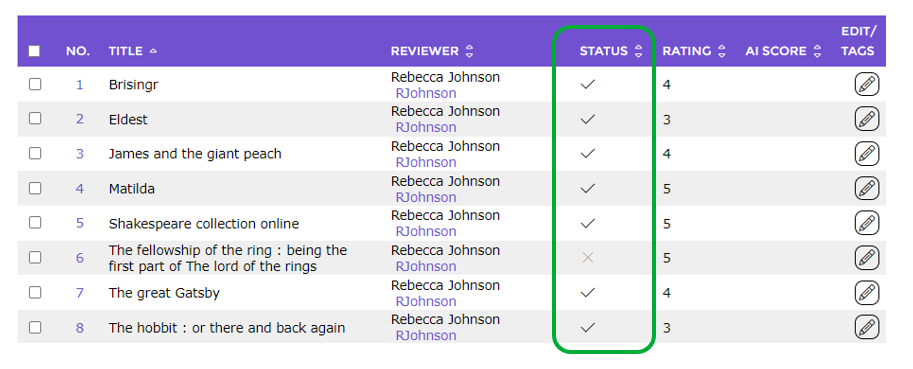
Any reviews the patron has completed, approved or unapproved, can be located by clicking the Reviews button link on the Patron record.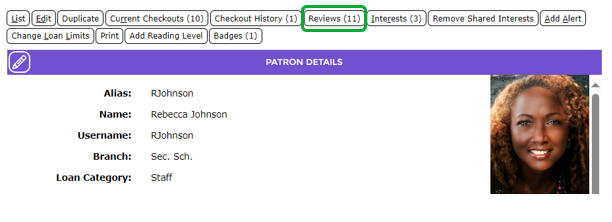
Approved reviews are indicated by a Check, unapproved reviews will display a Cross.
Access Reviews Awaiting Moderation via Cataloging Book Reviews Option
Reviews awaiting moderation can also be accessed via Cataloging > Book Reviews.
Clicking on Book Reviews displays the List screen containing all the unapproved Reviews.

Once the staff member hs accessed the review Detail screen the processes for editing, approving or deleting via this option is the same as that for reviews awaiting moderation accessed via the Alert panel on the Home page.
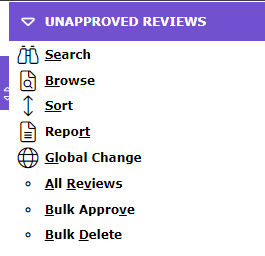
Unapproved Function Menu Option
The Unapproved Function menu option is available on the Book Reviews List and the Detail screen of a review currently undergoing approval. Once the review has been approved users can click on the Browse option to return to the list of reviews awaiting Approval.
The processes for editing, approving or deleting via this option is the same as that for reviews awaiting moderation accessed via the Alert panel on the Home page. Irrespective of how the Book Reviews Detail screen is accessed the process to Edit or Approve a review is the same.
Was this article helpful?
That’s Great!
Thank you for your feedback
Sorry! We couldn't be helpful
Thank you for your feedback
Feedback sent
We appreciate your effort and will try to fix the article