Summary
A Resource Loan Category (RLC) cannot be deleted if it is in use on Copies, both current and archived, Lending Rules or Serial Subscriptions.
This guide will provide the steps required to delete an RLC. A separate guide provides the steps required to set up Lending Rules, within which, information on how to create RLCs is included.
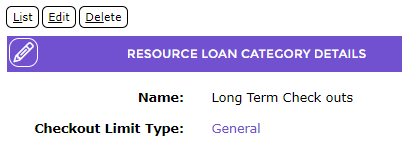
Delete Button on an RLC Detail Screen
If a Delete button does not display on the RLC it is because it is currently in use.
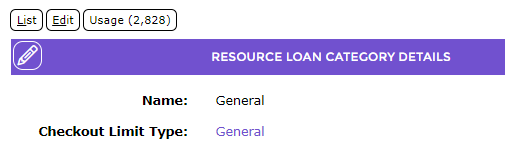
Current and archived records that have the RLC selected, must be identified and tied to a different RLC. For current copies, this can be done by searching for the relevant copies and completing an exchange process for example.
RLCs not currently selected on any copy records will display a Delete link button.
Delete a Currently Used RLC
- Navigate to the Detail page of the RLC that is to be deleted, and click the Usage button.
- Click on Copies to view all existing copies with this RLC.
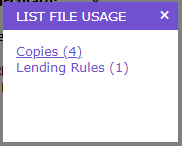
- The Copies > List screen will display. If there are any copies tied to the RLC, they will be included in this screen.
- If there are copies with the applicable RLC then navigate to click on the Global Change icon.

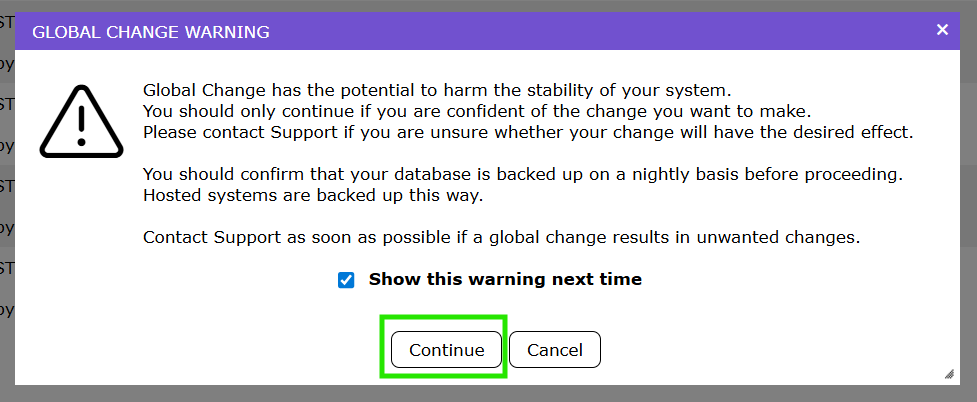
- The Global change warning screen will pop up, click continue.
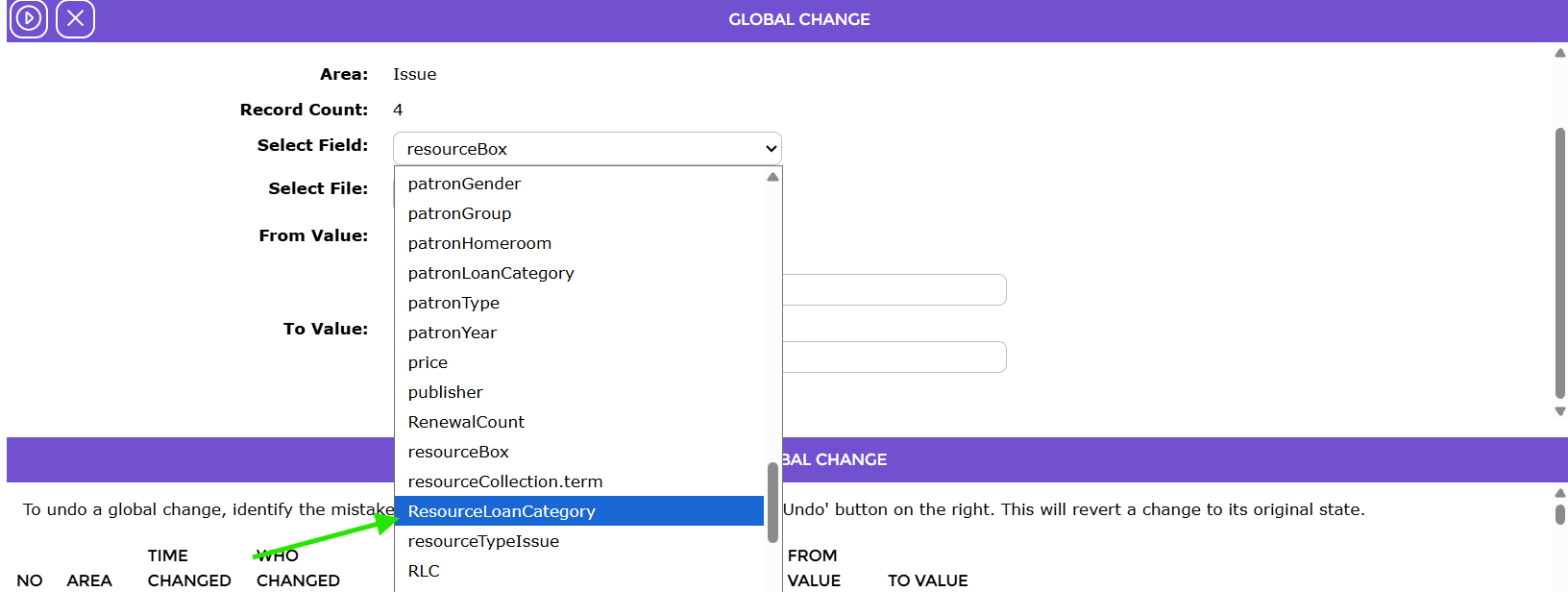
- On the Global Change screen, select ResourceLoanCatagory in the select field drop down box.
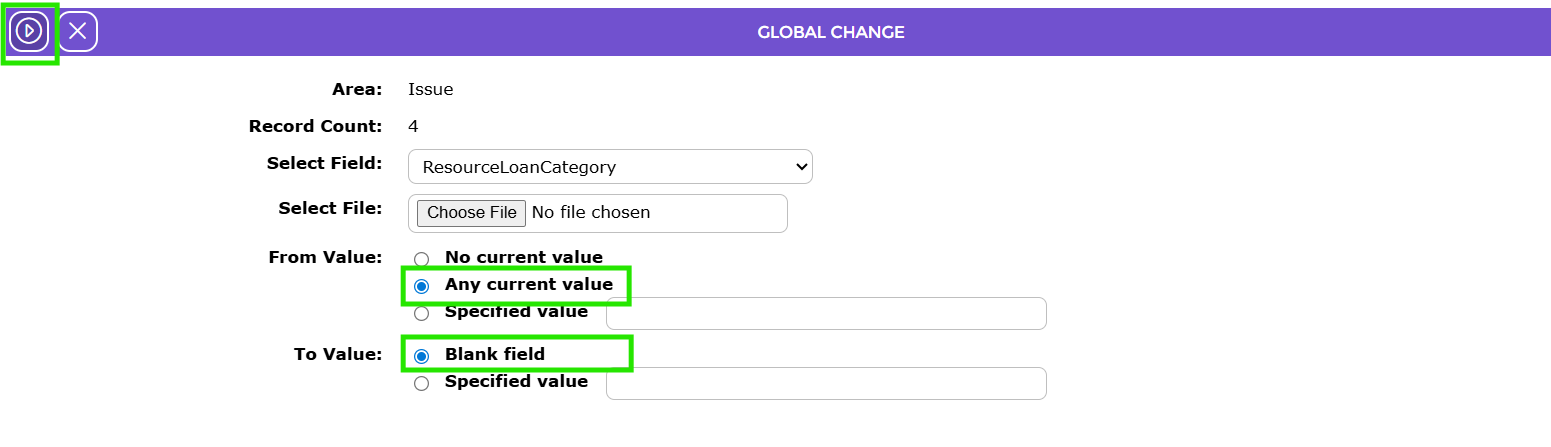
- In the From Value field select the Any Current Value button. In the To Value field select the Blank Field button.
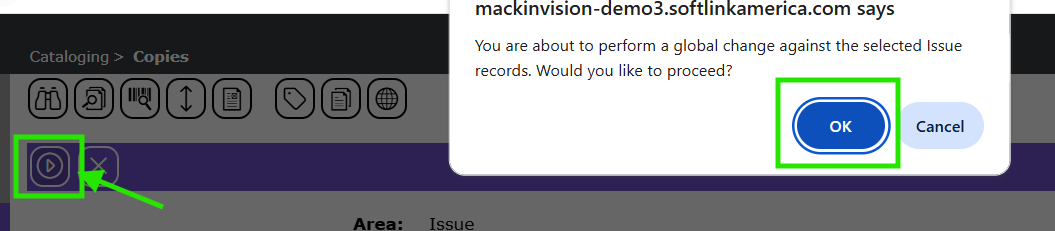
- Click the Go/Play icon, then click 'ok.'
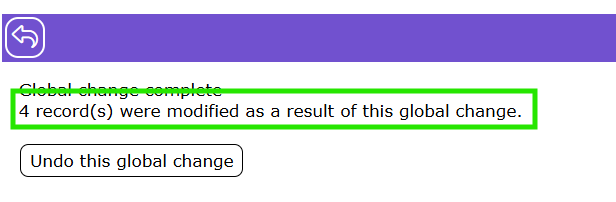
- The next screen shows confirmation of how many copies this change was applied to.
- Navigate back to Circulation > Lending Rules.
- Locate the RLC in the Lending Rules matrix. A green cell indicates RLCs with established Checkout Periods. The cell includes the lending information applicable to the RLC and corresponding PLC.
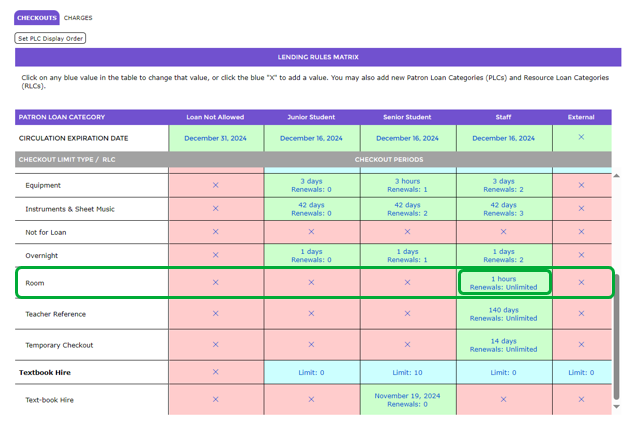
- To remove any established Checkout Periods relating to the RLC click on the cell to access the checkout period settings popup screen.
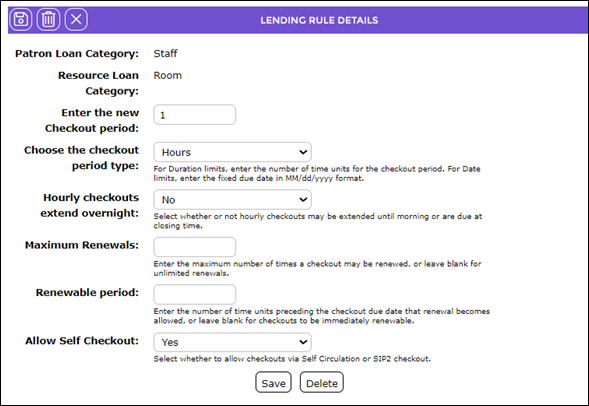
- Click the Delete button.
- The Confirmation popup message will display. Click OK.

- The cell is now red and contains no checkout period information.
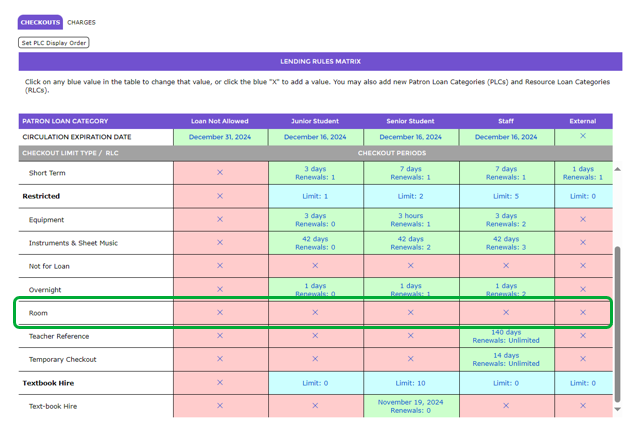
- If there are any other green (checkout period) cells corresponding to the RLC repeat steps 9-11 to delete them.
- Navigate to the RLC’s Detail screen once any established checkout periods have been deleted and if the Delete button is available just click to delete the RLC.
- If the Delete button does not appear, it is likely that the RLC is tied to either one or more Serial issues or archived copies.
Check Serial Copy Assignment Details
- Navigate to the Detail page of the RLC to be deleted, and click on the Usage button.
- Click on Subscriptions to view the subscriptions tied to this RLC.
- A list of subscriptions with the RLC will display. Click on the Edit icon for each subscription.
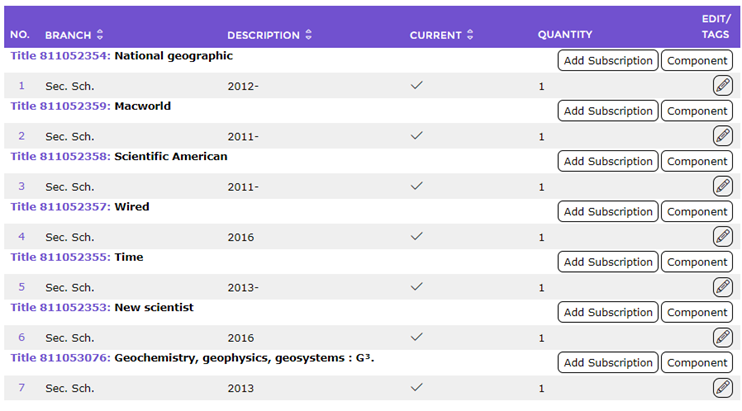
- Check the Copy Assignment section to identify whether the RLC is allocated to any copies.
- Highlight the copy with the RLC to be deleted.
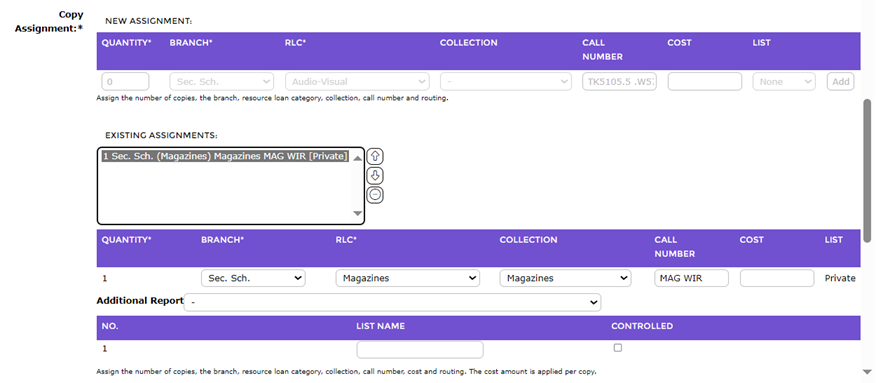
- Click the Delete button to remove the assigned copy.
- Complete the relevant fields again in the Copy Assignment section ensuring that a different RLC is selected.
- Click the Add button.
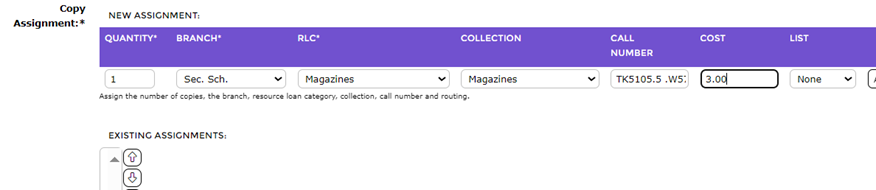
- Click the Save button once any copy requiring a change of RLC is completed.
- Navigate to the next Title subscription and check the RLC assigned to its copies. If there are such copies complete steps 1-6 to change the RLC.
- Repeat steps 2-7 for every copy assigned with that RLC.
- Check that the Delete button now displays on the RLC’s Detail screen.
- Click the Delete button.
Was this article helpful?
That’s Great!
Thank you for your feedback
Sorry! We couldn't be helpful
Thank you for your feedback
Feedback sent
We appreciate your effort and will try to fix the article