Smart Cataloging’s main goal is to streamline library cataloging by automating resource lookup and simplifying the addition of multiple copies.
Overview
The Smart Cataloging functionality streamlines the process of cataloging to improve workflow while retaining maximal flexibility. A basic rundown of the flow for the cataloging process using the Smart Cataloging functionality is as follows:
- Scan the ISBN barcode.
- Scan the Copy barcode.
- Select the Copy settings.
- Save the Resource and Copy Records.
Smart Cataloging is most efficient if the books being accessioned are grouped into copies of the same title where a title has multiple copies. Sorting the books in this way will minimize the number of times you need to change the Copy details during the cataloging process.
How to Smart Catalog
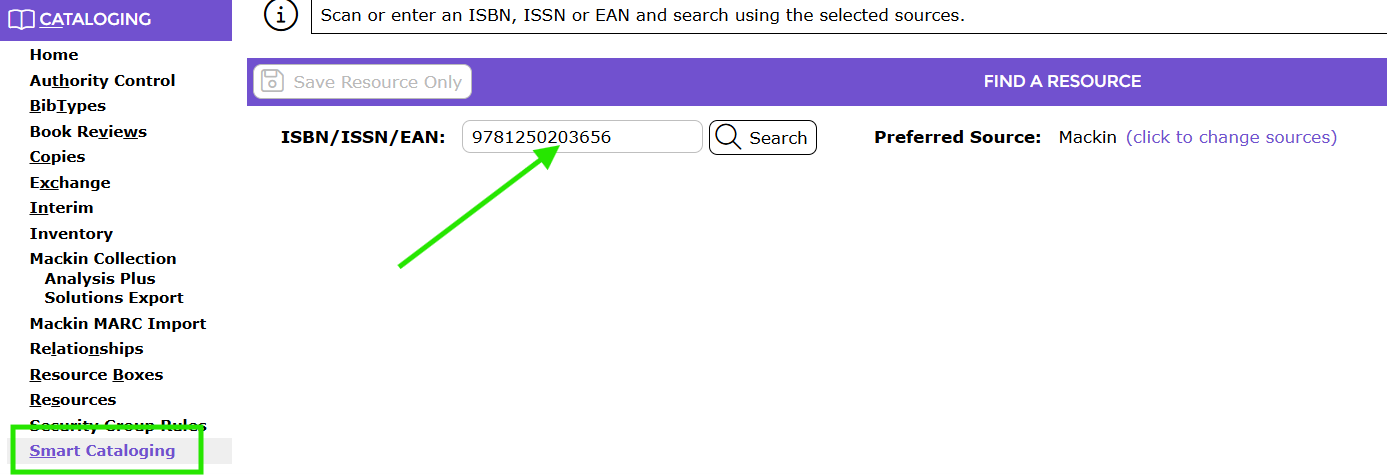
- Navigate to Cataloging > Smart Cataloging
- Scan the ISBN barcode from the book cover.
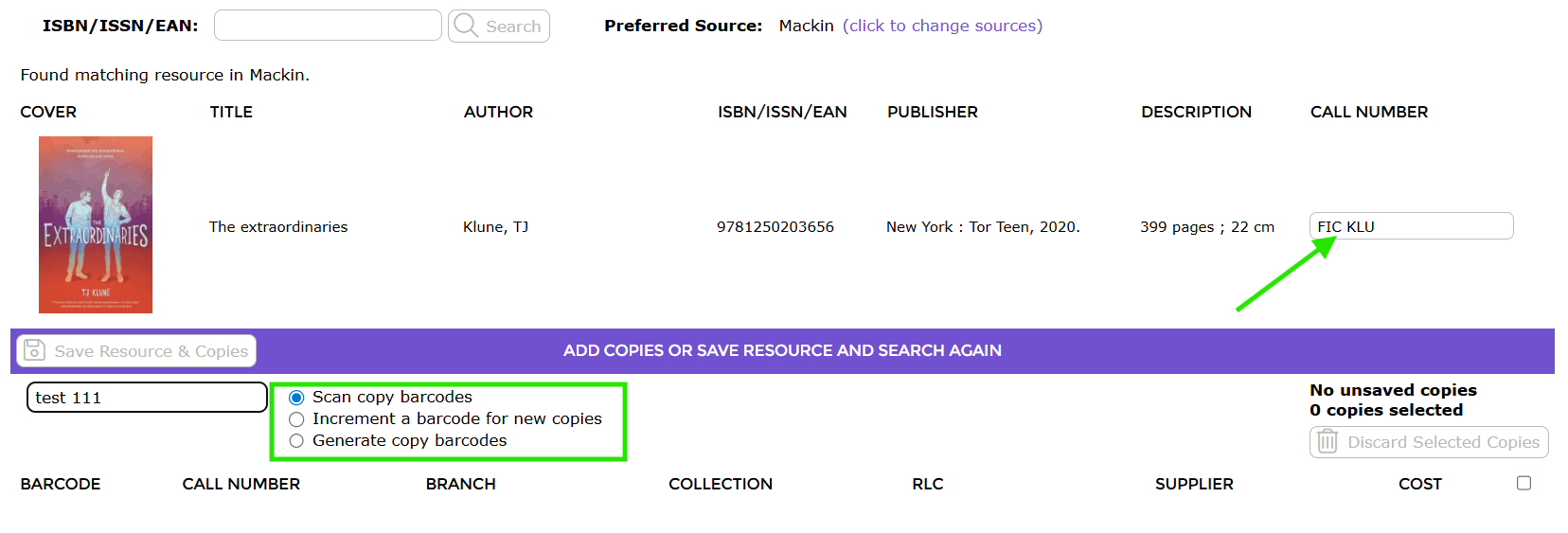
- Edit the resource call number. (Optional)
- Scan the library Copy barcode for one of the copies. If you do not yet have barcodes for the copies and would prefer that the system generate barcodes for you, then select either of the following options instead:
- Increment a barcode for new copies – enter the first barcode for the resource’s copies. The subsequent barcodes will increment by 1 from there.
- Generate copy barcodes – the system will generate the next available barcode.
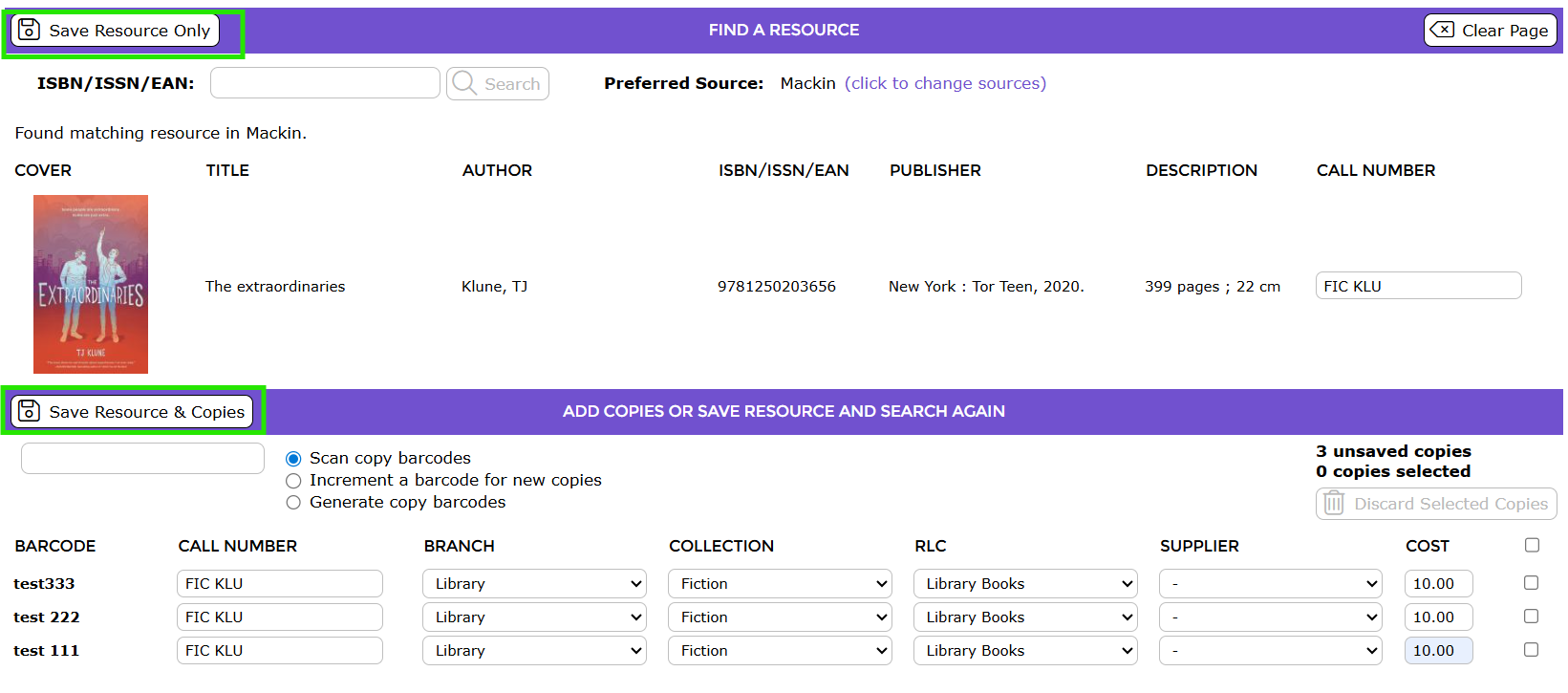
- Configure the settings for the copies. The default fields available are:
- Call Number
- Branch
- Collection
- Resource Loan Category (RLC)
- Copy ID
- Supplier
- Cost

- If you have more copies of the same title, scan the copy barcode for each of the copies (or click the Increment or Generate buttons if you instead opted to have the system generate the barcodes using one of these methods). The copy settings of the last copy entered will be duplicated for the next Copy.
- When all copies for the current title have been accessioned, either click the mouse cursor in the ISBN/ISSNfield and scan the ISBN barcode for the next title you want to catalog or click one of the following Save buttons to complete cataloging process:
- Save Resource & Copies – if you have cataloged a new resource and its copy/copies.
- Save Copies – if you have accessioned a new copy or copies for a title that already existed in your catalog.
- Save Resource Only – if you have cataloged the resource title only do not yet want to catalog its copy/copies.
- The following screen will confirm your copies and resources have been cataloged. To print labels for these books immediately, click on Print Item Labels.

Was this article helpful?
That’s Great!
Thank you for your feedback
Sorry! We couldn't be helpful
Thank you for your feedback
Feedback sent
We appreciate your effort and will try to fix the article