Summary
Federated Search is available as a search type in the Search interface. All available search sources, including databases and library catalogs in the Federated Search screen, can be searched simultaneously if a check displays in their corresponding checkbox.
This guide will provide the steps required to search using the Federated Search option. Separate guides provide the steps to complete other types of searches.
How to Complete a Federated Search
- Click on the down arrow at the end of the search type field to the right and click on Change Search Sources.
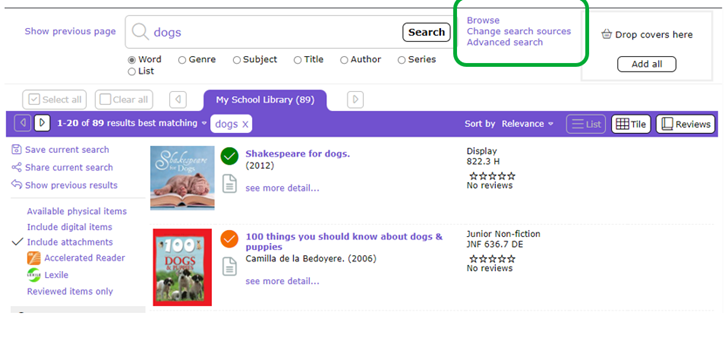
- All of the databases on which you can search will display.
- In the Search interface, enter the term you wish to search on, for example dogs, in the Search other sources for … field.
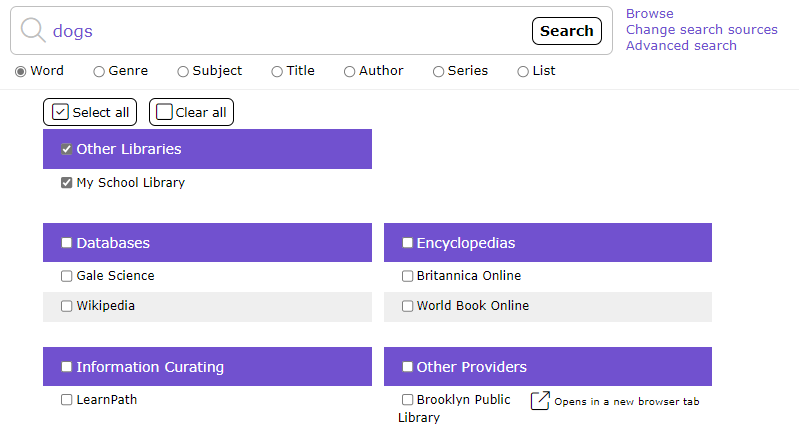
- Search sources may display under Group Headings, for example, Other Libraries, Databases, and Encyclopedias in your library’s Federated Search screen. If all of the sources in that group include a check in their corresponding checkbox there will also be a check in the checkbox next to the Groups Heading.
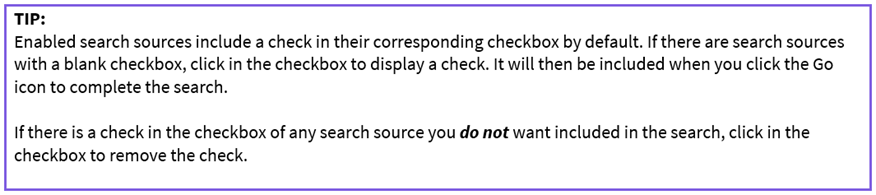
- Click the Search button and all enabled options will be searched simultaneously.
- A screen identifying all of the databases that are currently being search will display.
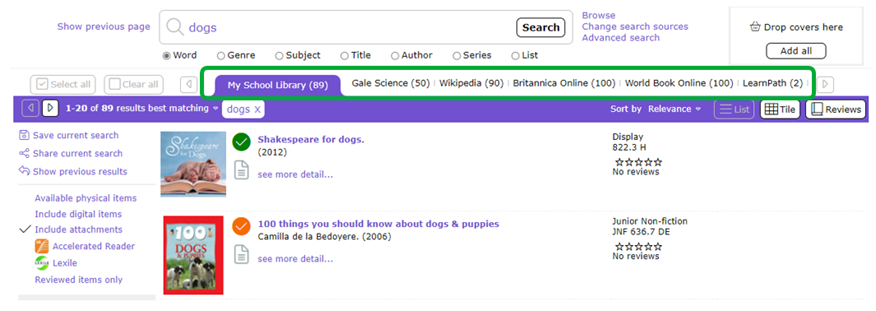
- The screen will then refresh and display any results returned from each database. The databases will list according to their order on the Federated Search screen.
- Any search sources for which there are no results will include (0 Results) after their name.
- Each of the sources searched, for which there are results, will include the name of the source and the number of results, for example Gale Science (50 Results).
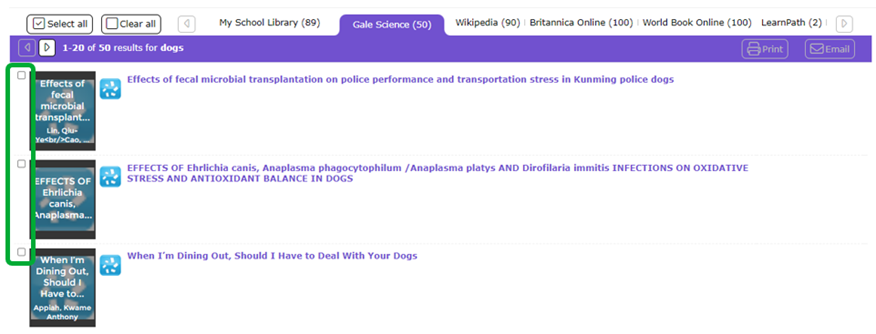
- Each title returned for options that returned results will include a checkbox.
- Click in the checkbox corresponding to the title/s you want included in an email or print list for example.
How to Use the Select All and Clear All Links in the Federated Search Screen
The Federated Search screen includes a Select All and a Clear All link.
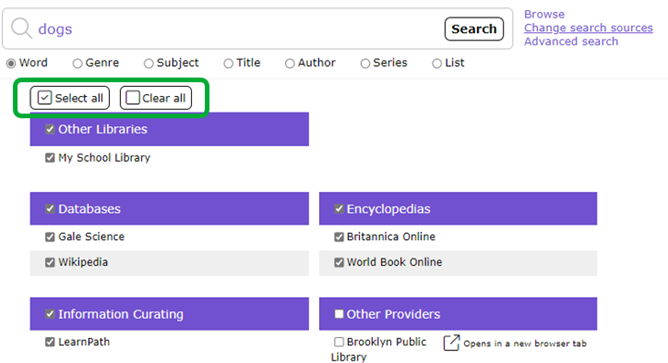
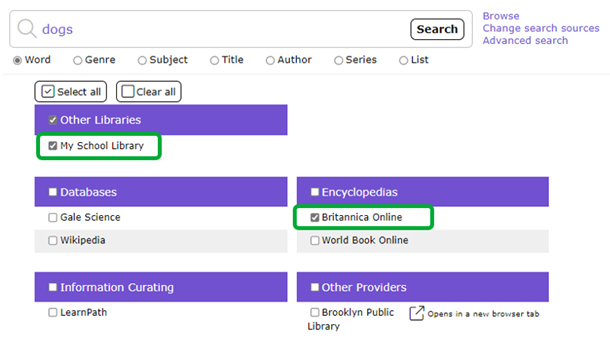
- To search using one or two search sources click on the Clear All link.
- The ticks are removed from every checkbox in the Federated Search screen.
- Click in the checkbox next to the sources you do want to search on, for example next to My School Library and Britannica Online.
Was this article helpful?
That’s Great!
Thank you for your feedback
Sorry! We couldn't be helpful
Thank you for your feedback
Feedback sent
We appreciate your effort and will try to fix the article