Summary
Many of the Circulation Desk functions have a corresponding code that can be scanned from the Control Card. A wizard on the Circulation Home Page enables the user to open and print out one or more copies of the Control Card, which can be placed next to check in and checkout machines. Staff will then scan the relevant function to access the applicable screen, for example, Checkouts or Returns, and scan Patrons’ items.
To Access the Control Card
1. Navigate to Circulation > Home and locate the Print Circulation Control Card link in the Wizard panel.
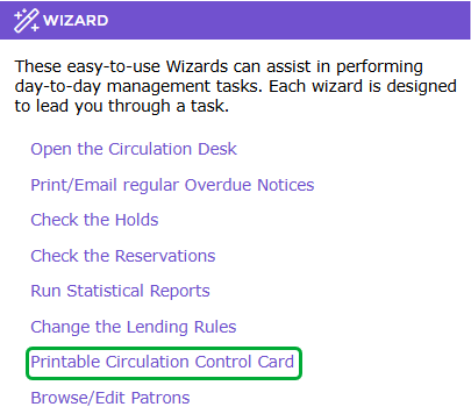
2. Click on the link to access the Printable Circulation Control Card link.
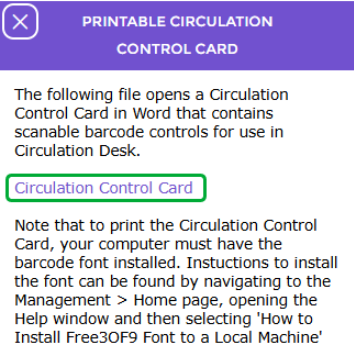
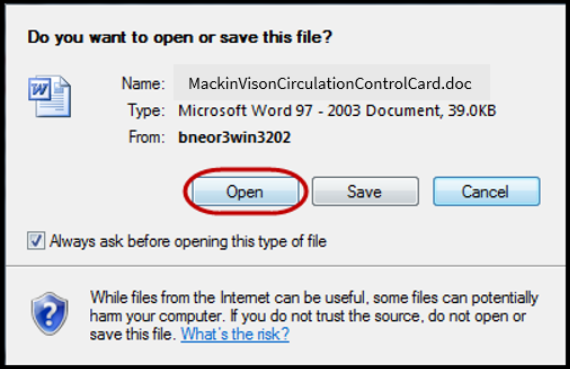
3. Click on the Circulation Control Card link and the Print popup screen will display. It provides three options, Open, Save, and Cancel.
4. As a printed Control Card is required, click Open.
5. The Circulation Control Card will be displayed. Each function on the “card” has a corresponding, scannable barcode.
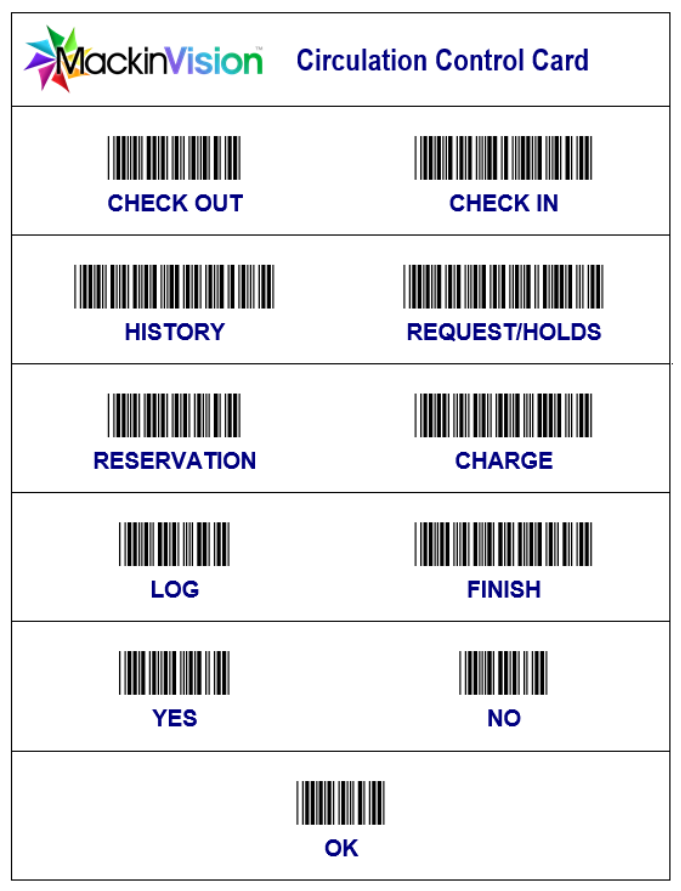
6. Print the number of Circulation Control Cards you require.
The “card” can be placed next to all Circulation Desk computers. Staff members can then scan the applicable barcode to access the required Circulation Desk function.
TIP:
Typing the term, for example History or OK, in the Circulation Desk entry field will also open the applicable tab or complete the function.
Was this article helpful?
That’s Great!
Thank you for your feedback
Sorry! We couldn't be helpful
Thank you for your feedback
Feedback sent
We appreciate your effort and will try to fix the article